

At a glance
- Email settings shows your whole email setup at a glance, in four numbered steps.
- Add a part of your domain kept for this, like mail.yourcompany.com.
- Copy each record to your DNS host. Moirova looks each one up and says if it is found, different or missing.
- Choose Check now once. Resend then keeps checking by itself.
Before you start
- Who does it
- A workspace admin.
- Where it is
- Admin, then Email settings, step 2: Your domain.
- What you need
- A sign-in at the company that runs your domain's DNS - often the place you bought the domain.
See where your email setup stands
Email settings opens with a summary of the four things your workspace needs. Choose one to go straight to its step.


- Mark 1: Email service - the account that sends your quotations and invoices.
- Mark 2: Your domain - the subject of this guide.
- Mark 3: Sender addresses - the name and address your clients see.
- Mark 4: Replies into the CRM - comes on once your domain's reply record is verified.
Add your domain
- Choose the domain. Use a part of your domain that no other email service uses, like mail.yourcompany.com or crm.yourcompany.com. Your everyday mailboxes keep working.
- Add it. In step 2, Your domain, enter it and choose Add domain. Moirova sets it up at Resend and shows the records to add.
- Copy the records to your DNS host. For each record, copy the Name and the Value with their Copy buttons and add a record of the same type at your DNS host. Copy the long signature key in full.
- Choose Check now. Resend starts checking. The page looks again by itself every 20 seconds for a few minutes, and you can leave it - Resend keeps checking for up to 72 hours.
Important
Enter the Name exactly as Moirova shows it. Your DNS host adds your main domain by itself, so the name for mail.yourcompany.com is often just send.mail, not the full name.
Read what each record says
Moirova looks each record up in the public DNS the moment you open the page, and shows what Resend has verified.
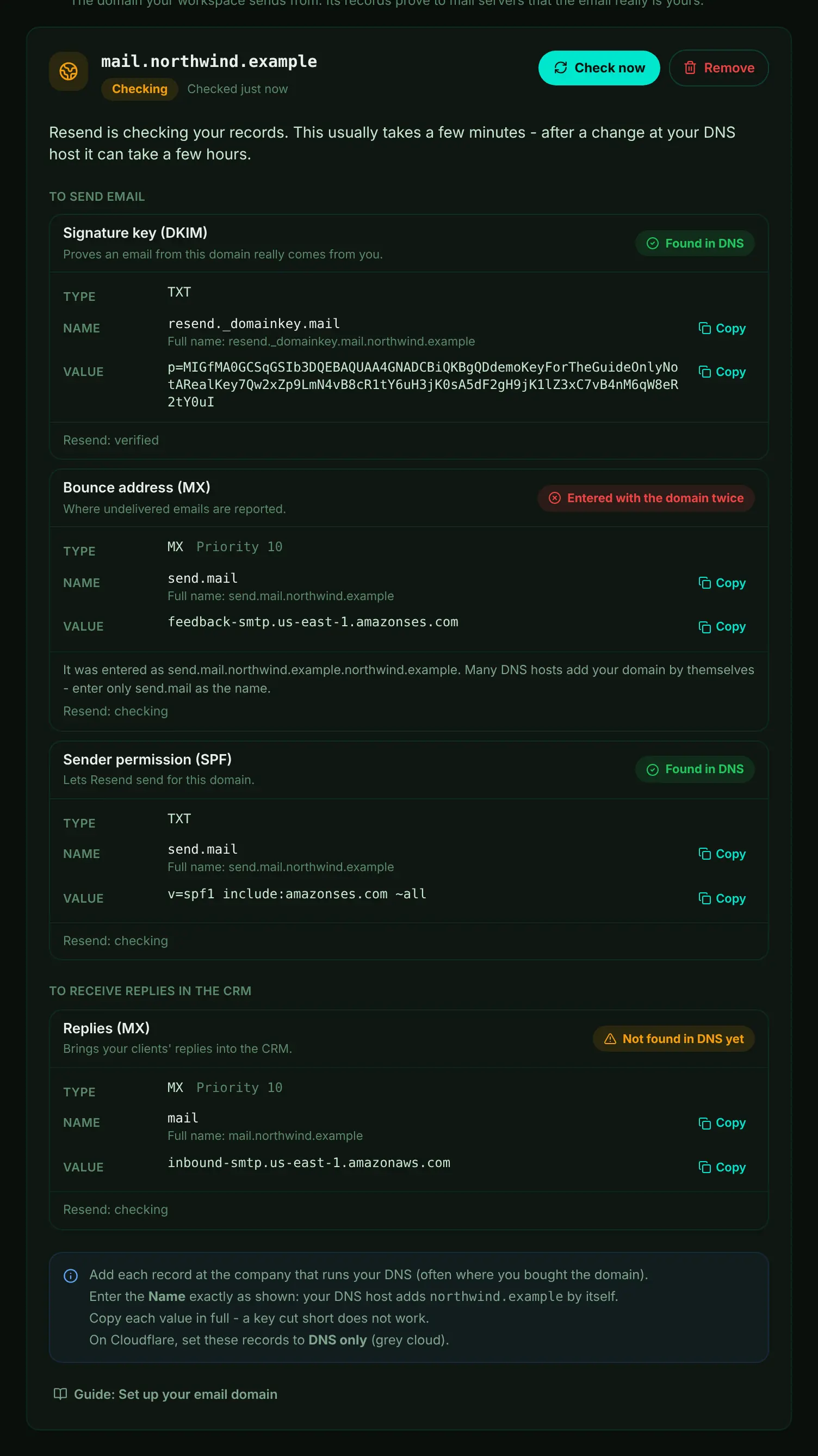
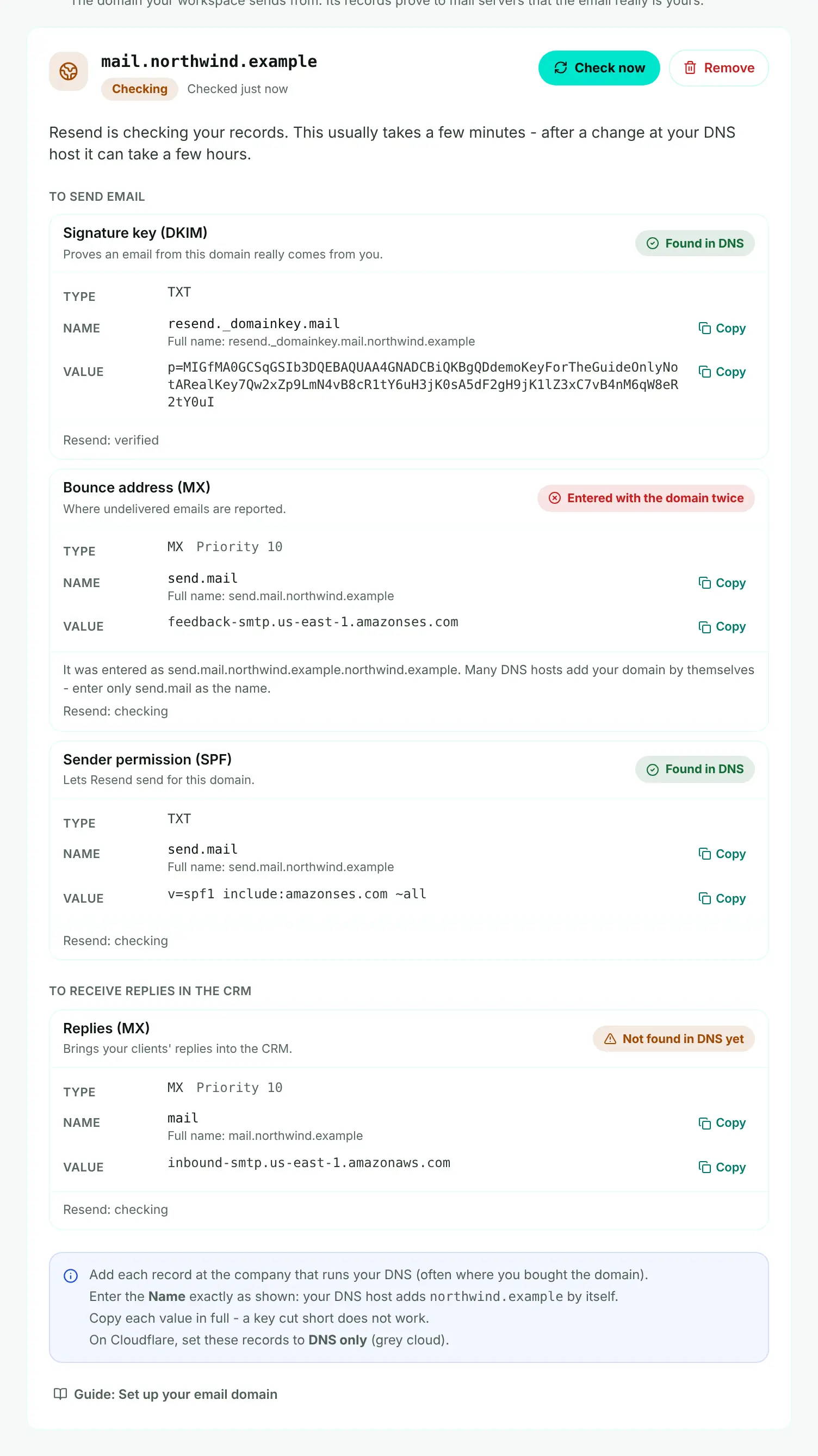
- Mark 1: The domain's status - here Resend is still checking.
- Mark 2: Check now - asks Resend to check again only when it is not already checking, so pressing it never sets you back.
- Mark 3: Entered with the domain twice - the name was typed in full and the DNS host added the domain again. Enter only the short name shown.
- Mark 4: Not found in DNS yet - add this record, or wait a few minutes if you just did.
| What a record says | What to do |
|---|---|
| Found in DNS | Nothing - Resend will verify it. |
| Not found in DNS yet | Add it at your DNS host. A new record can take a few minutes to show. |
| Found, but the value is different | Replace the value with the one shown, in full. The page shows what is there now. |
| Entered with the domain twice | Change the name to the short one shown. |
| Two SPF records at this name | Combine them into one record - only one is allowed. |
| Could not be looked up just now | Choose Check now again in a minute. |
When your domain is ready
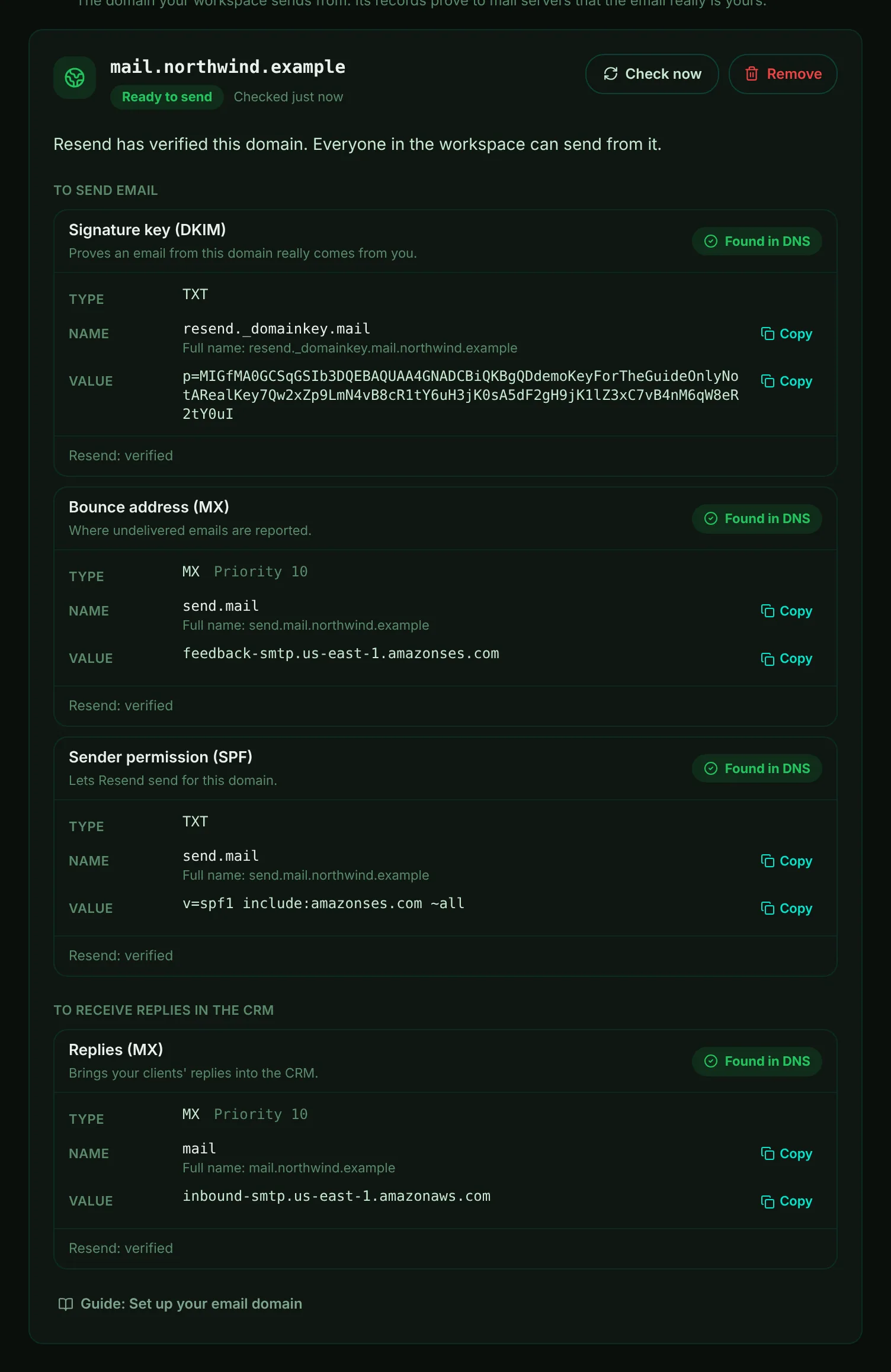
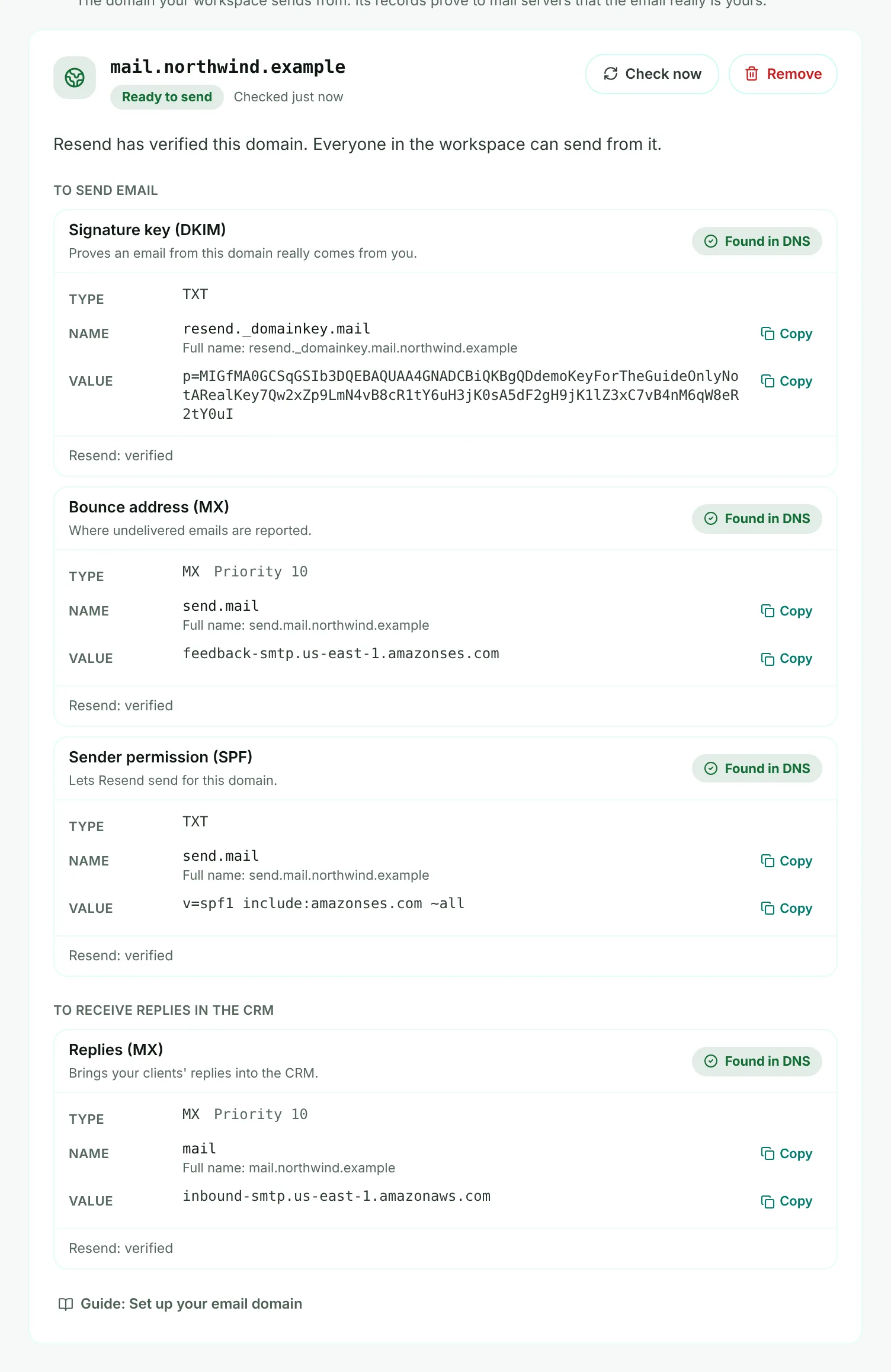
- Mark 1: Ready to send - everyone in the workspace can send from the domain.
Once the reply record is verified too, Replies into the CRM comes on, and a client's reply appears on their page for the whole team.
| Status | What it means |
|---|---|
| Ready to send | Resend verified every record needed to send. |
| Checking | Resend is checking. This usually takes a few minutes. |
| Not checked yet | Add the records, then choose Check now. |
| Needs attention | Resend verified the domain before but cannot see a record now - usually a record that was changed or removed. |
| Not verified | Resend stopped after 72 hours without finding every record. Fix the marked records, then choose Check now. |
If your workspace uses another email service
The steps above are for Resend. With another service connected in step 1, step 2 shows the records that service needs and looks each one up in the public DNS the same way.
| Service | How the domain is set up |
|---|---|
| Brevo, Mailgun | Moirova adds the domain at your service and shows its records. Check now asks the service to confirm them too. |
| Postmark, SendGrid, Amazon SES | Add the domain in your service first. Moirova shows the sender permission and signature records to check, and asks for the signature selector when it cannot find one. |
| Zoho Mail, Google Workspace, another server | Moirova checks the sender permission (SPF), signature (DKIM) and policy (DMARC) records your mail host gives you. When it cannot find the signature key, it shows the keys it does find in your DNS - choose the one your server signs with (on cPanel hosting: default), or type its selector. |
When every record is found, the domain shows Ready to send. Campaigns send from an address of their own - see Set up your main marketing address.