

At a glance
- Choose your email service in Admin, Email settings, step 1, and enter its API key or SMTP sign-in.
- Check and connect checks the key and sends one test email to you. Nothing is saved until that works.
- The key or password is kept in Google Secret Manager, never in the database.
- Paste the bounce and complaint address into your service, so Moirova stops emailing addresses that do not work.
Before you start
- Who does it
- A workspace admin.
- Where it is
- Admin, then Email settings, step 1: Email service.
- What you need
- An account at your email service, and an API key or SMTP sign-in from it. A domain verified there helps - step 2 sets one up.
Choose your service and connect it
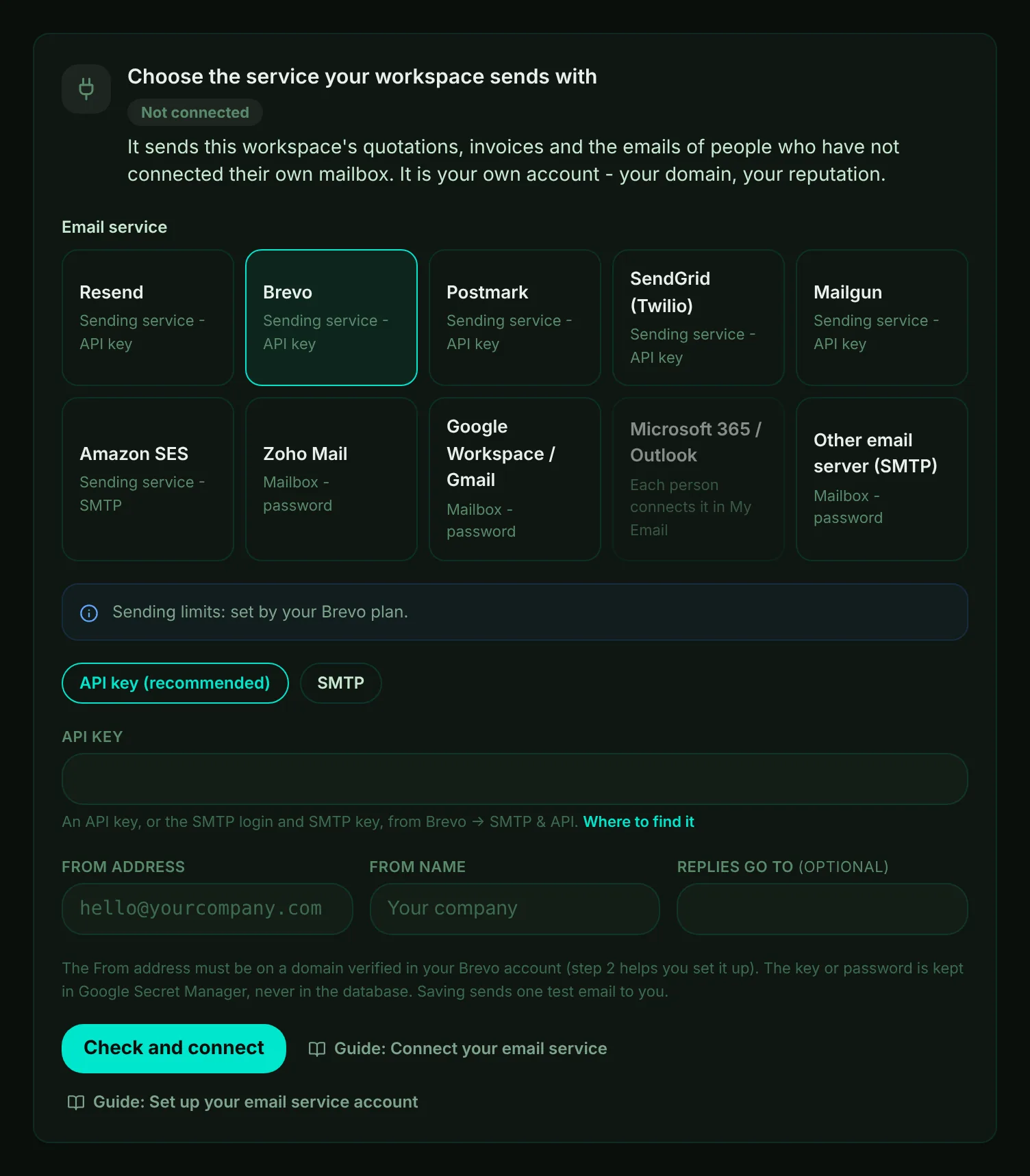
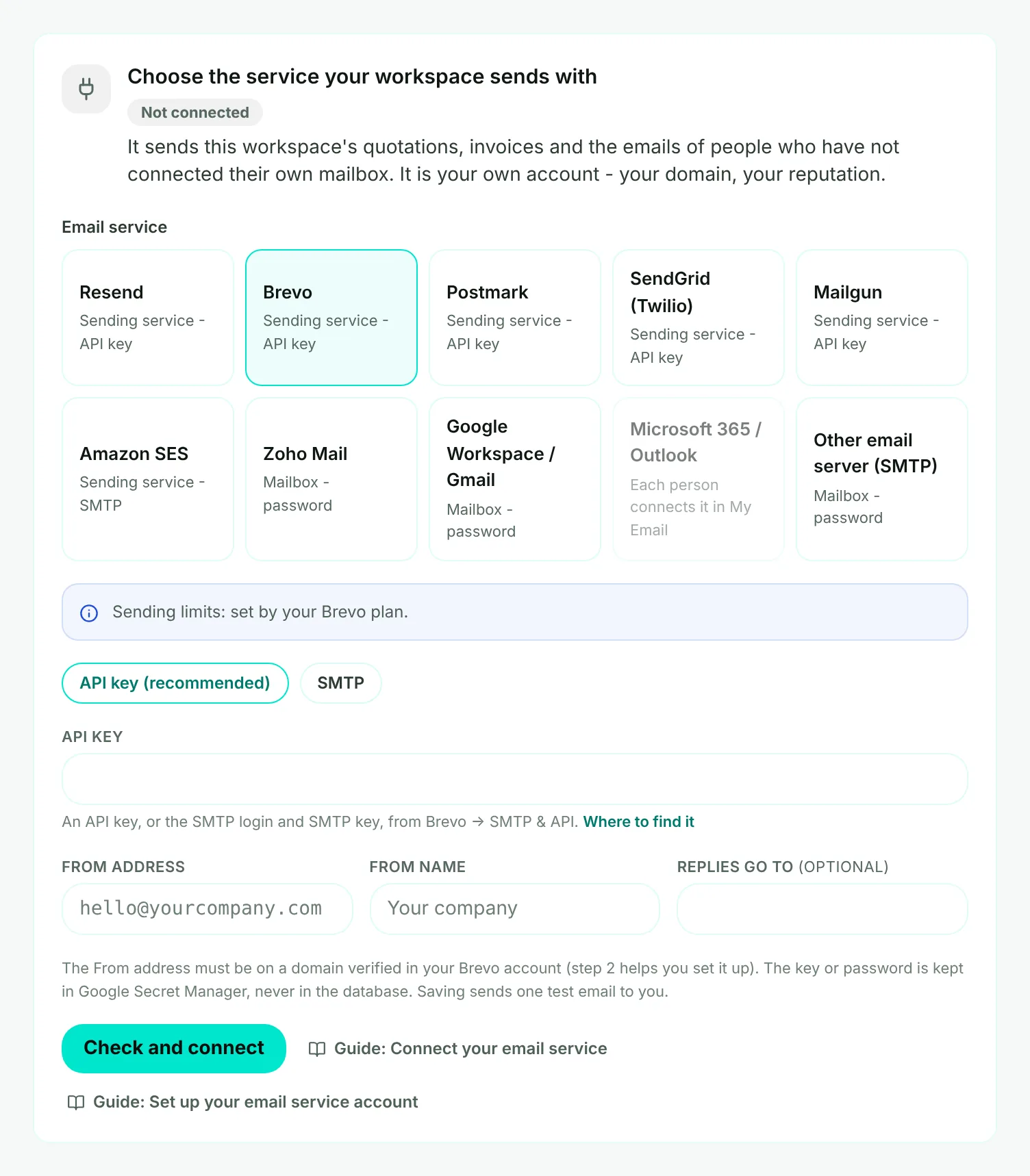
- Mark 1: Your email service. A sending service is made for business and bulk email; a mailbox service (Zoho Mail, Google Workspace) suits a small workspace.
- Mark 2: How to connect - an API key where the service has one (recommended), or SMTP.
- Mark 3: The API key, or the SMTP user name and password. Where to find it opens the page at your service.
- Mark 4: The From address and name your clients see. The address must be on a domain verified at your service.
- Mark 5: Check and connect - checks the key and sends a test email to you.
- Choose your service. Microsoft 365 is not offered here: each person connects their own Microsoft mailbox in My Email.
- Choose the region, if asked. SendGrid and Mailgun keep EU accounts apart, and Amazon SES works per region. Choose the one your account is in.
- Enter the key or sign-in. Create a key at your service just for Moirova, so you can remove it without affecting anything else.
- Enter the From address and name. Add a reply-to address if replies should go somewhere else.
- Choose Check and connect. Moirova checks the key or sign-in with your service, then sends one test email to your own address. Only then is the connection saved.
Tip
If your service accepts the key but has not verified your domain yet, the connection is saved as Connected - domain next. Set up the domain in step 2; emails can be sent once it is verified.
Once it is connected
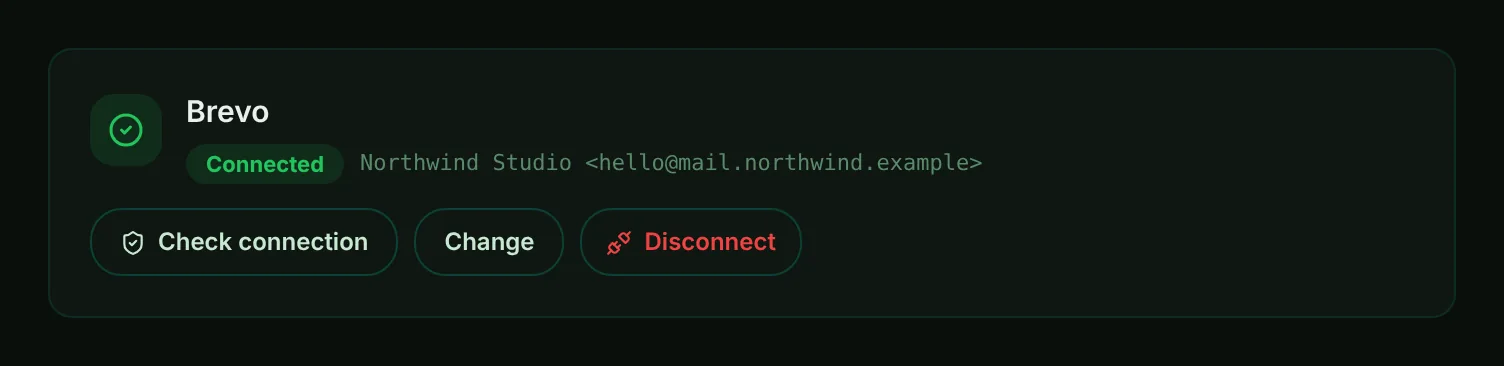
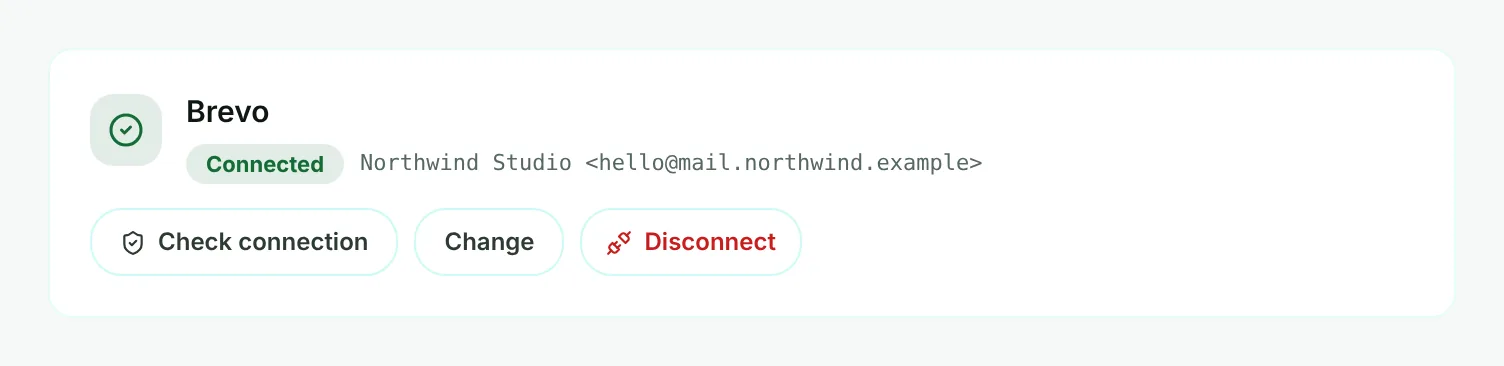
- Mark 1: Connected - the service sends your workspace's email, from the address shown.
- Mark 2: Check connection - tries the key again any time. Change opens the form; Disconnect stops sending through it.
| Status | What it means |
|---|---|
| Connected | The key works and the test email was sent. |
| Connected - domain next | The key works, but the service has not verified your domain. Finish step 2. |
| Not working | The service refused the key or sign-in at the last check. Create a new key and connect again. |
Bounces, complaints and replies
Below the steps, Bounces and complaints shows an address to paste into your service's webhook settings (Brevo, Postmark, SendGrid, Mailgun). Your service then tells Moirova about every bounce and spam complaint, and Moirova stops emailing that address - in every email, quotation, invoice and campaign. Keep the address private: it carries a secret. Make a new one if it was ever shared.
With a service other than Resend, replies come into the CRM through a mailbox. In step 4, Replies into the CRM, choose the mailbox your clients' replies arrive in. Moirova reads it every 5 minutes and keeps only emails from your contacts; bounce reports in it also stop Moirova from emailing that address again.
Tip
Amazon SES reports bounces and complaints through Amazon SNS: subscribe your report address from Email settings, More settings, to an SNS topic - the bounce and complaint guide shows how. Keep the suppression list of your SES account on as well.
Campaigns use your account too
Campaigns and journeys send through your own sending service - Resend, Brevo, Postmark, SendGrid, Mailgun or Amazon SES - never through Moirova's own email account. A mailbox service such as Zoho Mail or Google Workspace does not allow bulk email, so a campaign pauses with a clear reason until a sending service is connected.
Campaigns and journeys send from a main marketing address of their own, kept apart from your invoices and everyday email - see Set up your main marketing address. The Marketing domains add-on adds more domains to send from.