

At a glance
- You can send to a contact, send a quotation or send an invoice, and keep working while it goes.
- A card at the bottom of the screen shows Sending, then Sent, Not sent or Not confirmed.
- The same email is never sent twice, even if you press Send twice or your connection drops.
- An email that may already have arrived is never sent again by itself - you decide.
Before you start
- Who does it
- Anyone who can email the contact. Sending quotations and invoices also needs the right to manage them.
- Where it is
- A contact's page (Send Email, or Reply in a conversation), a quotation (Send to client) or an invoice (Email).
- What you need
- An email address on the contact, quotation or invoice, and your workspace's email set up by an admin.
Send it
- Open the email. On a contact's page choose Send Email, or Reply under a message. On a quotation choose Send to client; on an invoice choose Email.
- Check who it goes to. The address comes from the record. Change it if the person asked you to use another one.
- Write your message. Add a personal message if you like. A quotation carries its PDF and the buttons to accept, decline or ask for changes. An invoice carries its amount due, every payment of its schedule with its due date, the payment terms, your payment instructions and, unless you clear the box, the invoice itself as a PDF.
- Send. The window closes within a second or two. You can open another page or start the next email straight away.
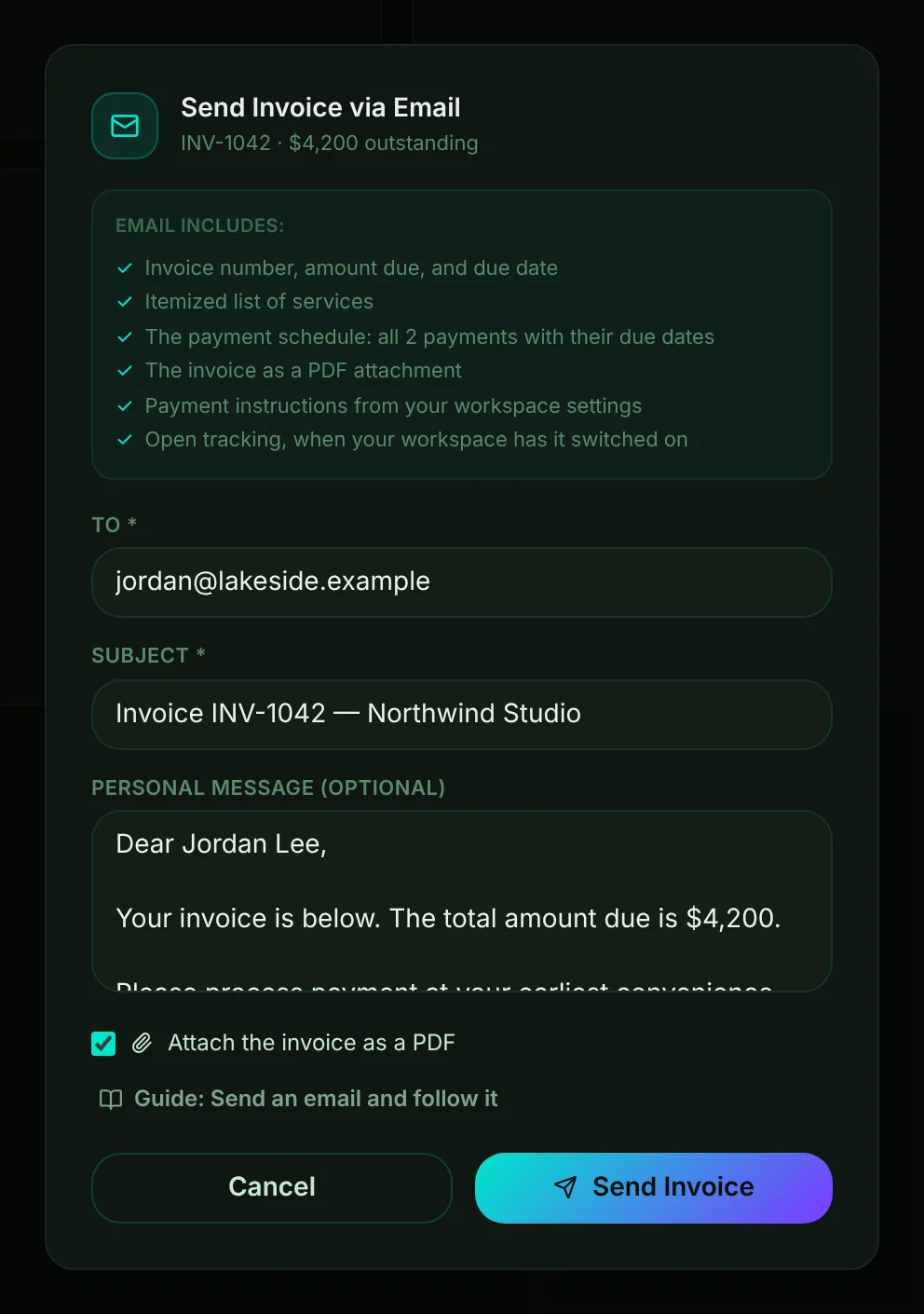
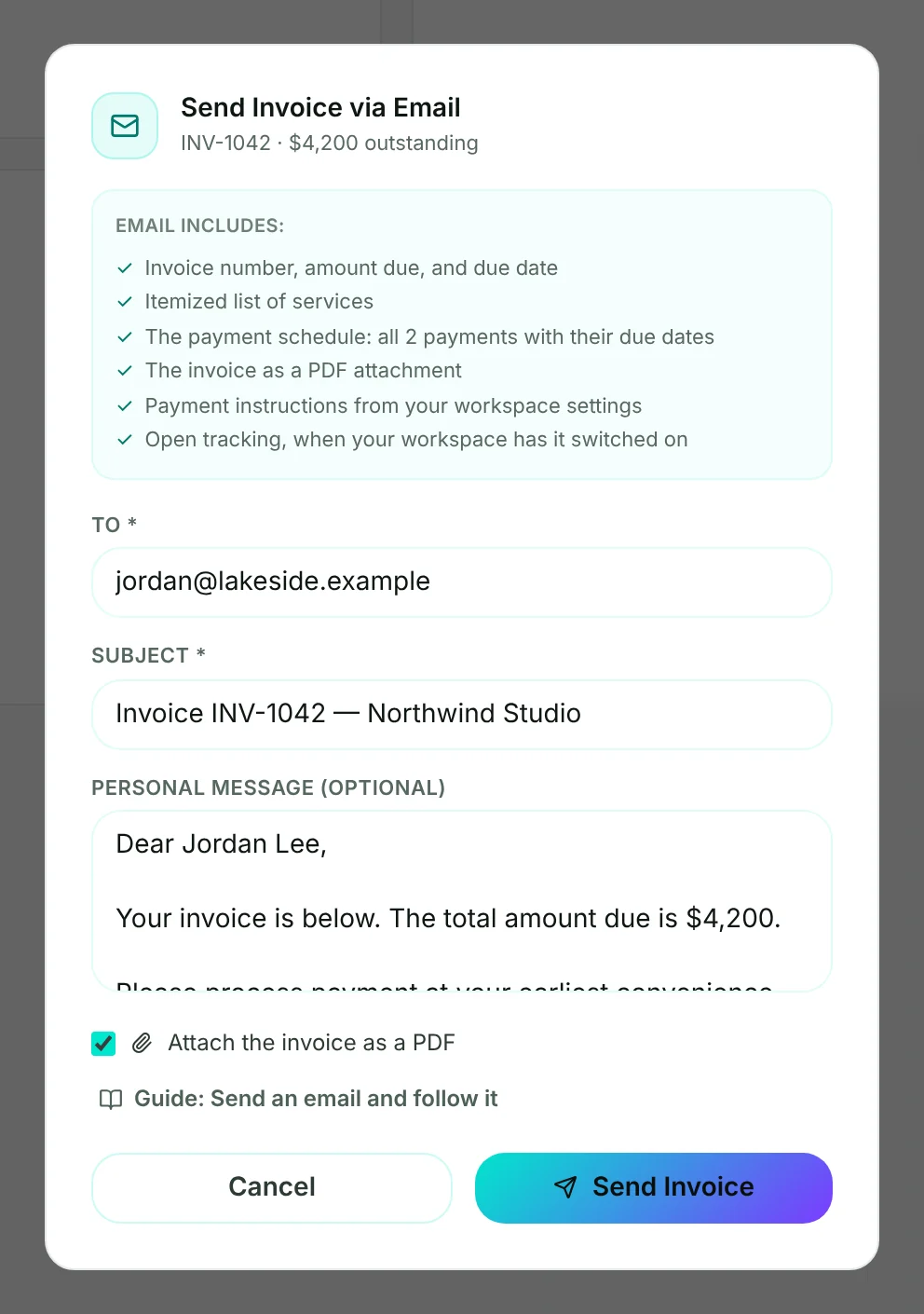
- Mark 1: Who it goes to - taken from the invoice. Change it here if you need to.
- Mark 2: Your personal message, above the invoice details.
- Mark 3: Send Invoice. The window closes and the card at the bottom of the screen takes over.
- Mark 4: Attach the invoice as a PDF - on by default. It is the same PDF as Download PDF, payment schedule included.
Tip
The email shows your workspace's logo at the top - the one an admin uploads as Logo for light theme in Admin, Branding (PNG or JPG; mail apps cannot show SVG). When a mail app holds images back, or there is no such logo, your company name is shown in its place.
Tip
For a quotation, Moirova first makes the PDF, so the card shows Preparing for a moment. Stay on the page until it says Sending - after that, closing the tab does not stop the email.
Follow it
Each email gets its own card at the bottom of the screen. It follows you from page to page.
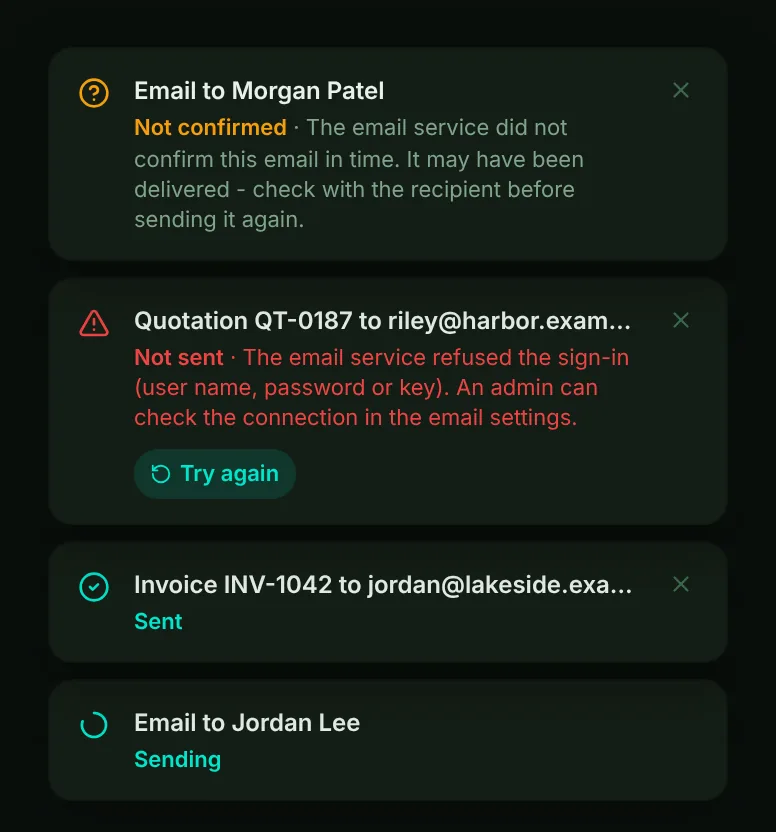
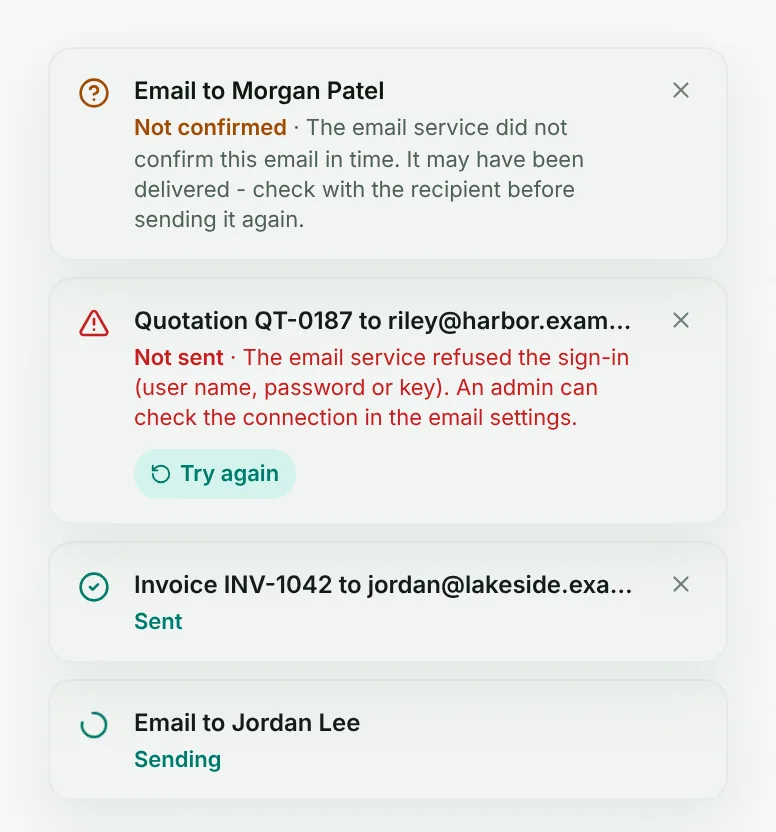
- Mark 1: Sending - the email service has it. Most emails take a few seconds; if it takes longer, the card says so and you can keep working.
- Mark 2: Sent - the email service accepted it. The card closes by itself after a few seconds.
- Mark 3: Not sent - the card says why, in plain words. Fix the cause and choose Try again, which sends it as a new email.
- Mark 4: Not confirmed - the email service did not answer in time. The email may have arrived, so it is never sent again by itself.
The email also shows in the contact's conversation, marked Sending, Not sent or Not confirmed until it has gone. A quotation is marked as sent, and an invoice as emailed, only once the email service has taken it.
When an email is not sent
| What the card says | What to do |
|---|---|
| The email service refused the sign-in | Ask an admin to check the connection in the workspace's email settings, then choose Try again. |
| The sending domain is not verified | An admin finishes setting up the domain in the email settings. Until then, emails cannot go out from it. |
| The contact's data is restricted after a privacy request | Nothing is sent, which respects the person's request - do not send it another way. The restriction shows on the contact's page, where an admin can lift it once the request allows. |
| Not confirmed | Ask the person, or check your sent mail if your workspace sends through Gmail or Outlook, before sending it again. |
| The workspace has used its emails for this month | Every plan includes a number of emails a month, counted when an email is sent from a contact, a quotation or an invoice (campaigns have their own limits). Ask your admin for an Extra Email Quota pack, or send it after the 1st of next month. |
If the email service has a short problem, Moirova tries again by itself for up to ten minutes before it reports Not sent.
Why an email is never sent twice
Every email you send gets its own number the moment you press Send. If you press Send twice, or your connection drops and your browser asks again, Moirova recognizes the number and sends nothing more.
If the email service goes quiet halfway through, Moirova cannot know whether the email left. Sending it again could mean your client gets the same invoice twice, so Moirova marks it Not confirmed and leaves the choice to you.
Tip
The buttons in a quotation email, the unsubscribe link and the open tracking picture all point to Moirova's own web address, not a third-party one, so your clients see where a link goes before they click it.