

At a glance
- Open My Email and choose the email you use: Google Workspace or Gmail, Microsoft 365 or Outlook, Zoho Mail or another server.
- Google and Microsoft: sign in - Moirova keeps only a secure token, never your password.
- Replies from your contacts are brought in every 5 minutes. Other emails in your mailbox are not read into the CRM.
- Disconnect at any time. Your emails then go out from the workspace's address.
Before you start
- Who does it
- Each person, for their own mailbox.
- Where it is
- My Email, in the menu.
- What you need
- Your mailbox sign-in. For Zoho or Google by password, an app password from your account. For Zoho Mail, IMAP access switched on in your Zoho Mail settings (Mail Accounts).
Choose your email and connect it
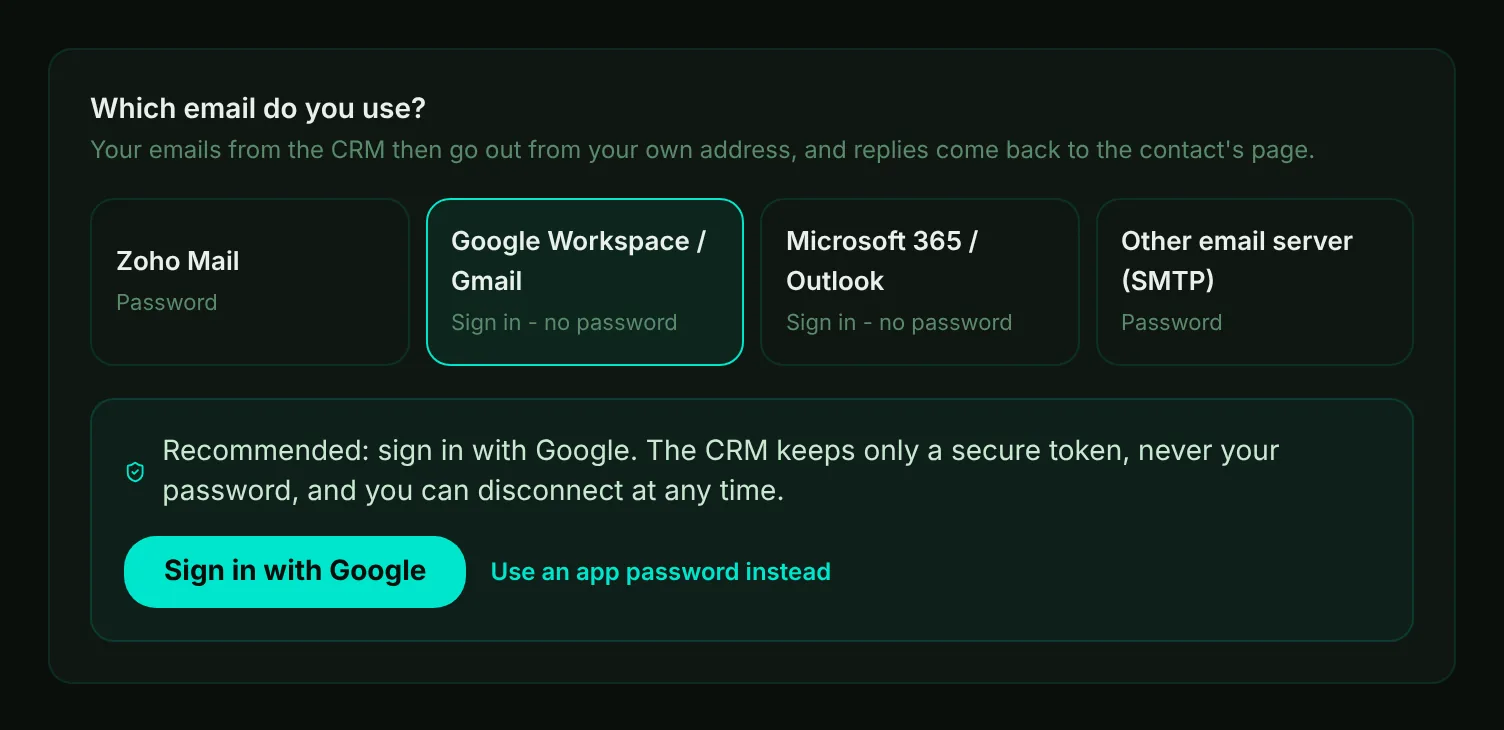
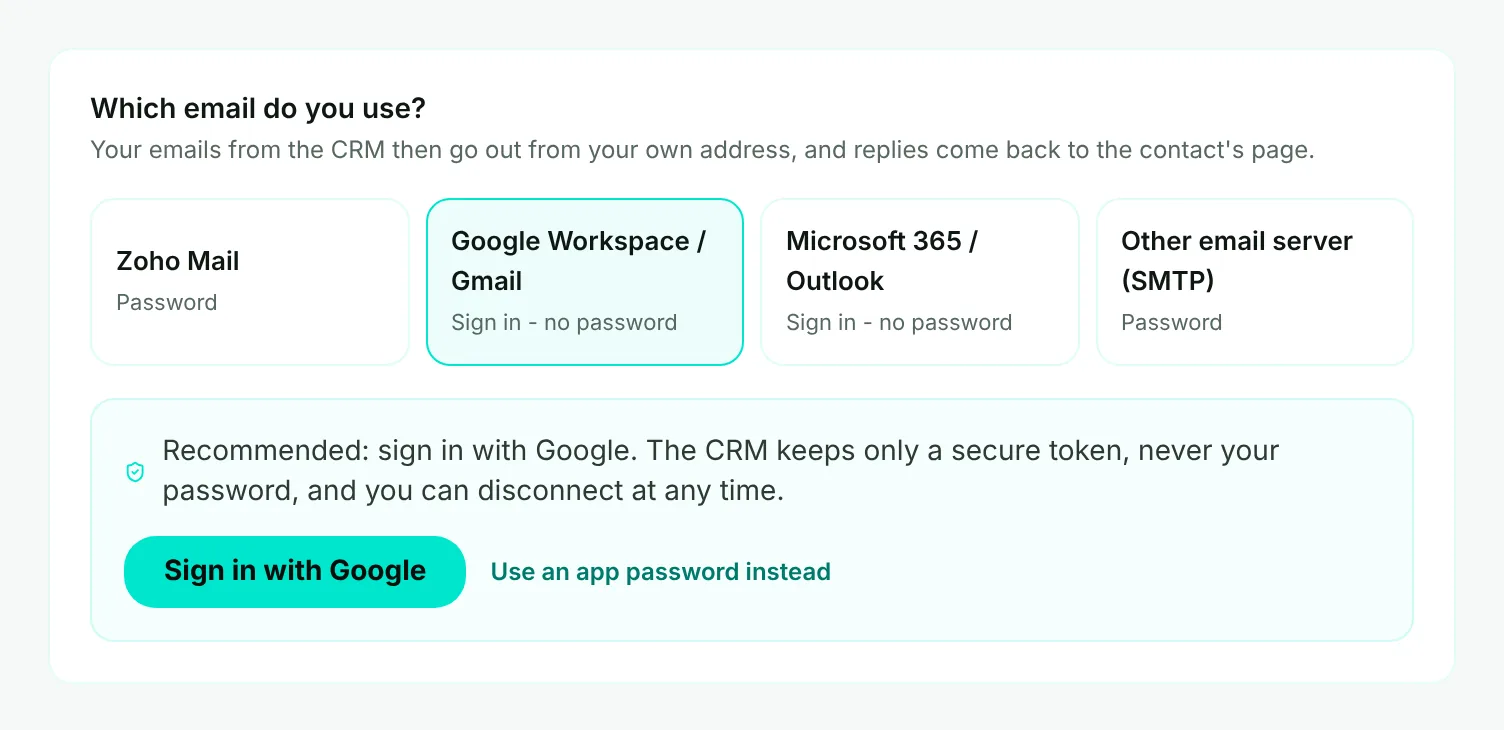
- Mark 1: The email you use.
- Mark 2: Sign in with Google or Microsoft - recommended. You allow Moirova to send and read email, and it keeps only a secure token.
- Mark 3: Use an app password instead - for a Google account where signing in is not allowed by your admin.
- Choose your email. For Zoho Mail, also choose the data center your account is in (for example zoho.com or zoho.eu).
- Sign in, or enter your password. For a password, use an app password - Google and Zoho ask for one when 2-step verification is on. For another server, enter its sending and receiving servers too.
- Choose Connect mailbox. Moirova signs in to your mailbox once for sending and once for receiving, and connects it only when both work. If one does not, it says which one and why. A password is kept in Google Secret Manager, never in the database, and never shown again.
Tip
If a sign-in does not finish, My Email says why in plain words - for example that it was canceled or took more than 10 minutes - and you start again from the same page.
See that it works
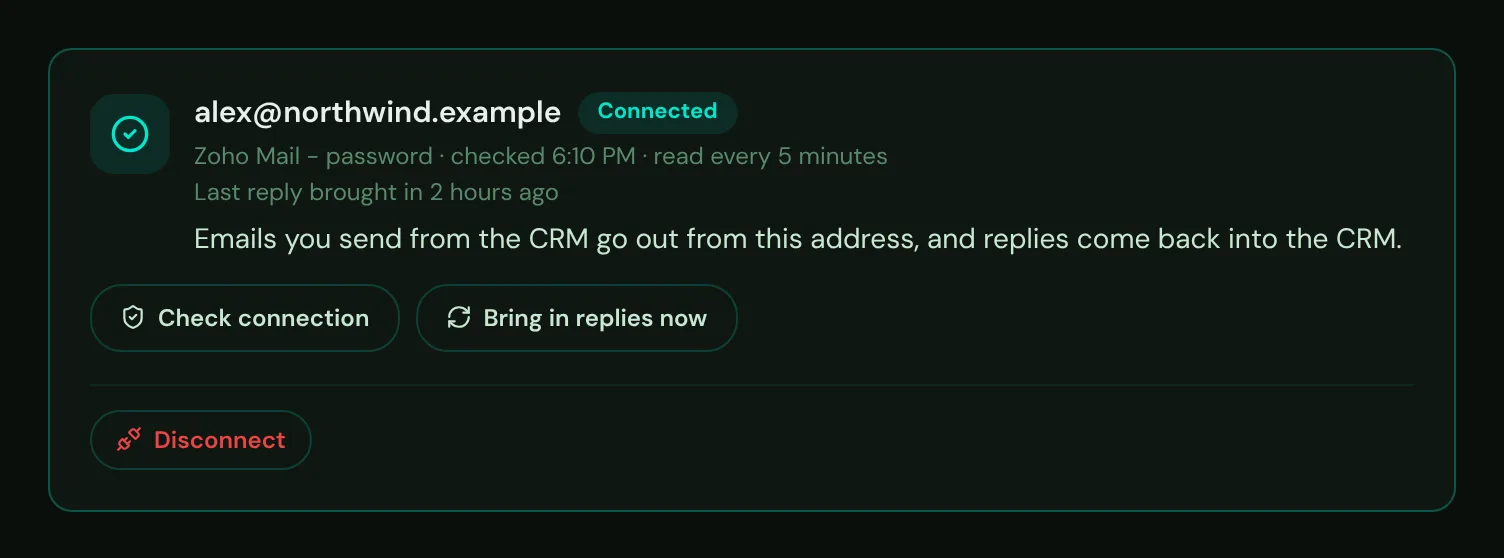
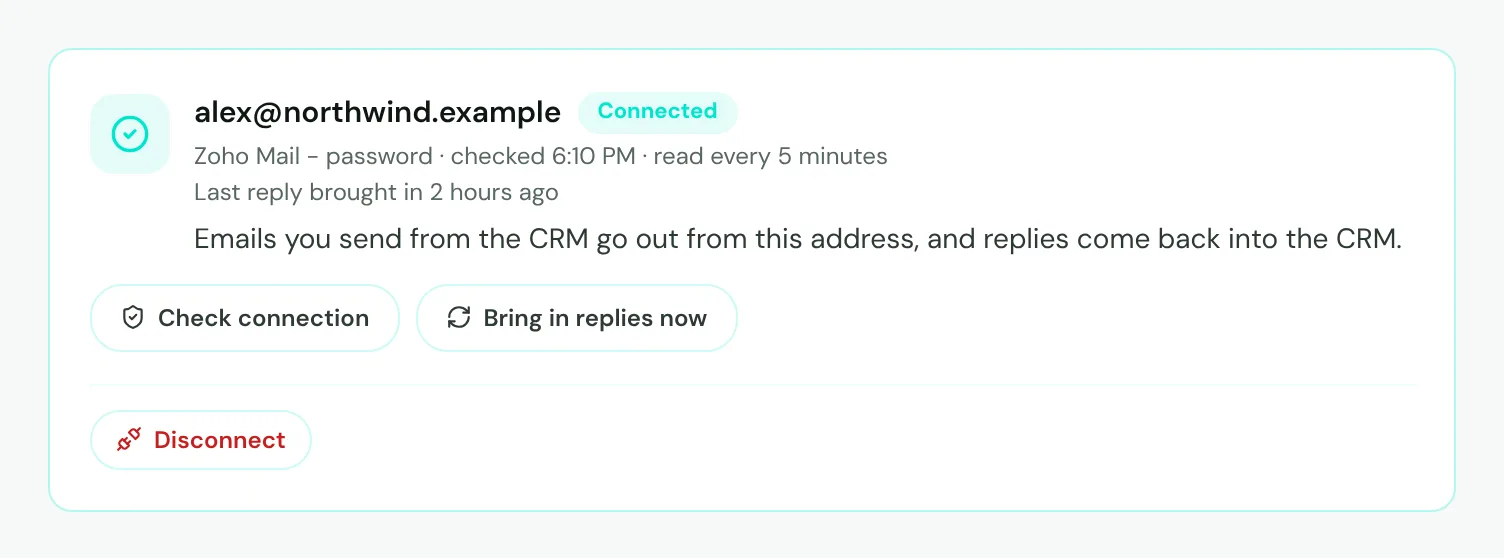
- Mark 1: Connected - your emails go out from this address.
- Mark 2: When your mailbox was read ("read every 5 minutes" means on time) and when the last reply came in.
- Mark 3: Check connection - signs in to your mailbox again to make sure it still works.
- Mark 4: Bring in replies now - instead of waiting up to 5 minutes.
- Mark 5: Disconnect - asks you to confirm, then removes the token or password.
| Status | What it means |
|---|---|
| Connected | The last check signed in to your mailbox. |
| Connected - not checked yet | Choose Check connection to make sure. |
| Needs attention | A check or a read of your mailbox did not work. The reason is shown under the status - see the next section. |
| Amber "not been read for over 25 minutes" | Choose Bring in replies now. If it stays, tell your admin. |
| No mailbox connected | Your emails go out from the workspace's address. |
If your mailbox needs attention
When a check or a read of your mailbox does not work, My Email shows Needs attention with the reason and what to do. Moirova also notices by itself: replies are read every 5 minutes, and a mailbox that refuses the sign-in turns to Needs attention without you pressing anything.
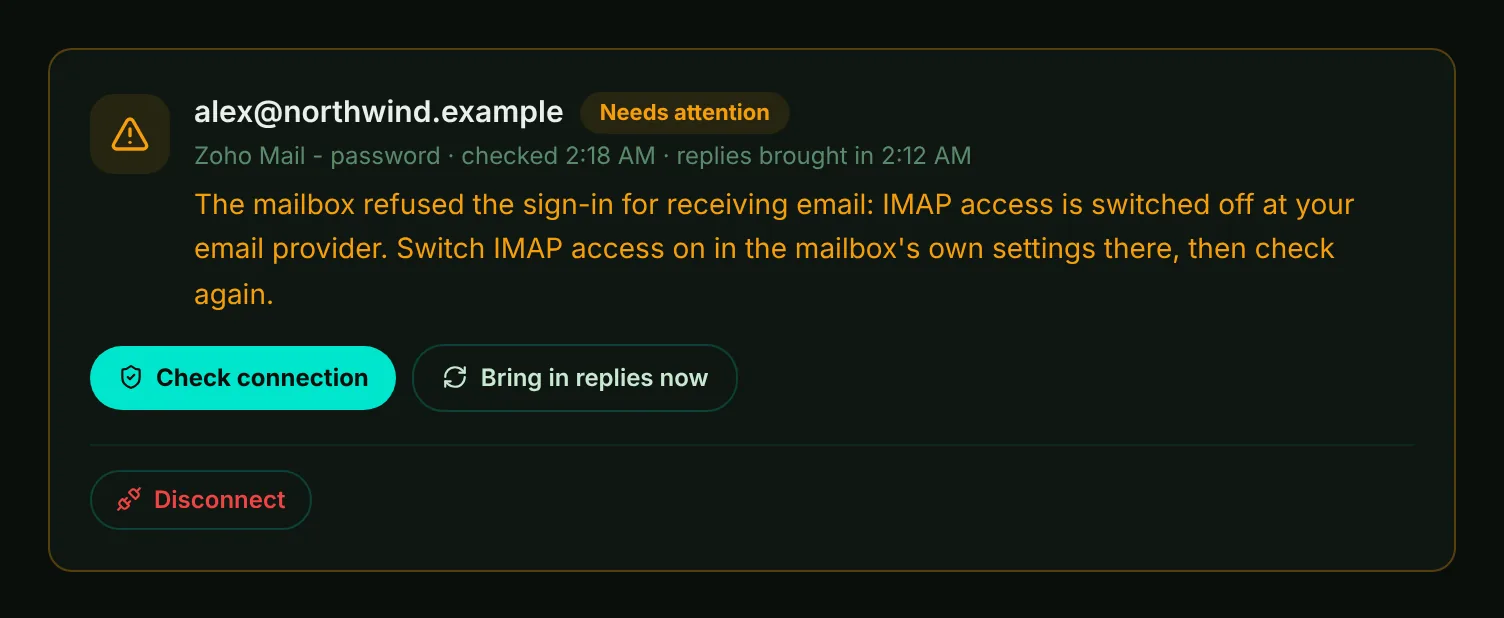
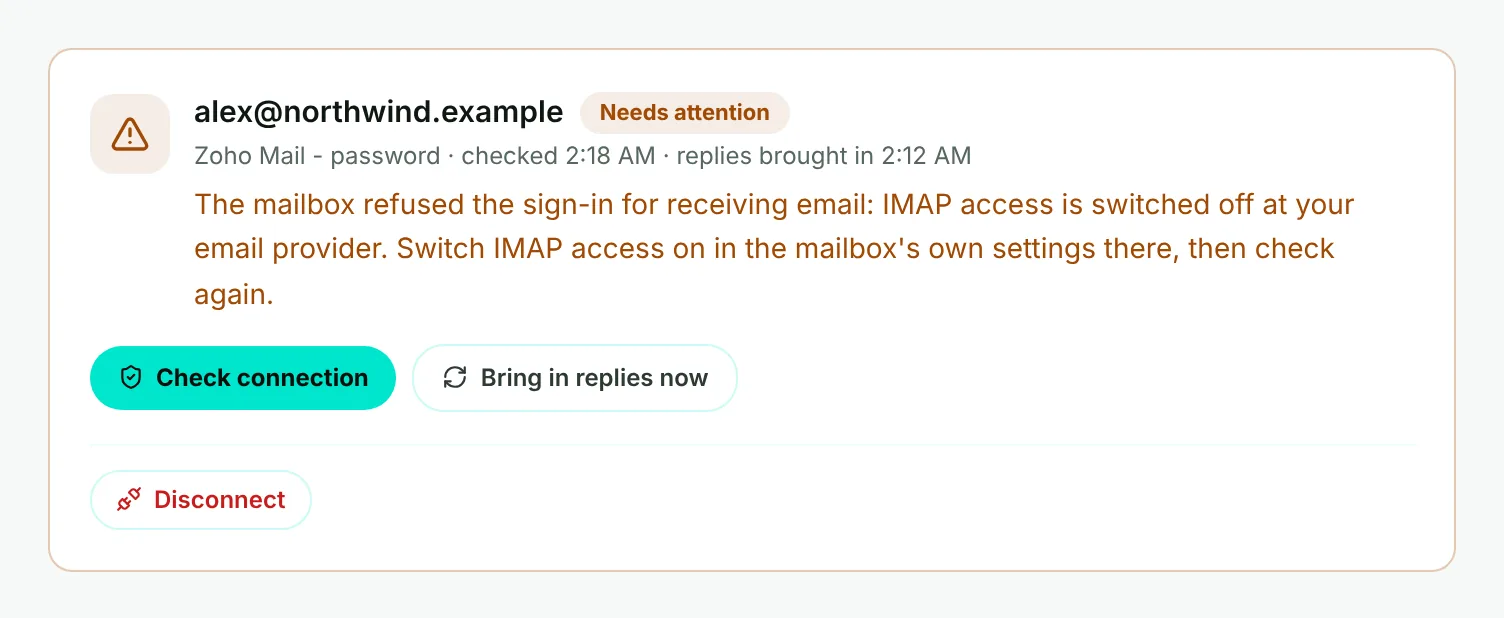
- Mark 1: Needs attention - the mailbox is connected, but something stops it working.
- Mark 2: The reason, in plain words, and what to do about it.
- Mark 3: Check connection - choose it after you have fixed the cause.
| What My Email says | What to do |
|---|---|
| IMAP access is switched off at your email provider | Switch IMAP access on in your mailbox's own settings (in Zoho Mail: Settings, then Mail Accounts), then choose Check connection. |
| Your email provider wants an app password | Create an app password in your email account's security settings, then connect the mailbox again with it. |
| The mailbox refused the sign-in | The password changed or was typed wrong. Connect the mailbox again with the current password or an app password. |
| The saved password for this mailbox is missing | Choose Disconnect, then connect the mailbox again. |
| The mailbox's sign-in has expired or was withdrawn | Connect the mailbox again with Sign in with Google or Sign in with Microsoft. |
While the saved password or sign-in is missing, emails you send are not sent from another address: each one is marked Not sent with the reason, so nothing goes out under the wrong name. When receiving works again, Moirova notices at the next read and the status returns to Connected by itself. After any other fix, choose Check connection.
What comes into the CRM
Moirova brings in only emails from your contacts and answers to emails sent from the CRM, oldest first, and puts each one on the contact's page. It matches the address whatever its capital letters. Everything else in your mailbox stays where it is.
A bounce report in your mailbox tells Moirova the address does not work, and the CRM stops emailing it.