

At a glance
- With Resend, replies come in through your domain's reply record and Resend's webhook.
- With any other service, choose the mailbox clients' replies arrive in. Moirova reads it every five minutes.
- Only emails from your contacts, and answers to emails the CRM sent, are brought in.
- Bounce reports in that mailbox stop the CRM from emailing the address again.
- Files clients attach are kept on their page when they are a safe kind - PDF, pictures, Word, Excel, PowerPoint, text or CSV - up to 10 MB each.
Before you start
- Who does it
- A workspace admin.
- Where it is
- Admin, then Email settings, step 4: Replies into the CRM.
- What you need
- With a service other than Resend: the address and password of the mailbox replies arrive in. With Google or Zoho, an app password.
If your workspace sends through Resend
Step 4 shows a webhook address once your domain is added in step 2. In Resend choose Webhooks, then Add endpoint, paste the address and choose email.received, email.delivered, email.bounced and email.complained. Copy the signing secret Resend shows into Webhook security, under More settings. Replies start arriving once your domain's reply record is verified.
If your workspace sends through another service
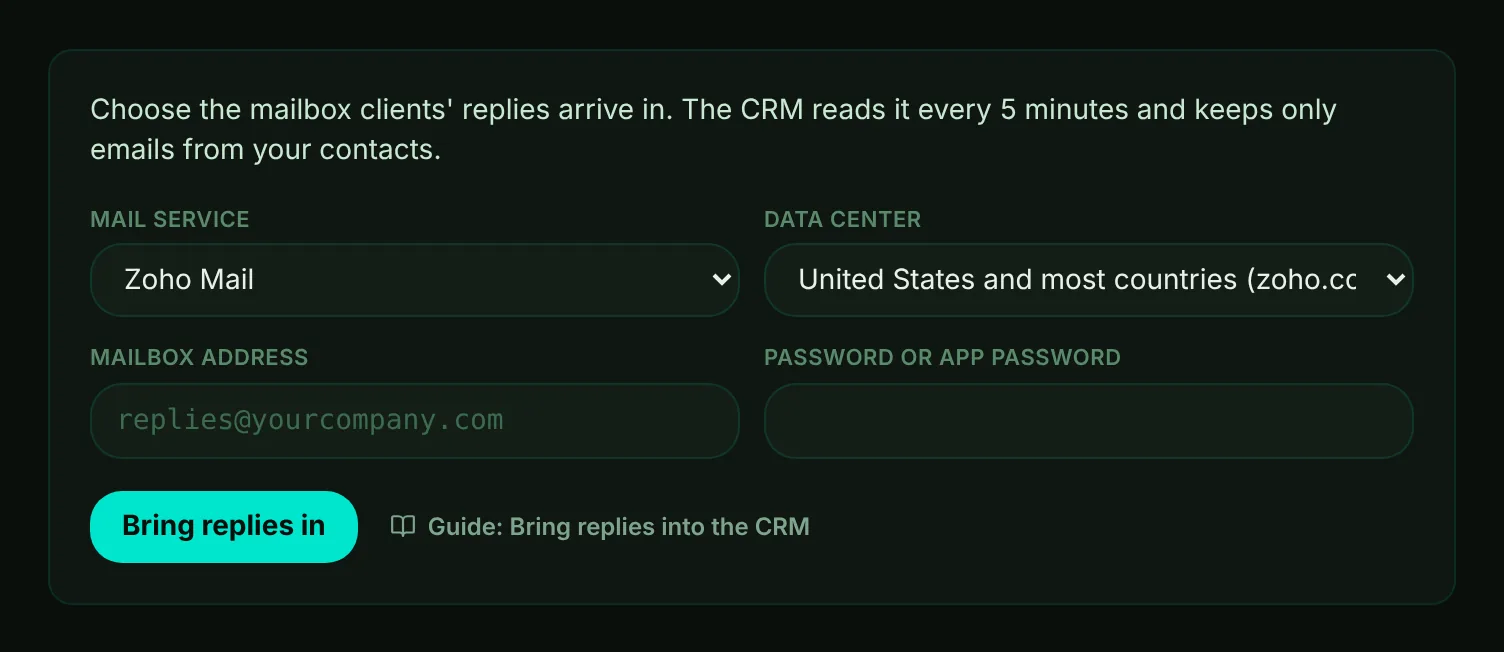
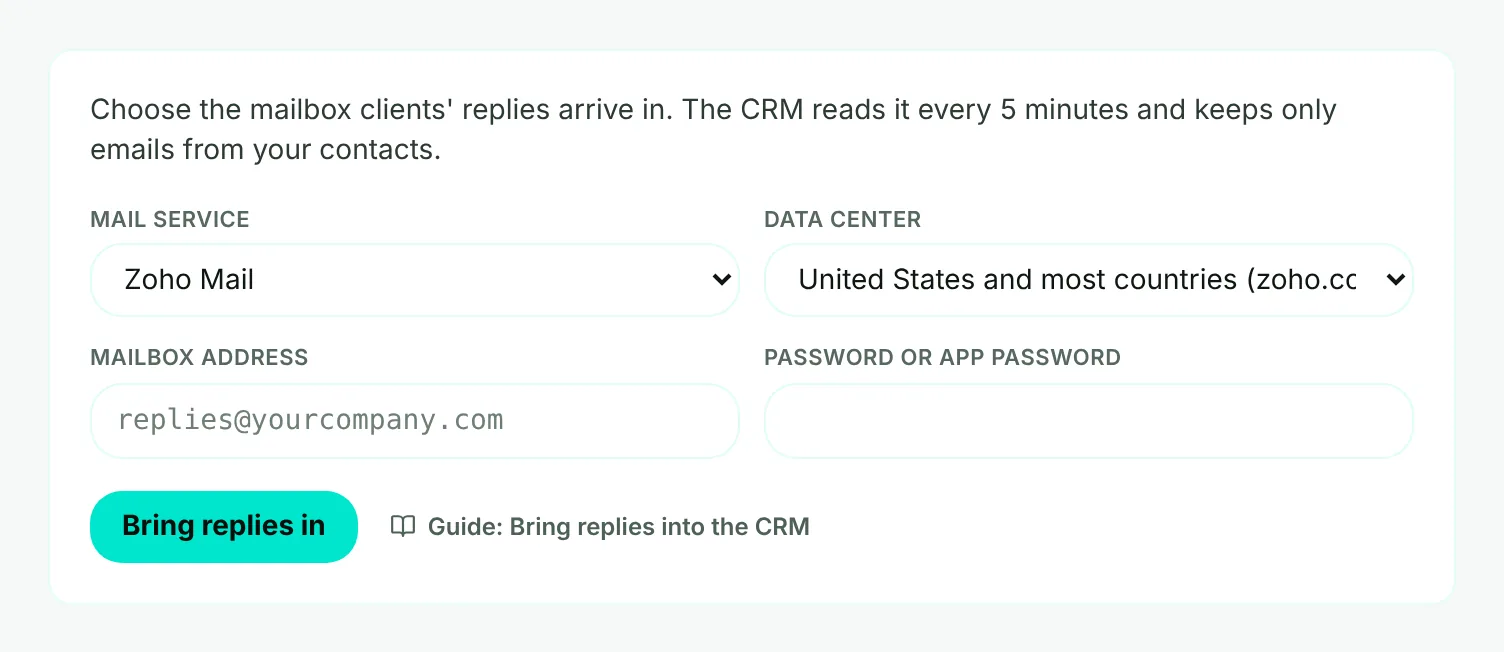
- Mark 1: The mail service the reply mailbox is on: Zoho Mail, Google Workspace or another email server. For Zoho, also choose its data center.
- Mark 2: The mailbox address replies arrive in, such as replies@yourcompany.com.
- Mark 3: Its password. For Google and Zoho, use an app password.
- Mark 4: Bring replies in - Moirova signs in once to check, then saves it.
- Choose the mailbox. If your workspace sends through a mailbox (Zoho, Google Workspace or another server), you can simply choose the workspace mailbox. Otherwise choose Another mailbox and enter its details.
- Choose Bring replies in. Moirova signs in to the mailbox to check it. The password is kept in Google Secret Manager, never in the database.
- Replies now go there. That address becomes the reply-to of your workspace's emails, so clients' answers arrive in it and come into the CRM.
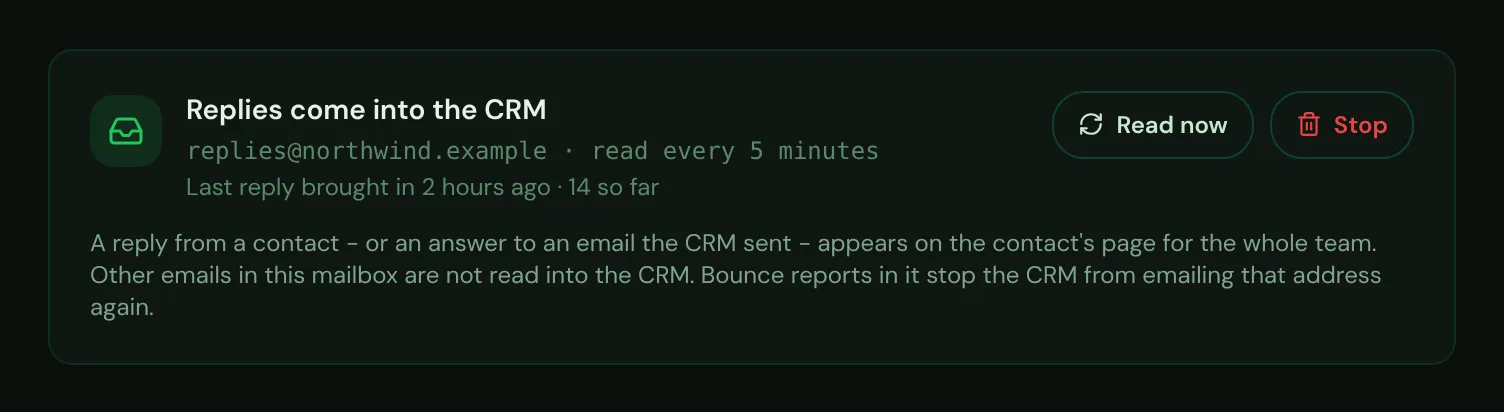
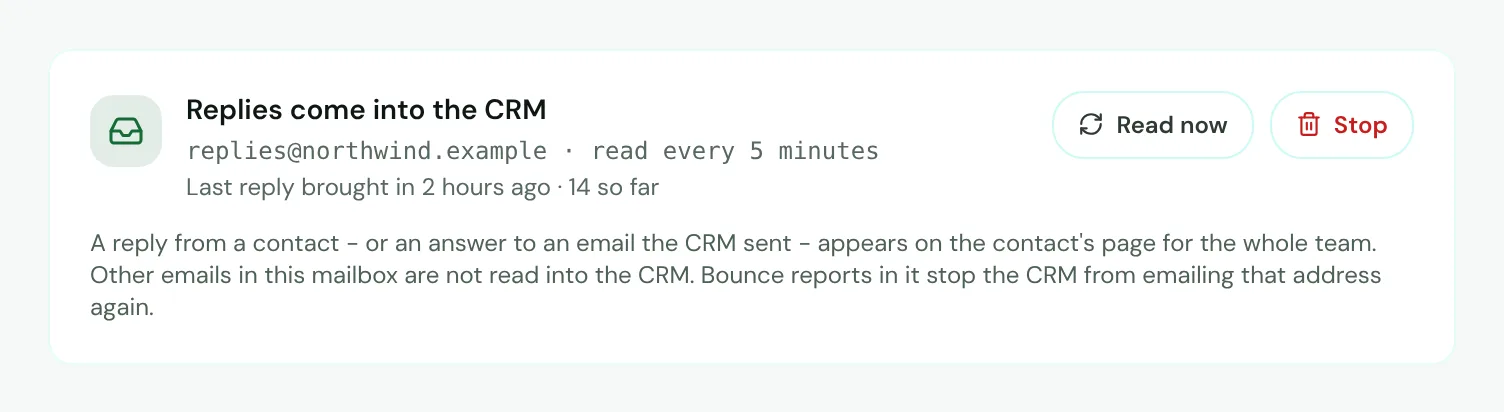
- Mark 1: The mailbox being read. "Read every 5 minutes" means it is read on time.
- Mark 2: When the last reply came in, and how many have come in so far.
- Mark 3: Read now - reads it at once instead of waiting.
- Mark 4: Stop - stops reading it. Replies already brought in stay on the client pages.
What comes into the CRM
- A reply from one of your contacts, or an answer to an email the CRM sent, appears on the contact's page for the whole team.
- Contacts are matched by their address whatever its capital letters.
- If the mailbox has not been read for over 25 minutes, the card says so in amber. Choose Read now. If the warning stays, tell your platform admin - the CRM's 5-minute mailbox job may be stopped.
- Everything else in the mailbox - newsletters, internal mail - stays where it is and is not read into the CRM.
- Up to 50 emails are brought in each time, oldest first, so nothing is skipped when many arrive at once.
- A bounce report in the mailbox tells Moirova the address does not work, and the CRM stops emailing it.
Tip
If the mailbox password changes, the step shows what went wrong under the mailbox. Choose Stop, then set the mailbox up again with the new password.
Files attached to replies
When a client attaches a file to a reply, Moirova keeps it with the email on the client's page, in the Comms tab - so the whole team can find the signed quote or the brief without asking for it again. This works for every way replies come in: Resend, the workspace's reply mailbox, outreach mailboxes and each person's own mailbox.
- Kept: PDF files, pictures (PNG, JPEG, GIF, WebP), Word, Excel and PowerPoint files (docx, xlsx, pptx), text and CSV files.
- Moirova checks what each file really is from its content, not from its name or what the sender said it is. A program renamed to look like a PDF, or a Word file with macros, is not kept.
- Each file can be up to 10 MB, and up to 10 files and 25 MB are kept from one email.
- Kept files count toward your workspace's storage, like the files you upload. When the storage is full, new files are not kept until there is room.
- Pictures that are part of the email itself, such as the logo in a signature, are not listed as files.
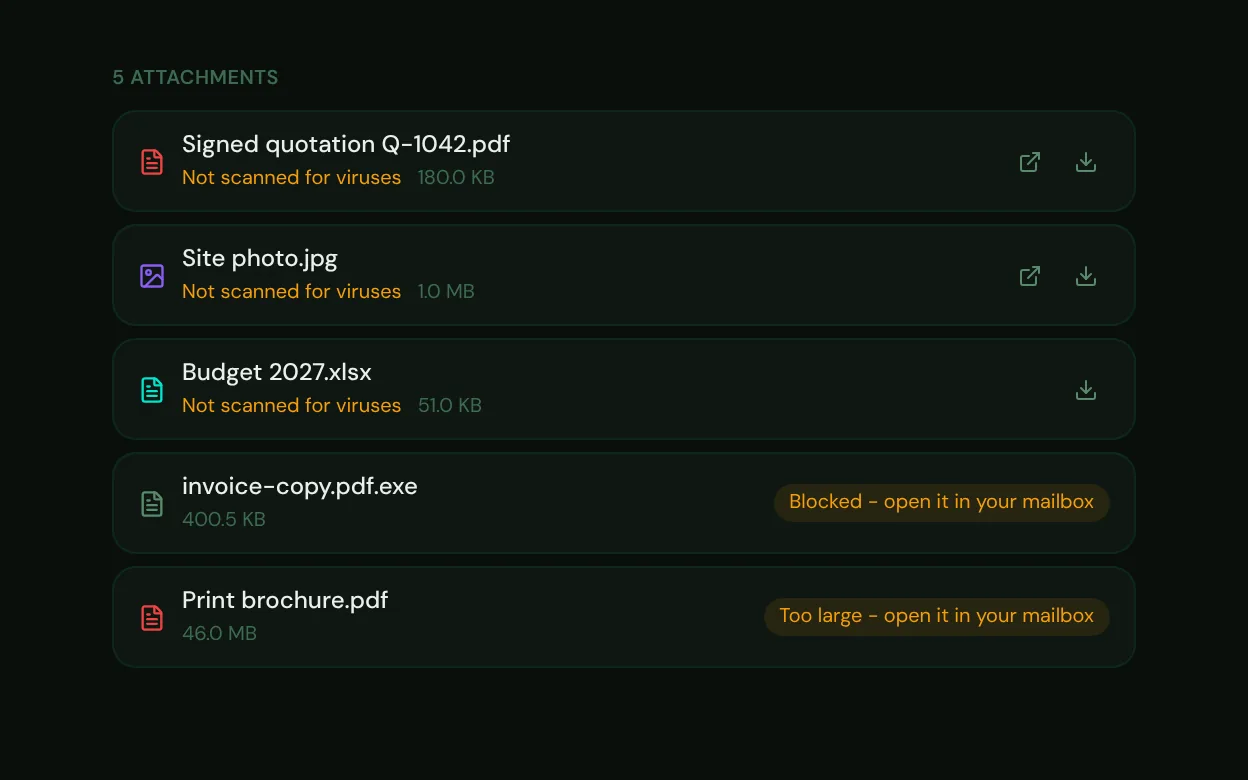
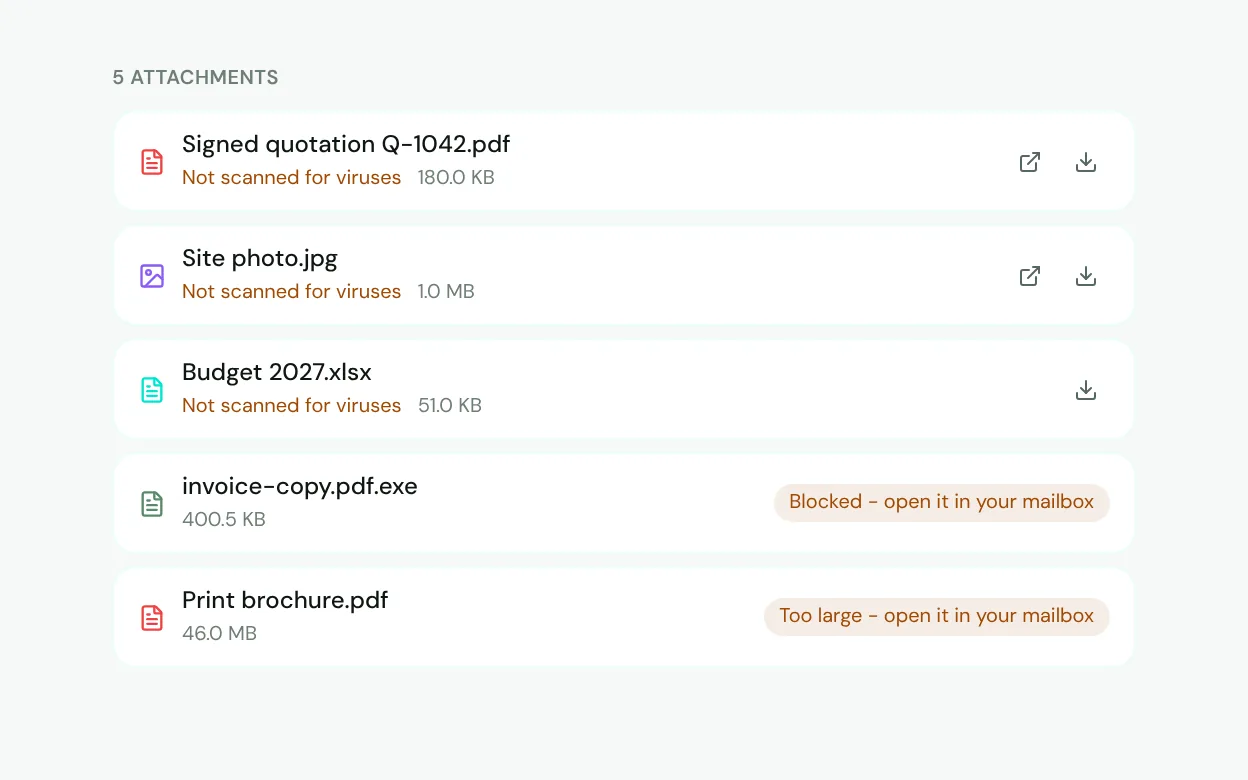
- Mark 1: Not scanned for viruses - Moirova checked the file is what its name says, nothing more.
- Mark 2: Open - PDF files and pictures open in a new tab.
- Mark 3: Download - saves the file. Every kept file can be downloaded.
- Mark 4: A file that was not kept says why, here a program named like a PDF. Open it in your mailbox.
- Open the client's page. Choose the Comms tab and find the email. Its files are listed under it.
- Download or open the file. Download saves it. PDF files and pictures can also be opened in a new tab. Only people who may see that email can get its files.
- A file that was not kept. It says why - for example Blocked - open it in your mailbox. Open it from the mailbox the email arrived in, where the original is.
Tip
Files are not scanned for viruses - each kept file says so. Open files only from senders you trust, as you would in your mailbox.