

At a glance
- Copy the address in Email settings, under More settings, and paste it into your email service's webhook settings.
- A bounced or complaining address is not emailed again from any part of the CRM.
- Bounces and complaints also count toward each marketing domain's health, which pauses it if either runs high.
- Keep the address private. Make a new one if it was ever shared.
Before you start
- Who does it
- A workspace admin, with a sign-in at the workspace's email service.
- Where it is
- Admin, then Email settings, under More settings: Bounces and complaints.
- When you see it
- When the workspace sends through Brevo, Postmark, SendGrid, Mailgun or Amazon SES. Resend uses its own webhook, below.
Copy your address
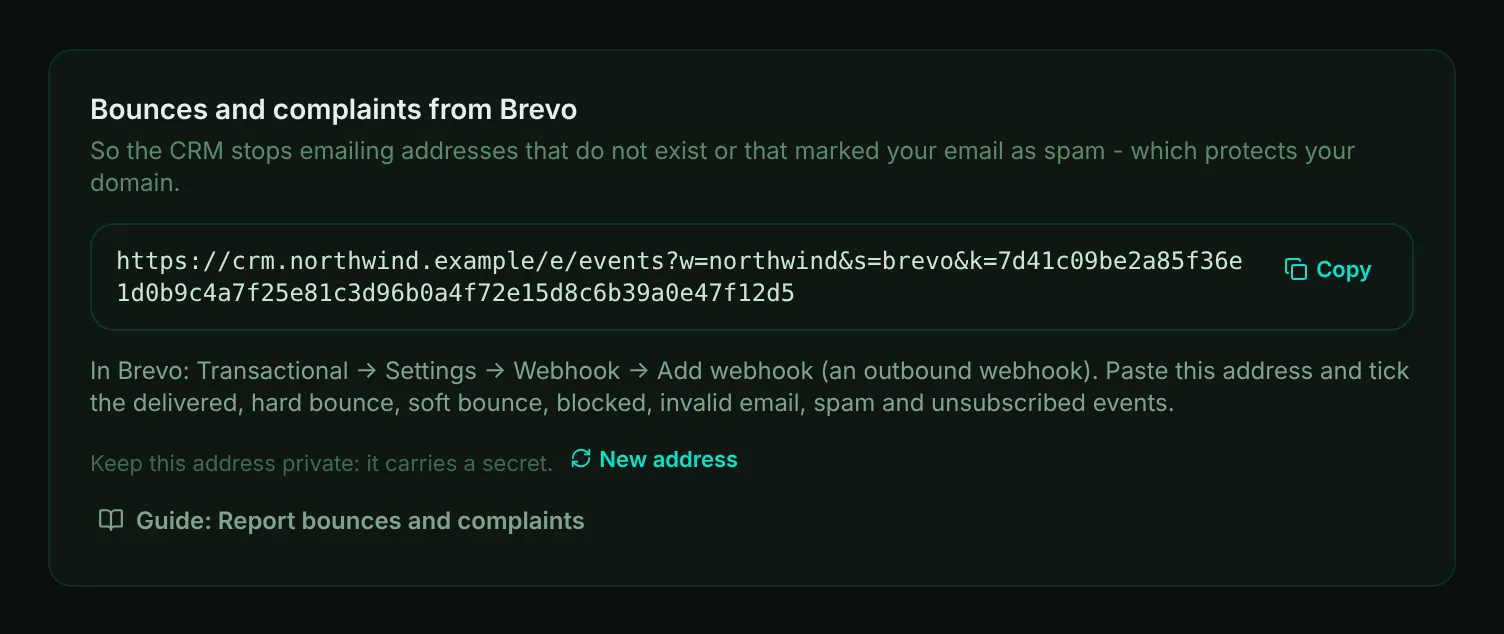
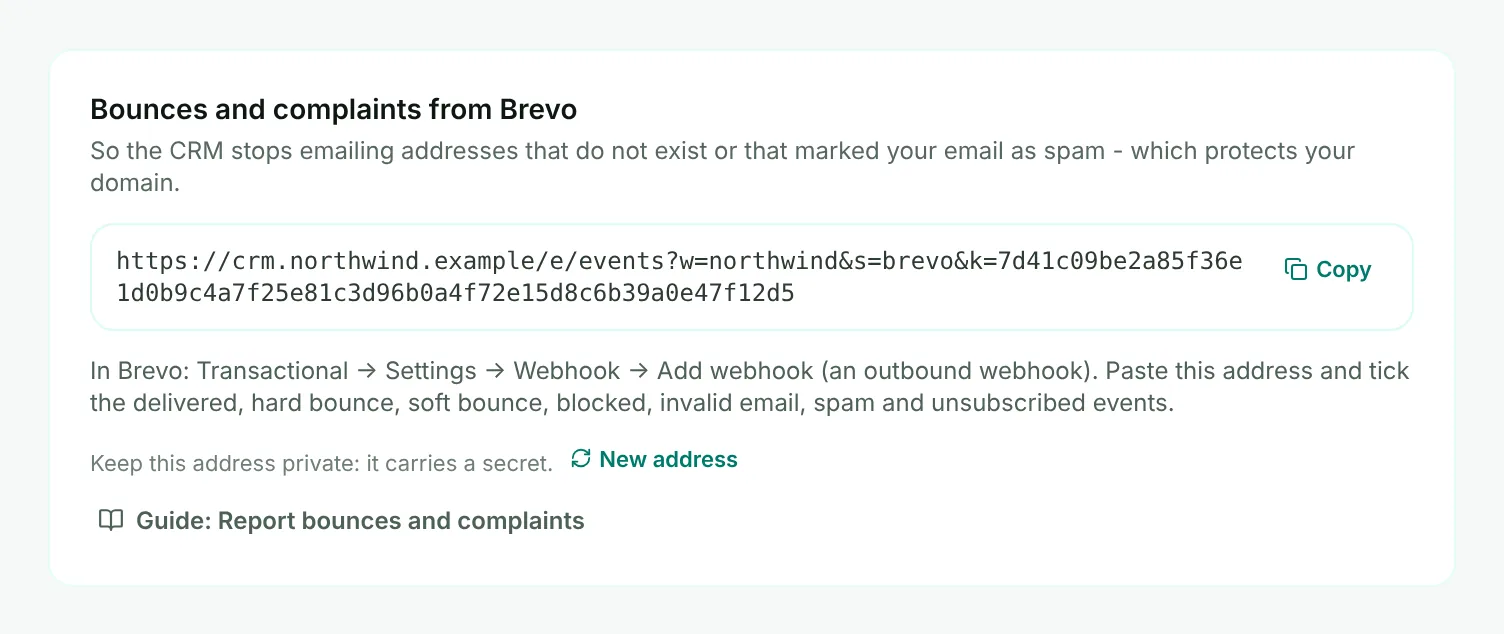
- Mark 1: Your workspace's report address. It carries a secret, so only your email service can use it.
- Mark 2: Copy - copies the whole address.
- Mark 3: Where to paste it in your service, and which events to choose.
- Mark 4: New address - makes a new one when the old one may have been shared. The old one stops working at once, so paste the new one into your service straight away.
Paste it into your email service
- Copy the address. In Email settings, under More settings, choose Copy next to your report address.
- Open your service's webhook settings. Each service keeps them in its own place - see the table below.
- Paste it and choose the events. Choose at least bounces, spam complaints and unsubscribes. Delivered is useful too.
- Save it at your service. From then on, each report reaches Moirova within moments.
| Service | Where the address goes |
|---|---|
| Brevo | In Brevo: Transactional -> Settings -> Webhook -> Add webhook (an outbound webhook). Paste this address and tick the delivered, hard bounce, soft bounce, blocked, invalid email, spam and unsubscribed events. |
| Postmark | In Postmark: your server -> the Transactional stream -> Webhooks -> Add webhook. Paste this address and tick Delivery, Bounce, Spam complaint and Subscription change. Then add it to the Broadcasts stream with Subscription change, which is how Postmark reports bounces and complaints there. |
| SendGrid | In SendGrid: Settings -> Mail Settings -> Event Webhooks -> Create new webhook. Paste this address and choose Delivered, Bounced, Dropped, Spam reports and Unsubscribes. |
| Mailgun | In Mailgun: Send -> Sending -> Webhooks, for your domain. Add this address for Delivered, Permanent failure, Spam complaints and Unsubscribes. |
| Amazon SES | Through Amazon SNS - see Amazon SES, below. |
Tip
With Resend, use the webhook address shown in step 4, Replies into the CRM: in Resend choose Webhooks, then Add endpoint, paste it and choose email.received, email.delivered, email.bounced and email.complained, then copy the signing secret into Webhook security.
Amazon SES: connect through Amazon SNS
Amazon SES does not call a webhook itself. It hands bounces and complaints to Amazon SNS, and SNS passes them on to your report address. Moirova checks Amazon's signature on every message, so nobody else can post to it.
- Create a topic in Amazon SNS. In the same region as your SES account, open Amazon SNS, choose Topics, then Create topic. Pick Standard and give it a name you will recognize.
- Subscribe your report address. In the topic, choose Create subscription. Set the protocol to HTTPS and paste your report address from Moirova. Moirova confirms the subscription by itself within a minute - there is no link to click.
- Point SES at the topic. In Amazon SES, choose Configuration, then Identities, then your domain. Under Notifications choose Edit, pick your topic for Bounce feedback and for Complaint feedback, and tick Include original email headers so each report finds its email in Moirova.
- Check it in Moirova. Reload Email settings. Under Bounces and complaints it now says Connected, with your topic's name.
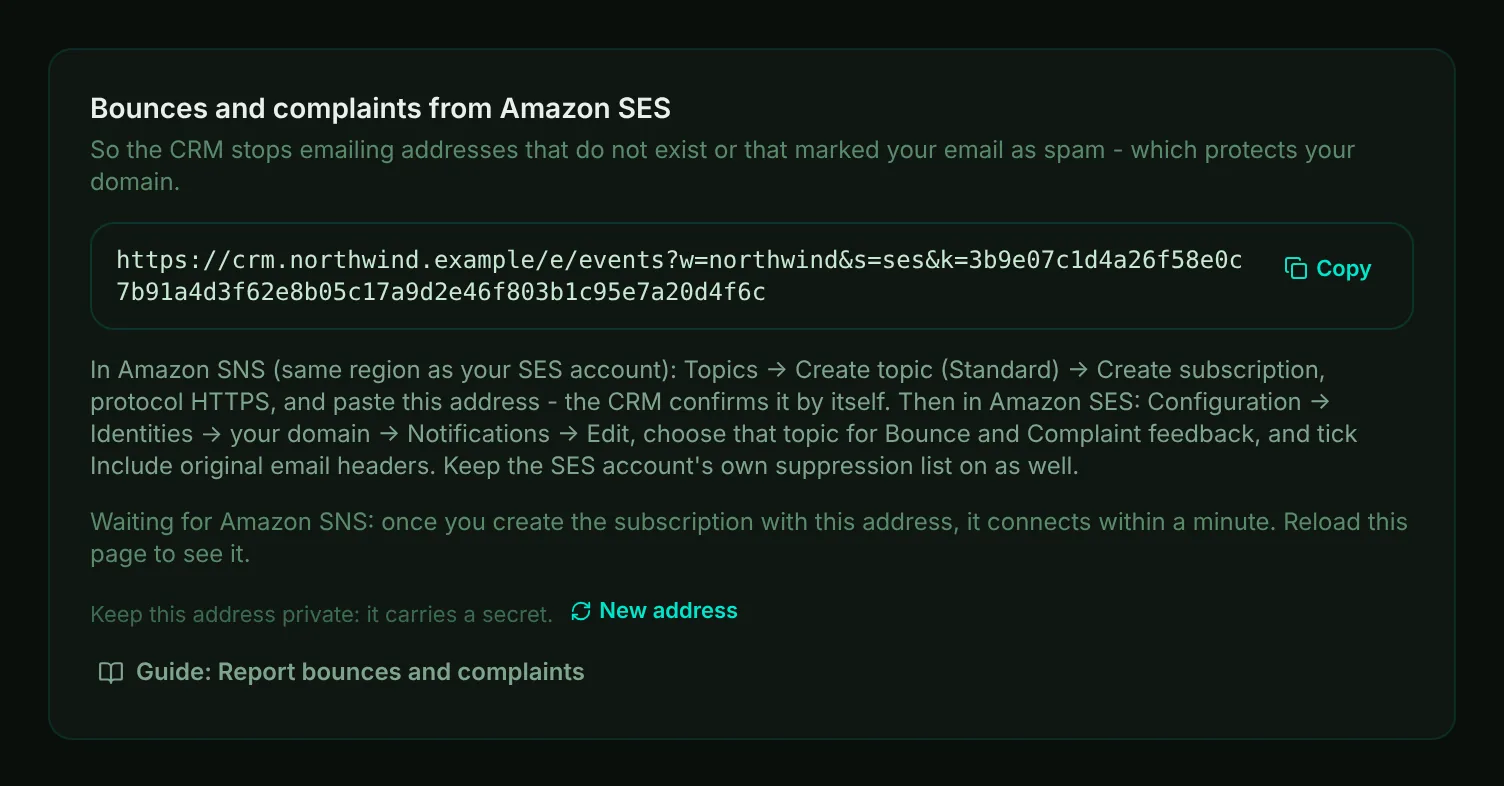
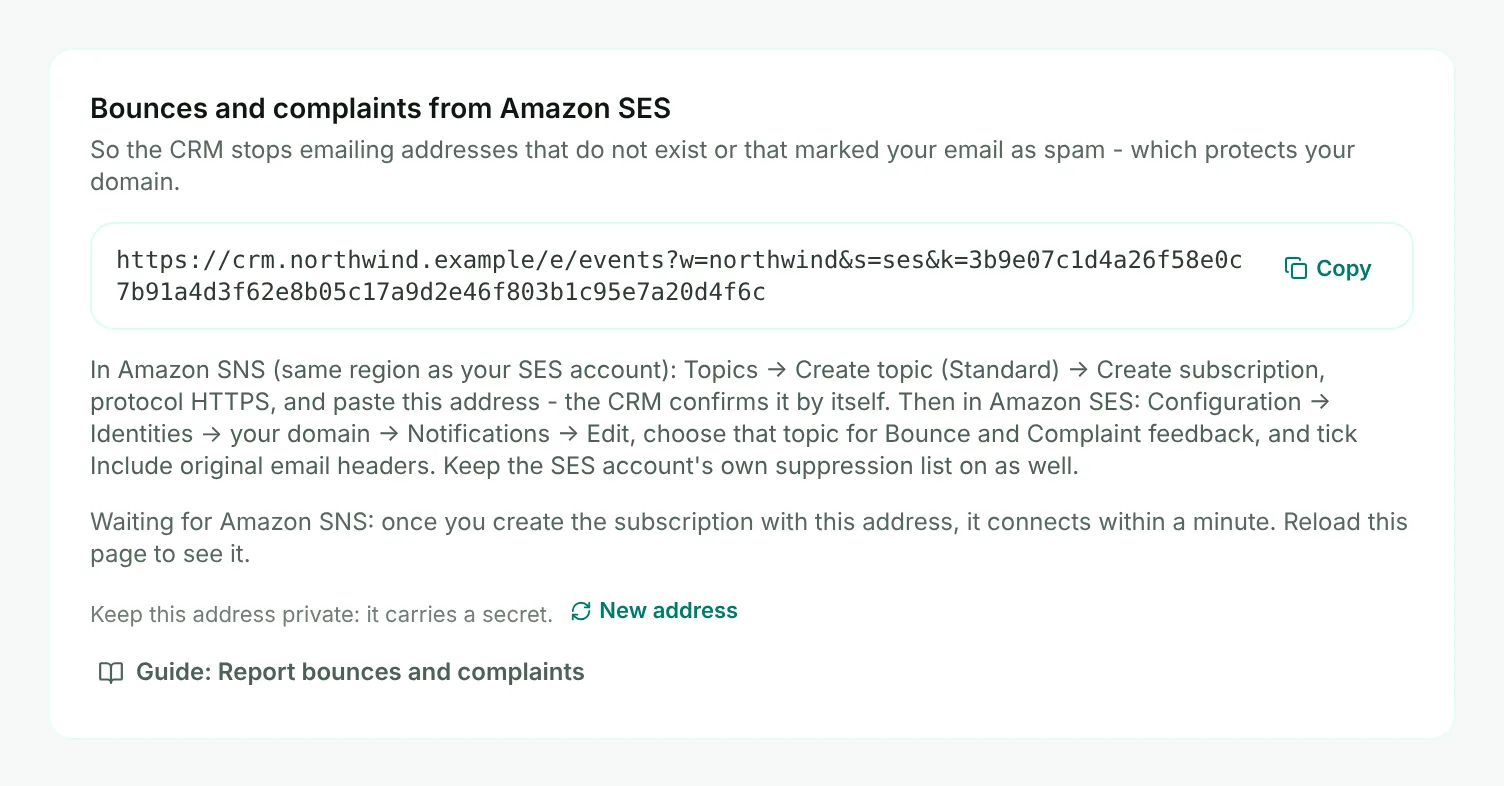
- Mark 1: Your report address - the one to paste into the Amazon SNS subscription.
- Mark 2: Copy - copies the whole address.
- Mark 3: Waiting for Amazon SNS - the subscription has not reached Moirova yet.
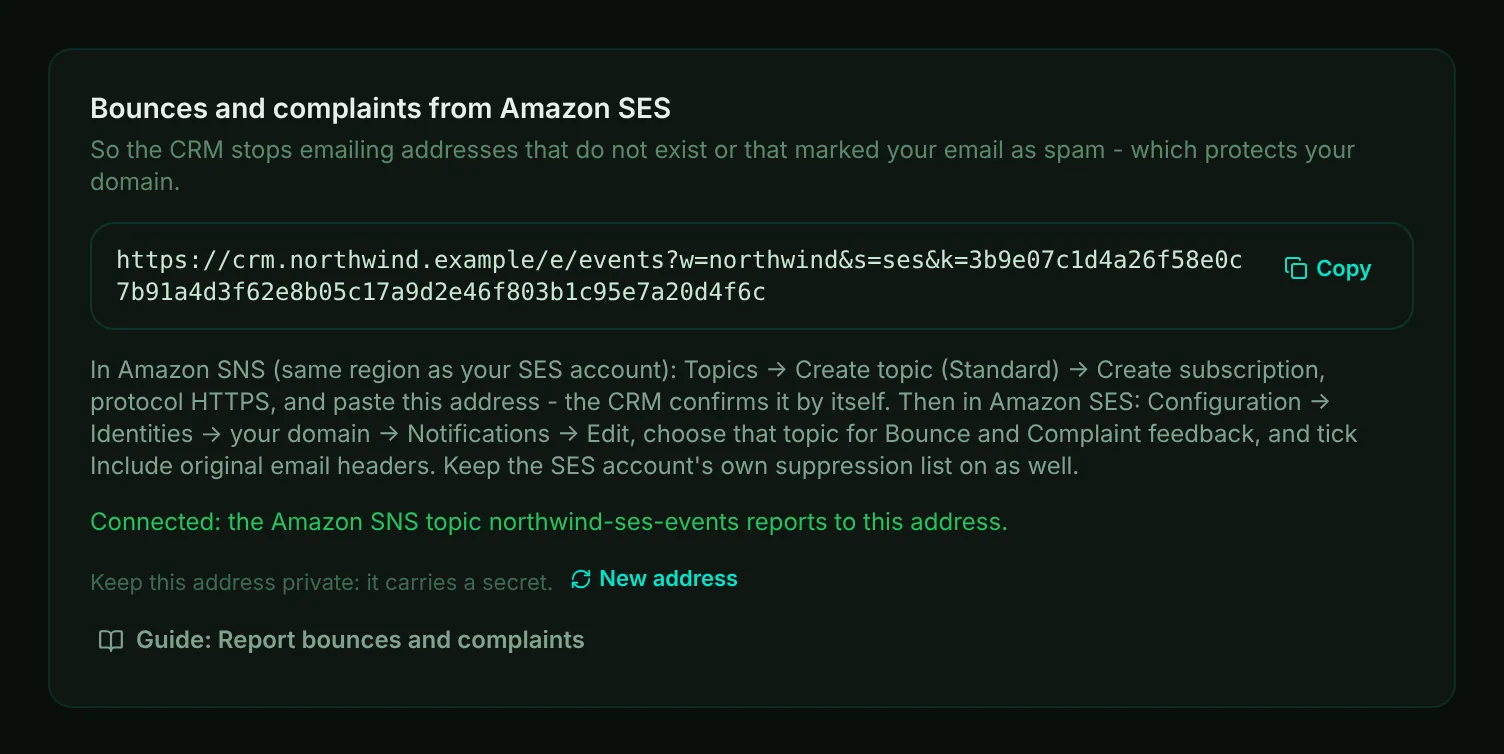
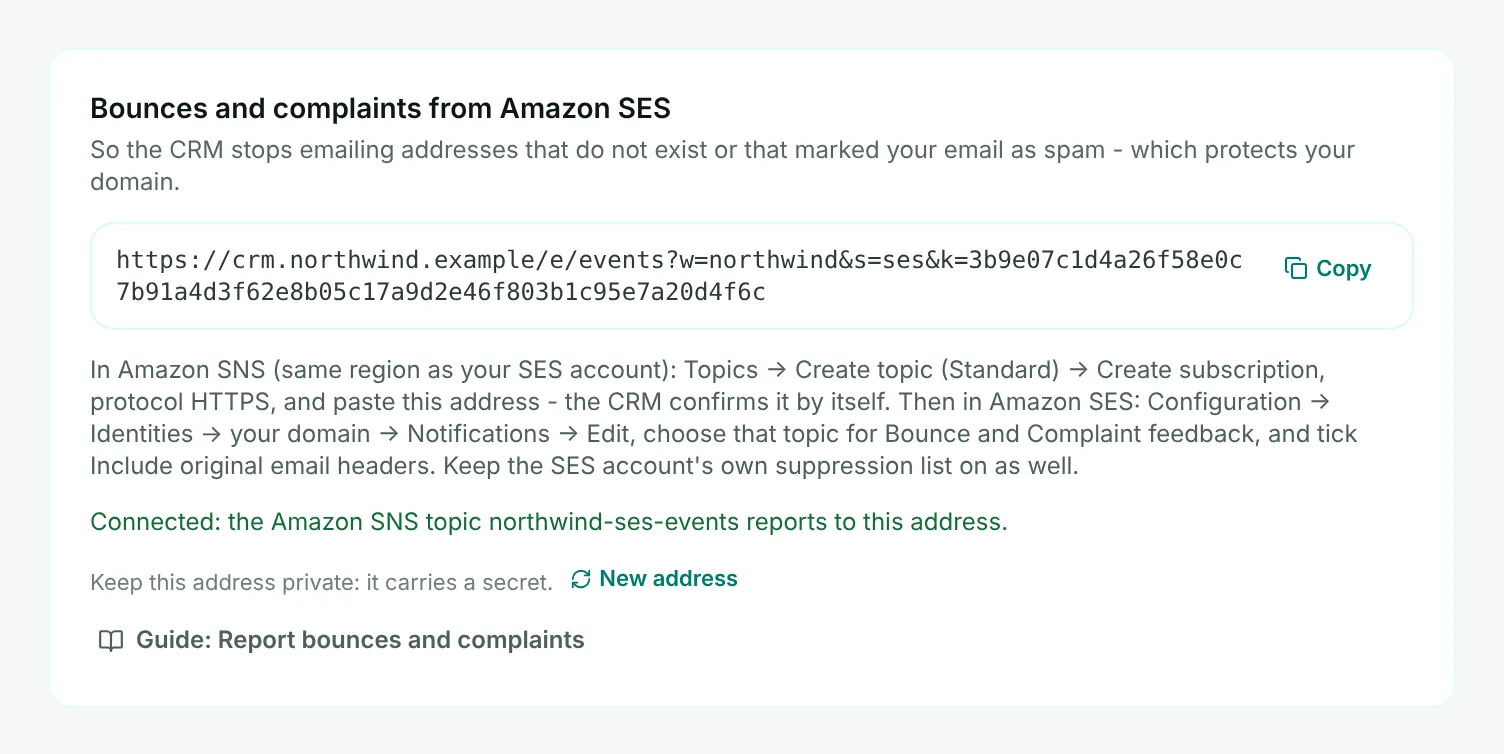
- Mark 1: Connected - Moirova confirmed the subscription and reads reports from this topic only.
Tip
Only the first topic that subscribes is accepted. To use a different topic, choose New address, then subscribe the new topic to the new address. Keep the suppression list of your SES account on as well - it protects the account itself.
What happens with each report
- A hard bounce or a spam complaint adds the address to your workspace's suppression list. The CRM then refuses to email it again - campaigns, journeys, quotes, invoices and emails from the client page alike.
- An unsubscribe reported by your service is treated the same way.
- Postmark reports bounces and spam complaints from its Broadcasts stream as a subscription change. Moirova reads which it was and treats each one as a bounce or a complaint.
- A soft bounce, such as a full mailbox, is a passing problem and does not stop future emails.
- The email itself shows what happened, and a quote or invoice that bounced is marked so you know to reach the client another way.
- For campaigns, bounces and complaints count toward the health of the marketing domain that sent them.