

At a glance
- Open Marketing, then Campaigns, and choose New Campaign.
- Personalize with each contact's first name, company and more; the preview shows a real contact from your CRM.
- Review and send counts who will receive it and lists anything that needs fixing first.
- People who unsubscribed, bounced or complained are skipped by themselves.
Before you start
- Who does it
- People whose role allows email marketing, with the Email Marketing module.
- Where it is
- Marketing, then Campaigns.
- What you need
- An audience (Marketing, then Audiences), your company address in Admin, Branding, and your main marketing address - or a marketing domain - ready to send.
Write the campaign
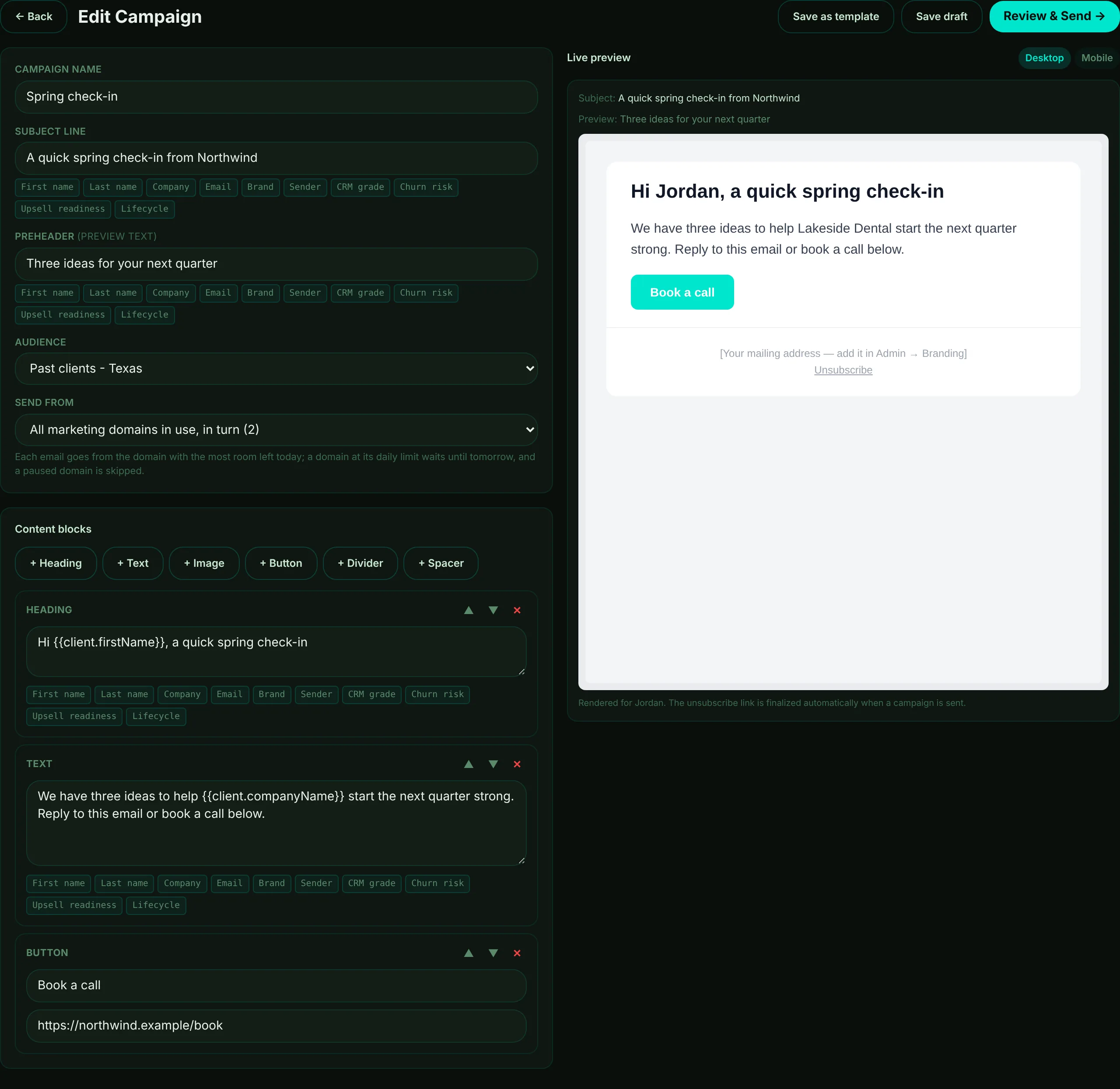
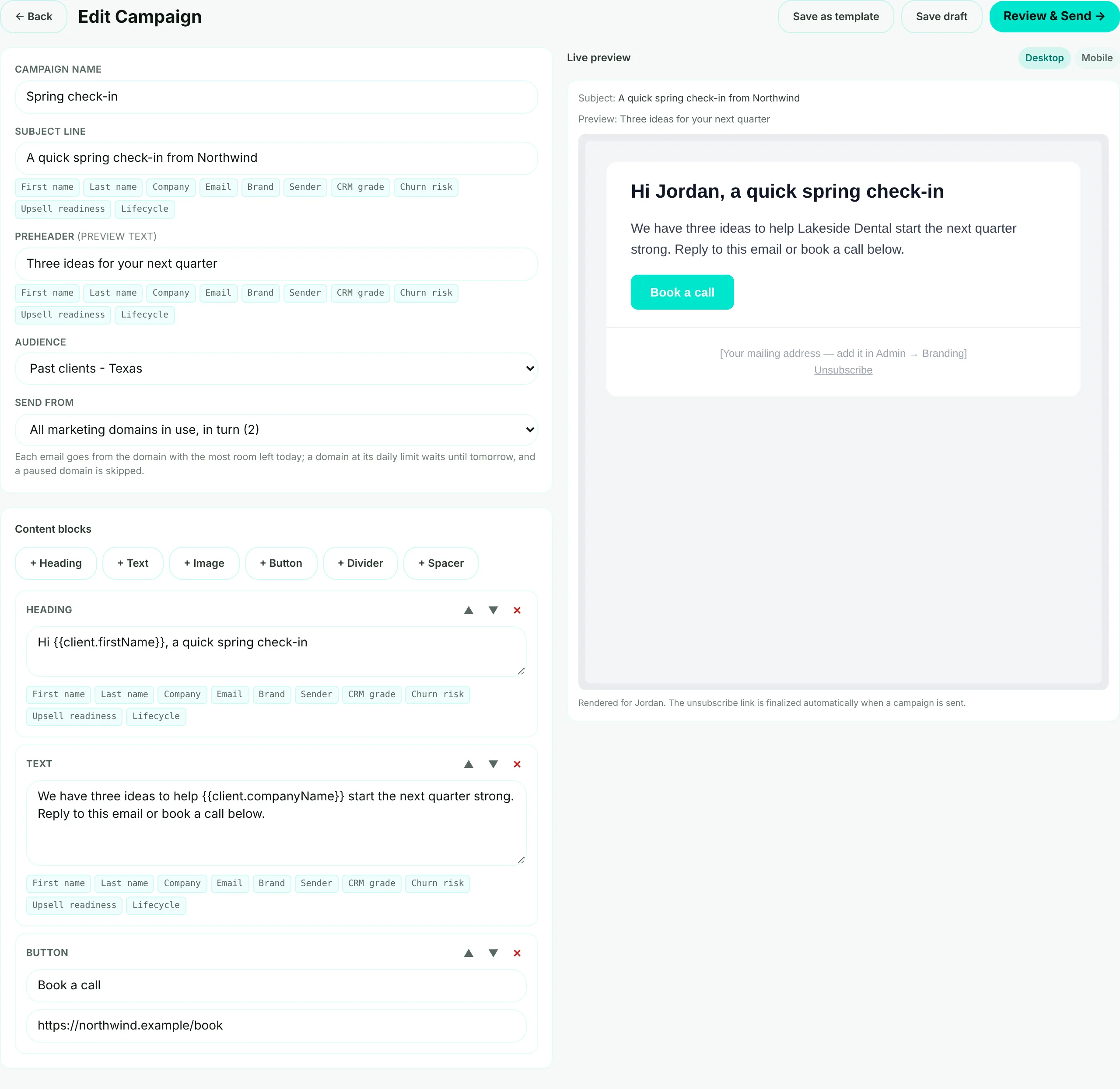
- Mark 1: The campaign's name - only your team sees it.
- Mark 2: The audience it goes to. Build audiences under Marketing, then Audiences.
- Mark 3: Send from - your main marketing address, all your marketing domains in turn, or only the ones you choose.
- Mark 4: Add blocks: heading, text, image, button, divider and spacer. Move them up or down, or remove them.
- Mark 5: Review and send - when the email is ready.
- Mark 6: The live preview, on desktop or mobile, filled in for a contact from your CRM.
- Name it and write the subject line. Add a preheader too - the short text shown after the subject in most inboxes. Choose a chip, such as First name or Company, to put each contact's own details in.
- Choose the audience and where it sends from. Only marketing domains that are in use and ready can be chosen in Send from.
- Build the email from blocks. Give every image alt text and every button a link. The footer adds your company address and an unsubscribe link by itself.
- Save. Save draft keeps it for later; Save as template keeps the content to start other campaigns from.
Important
Every campaign email carries your company address and an unsubscribe link, which the US CAN-SPAM Act asks of marketing email, and a one-click unsubscribe that Gmail, Yahoo and Outlook show next to the sender. Set the address in Admin, then Branding.
Review and send
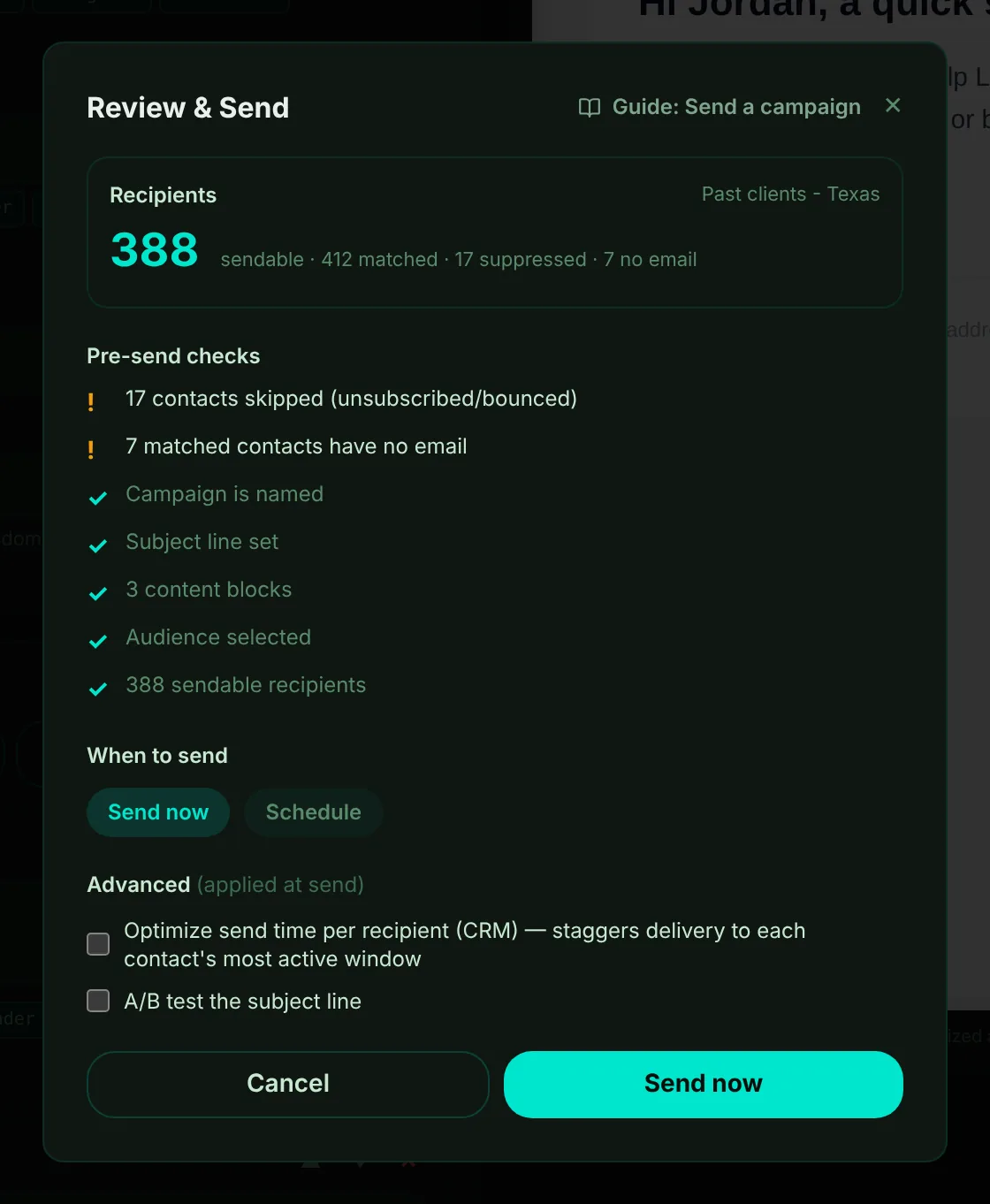
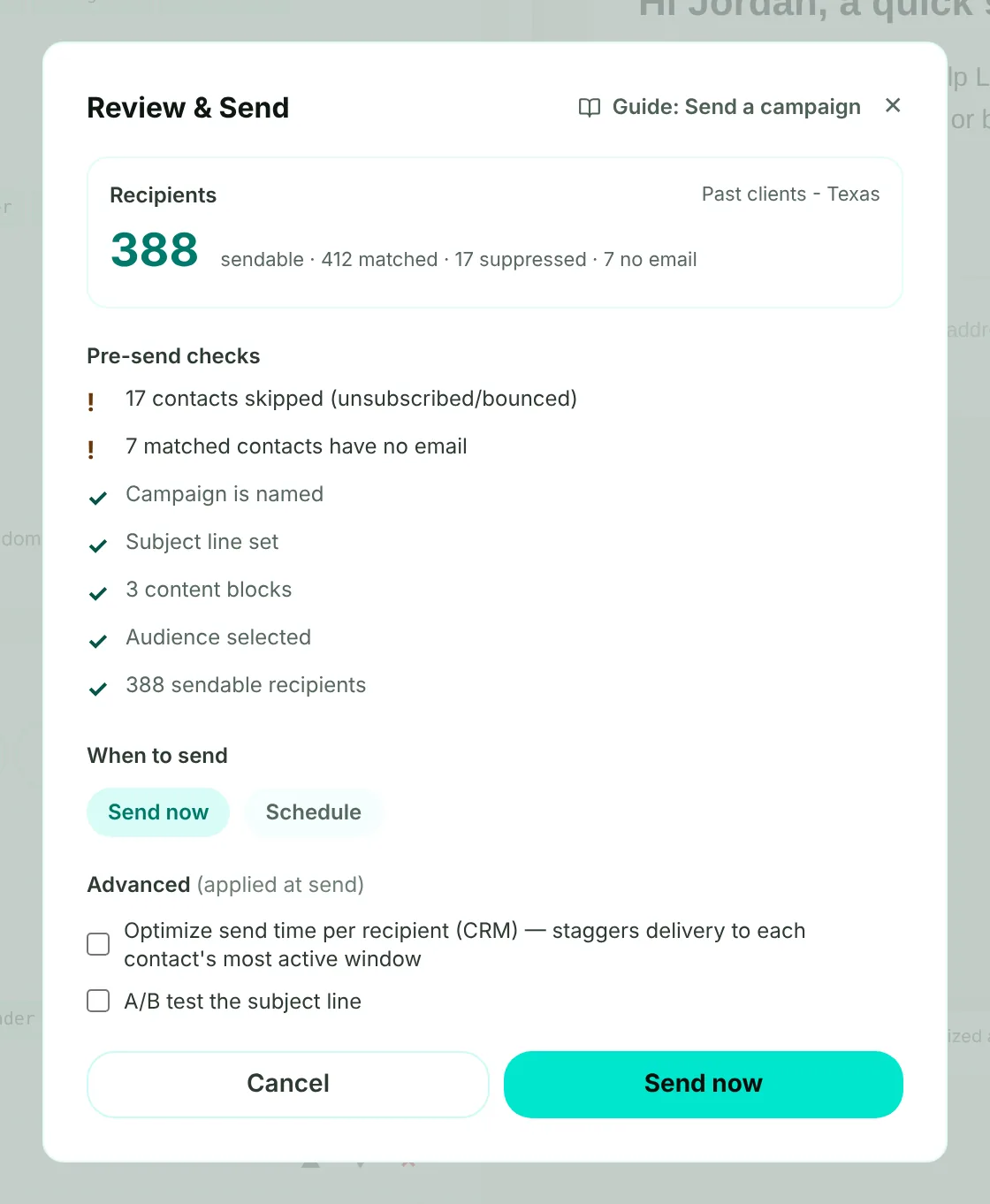
- Mark 1: How many people it will reach, and how many are skipped: suppressed (unsubscribed, bounced or complained) or with no email address.
- Mark 2: Pre-send checks. A cross must be fixed before you can send; an exclamation mark is advice.
- Mark 3: Send now, or Schedule a date and time in your workspace's time zone.
- Mark 4: Advanced: test two subject lines on a share of the audience - from 5% to 50% - and the winning subject goes to the rest. You can also stagger delivery to each contact's most active time.
- Mark 5: Send now - or Schedule send, when you chose a time.
| Pre-send check | Fix |
|---|---|
| Add a campaign name, a subject line, at least one block or an audience | Required - add it. |
| Audience has 0 sendable recipients | Required - choose another audience or check why everyone is skipped. |
| No preheader | Advice - add a short preview text. |
| Subject is long | Advice - under 90 characters reads well on a phone. |
| No call-to-action button with a link | Advice - give people one clear next step. |
| An image is missing alt text, or a button has no URL | Advice - fill them in. |
After you send
| You see | What it means |
|---|---|
| Sending | The campaign is live and going out within each domain's daily limit. |
| Scheduled | It starts by itself at the time you chose. |
| Campaign staged | Neither your main marketing address nor a marketing domain is ready to send yet. It sends by itself once one is ready in Admin, Email settings, Marketing domains. |
| Paused | The address it sends from cannot send - not set up, a record missing, or paused for bounces or complaints. The reason shows on the campaign. Fix it, then choose Resume. |
| Monthly email cap reached | Your plan's marketing emails for this month are used up. Sending goes on next month, or move to a larger plan for more. |
A campaign also pauses itself when 0.3% of its emails are marked as spam or 5% bounce, once 50 have gone out. An admin can make these limits stricter, and choose who is told, in Admin, Email settings, Campaign safety.
Replies to a campaign come into the CRM once replies are set up for your workspace. Bounces and complaints are reported back by your email service and stop that address from being emailed again.