

At a glance
- Admins set up services in Admin, then Services.
- One service can have several prices, for example monthly and yearly.
- Quotes, deals and invoices show one choice per price, and each line remembers the price it was sold at.
- A price already used on documents is switched off, not removed - old quotes and invoices keep their meaning.
- The list shows how often each service sold, its revenue and its open deals - and finds any service in a long list in a few keystrokes.
Before you start
- Who does it
- A workspace admin.
- Where it is
- Admin, then Services.
- Good to know
- A new service starts in your workspace currency. Changing a price never changes quotes, deals or invoices already made.
Find your way around a long list
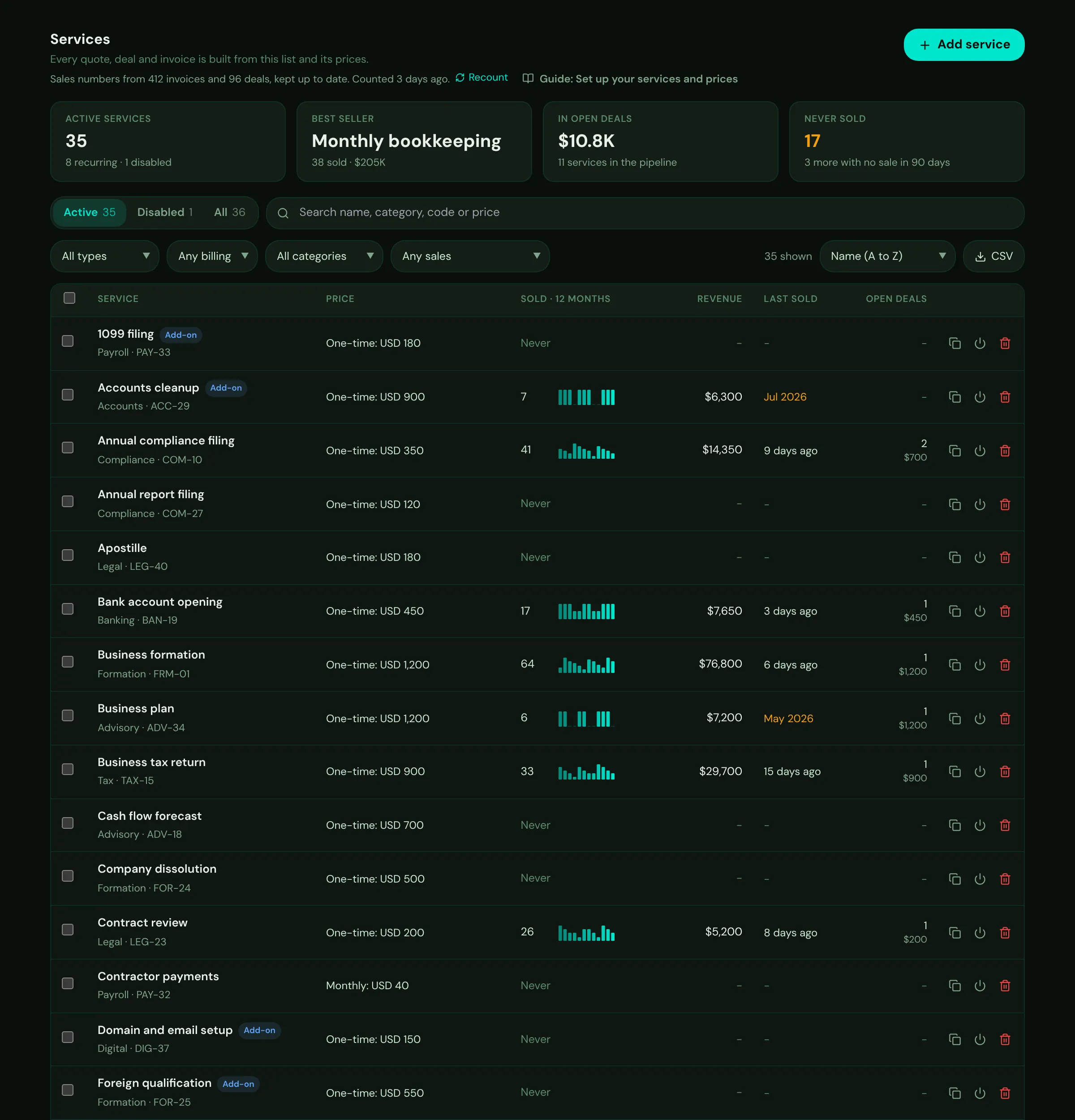
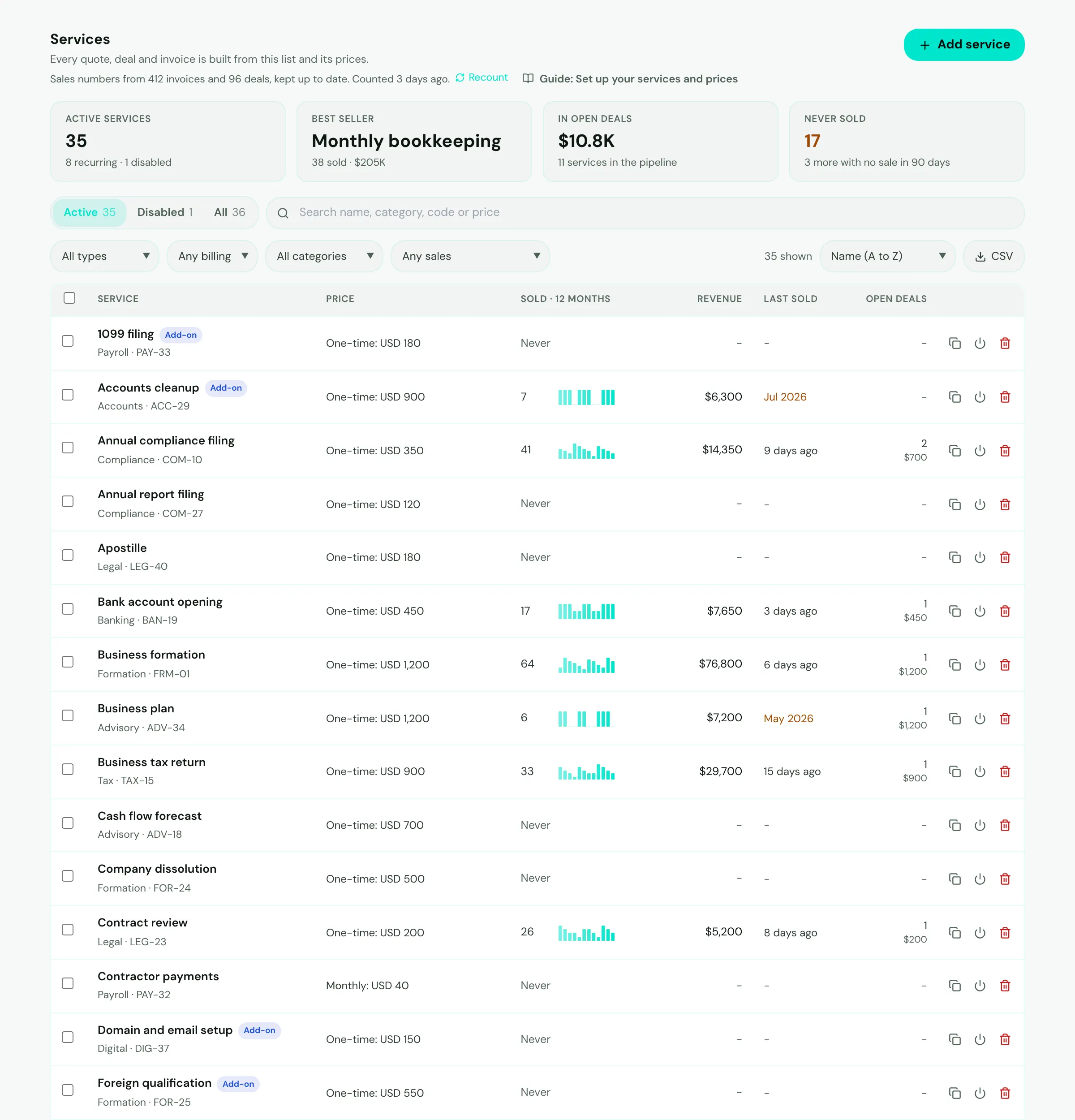
- Mark 1: Add service - a new service, in your workspace currency.
- Mark 2: Four numbers about your whole list: active services, your best seller, the value of open deals that include your services, and the services that never sold. Choose one to see the services it counts.
- Mark 3: Active, Disabled or All. The list opens on your active services.
- Mark 4: Search by name, category, code, description or price name. Every word you type must match.
- Mark 5: Narrow the list by type, billing (one-time or recurring), category and sales - best sellers, sold in the last 90 days, no sale in 90 days, never sold, or in open deals. Clear filters appears once anything is narrowed.
- Mark 6: How many invoices each service was sold on, with a bar for each of the last 12 months, its revenue, when it last sold and its open deals.
- Mark 7: Duplicate, Disable or Delete. Choose a row to open the service.
- Sort by name, most sold, highest revenue, sold most recently, most in open deals, highest price or newest. Your sort and page size are remembered on this computer.
- The list shows 25, 50 or 100 services a page.
- CSV downloads the services shown, with their sales numbers, for a spreadsheet.
See how each service is selling
The sales numbers come from your invoices and deals and stay up to date as they change - a new invoice, an edited line, a cancelled or deleted invoice, a deal won.
- Times sold counts the invoices a service is on. Draft, cancelled and void invoices do not count; a written-off invoice still does.
- Revenue is the total of the service's lines, before any invoice discount and tax. Each currency is kept apart and never added together.
- Open deals shows the deals in your pipeline that include the service, and their value.
- The first time an admin opens Services, the numbers are counted once from every invoice and deal. Recount, next to the date, counts them again - at most every 10 minutes.
Tip
Only admins see the sales numbers. The quote, deal and invoice pickers are unchanged for everyone else.
Change many services at once
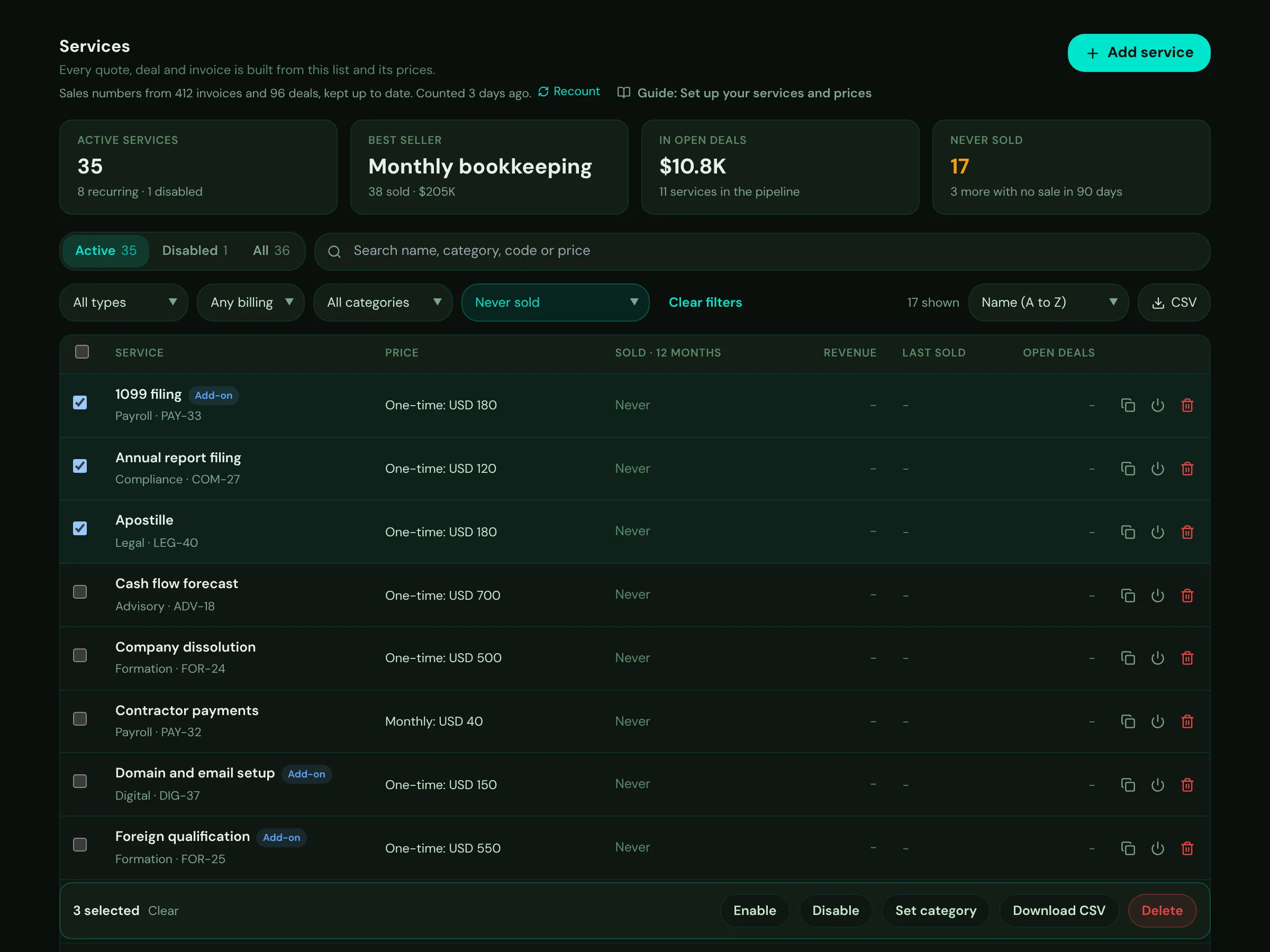
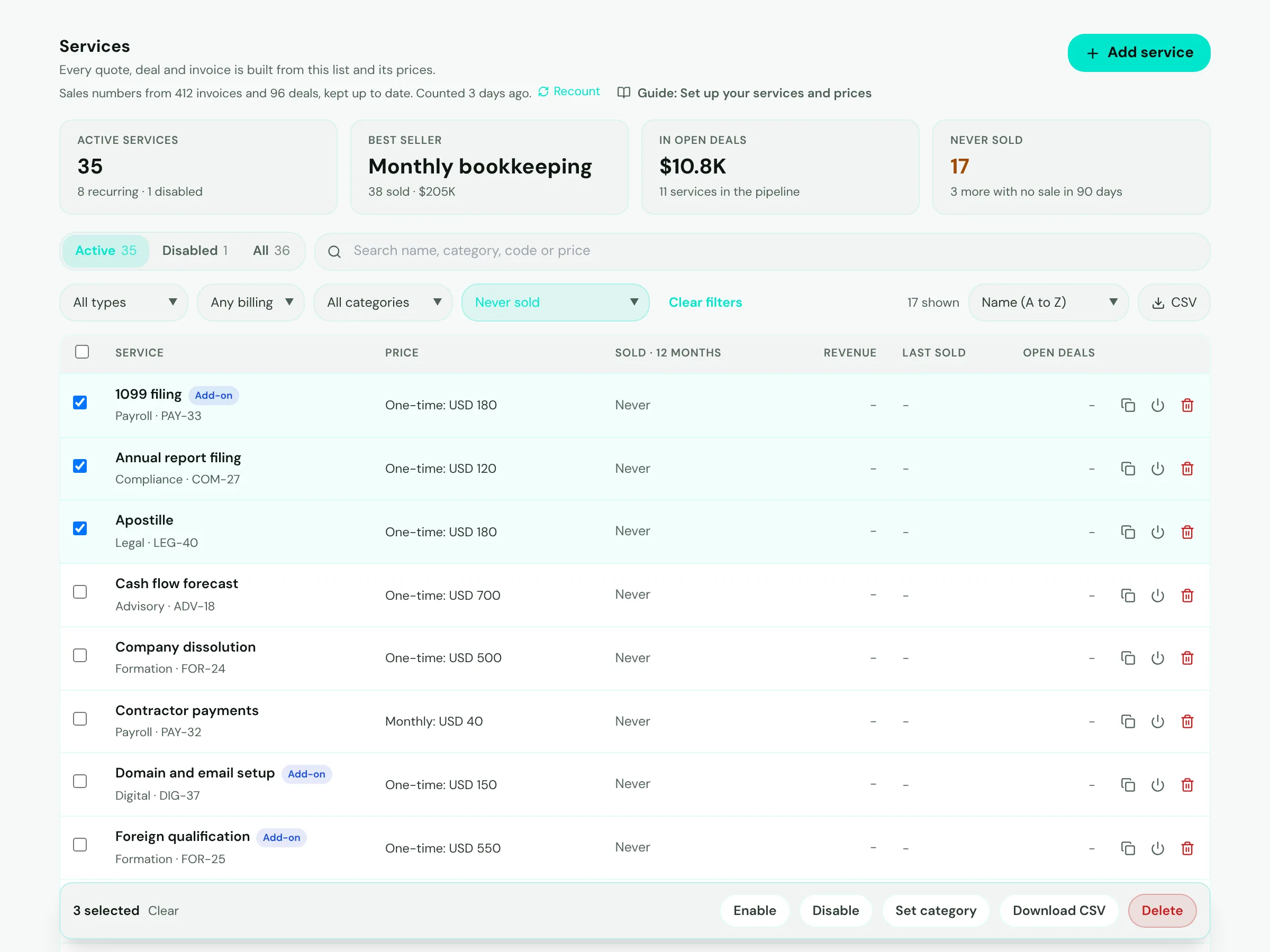
- Mark 1: Never sold filters the list to the services nobody has bought yet - a good place to tidy up.
- Mark 2: Tick the services to change. The box at the top ticks the whole page; then you can select every service that matches.
- Mark 3: Set category puts them all in one category. Leave it empty to take them out of their category.
- Mark 4: Enable, Disable, Download CSV or Delete - up to 100 at a time, as often as you need.
Tip
Delete hides a service everywhere for good. Quotes, deals and invoices that use it keep their own copy, so nothing already sent changes.
Add a service with more than one price
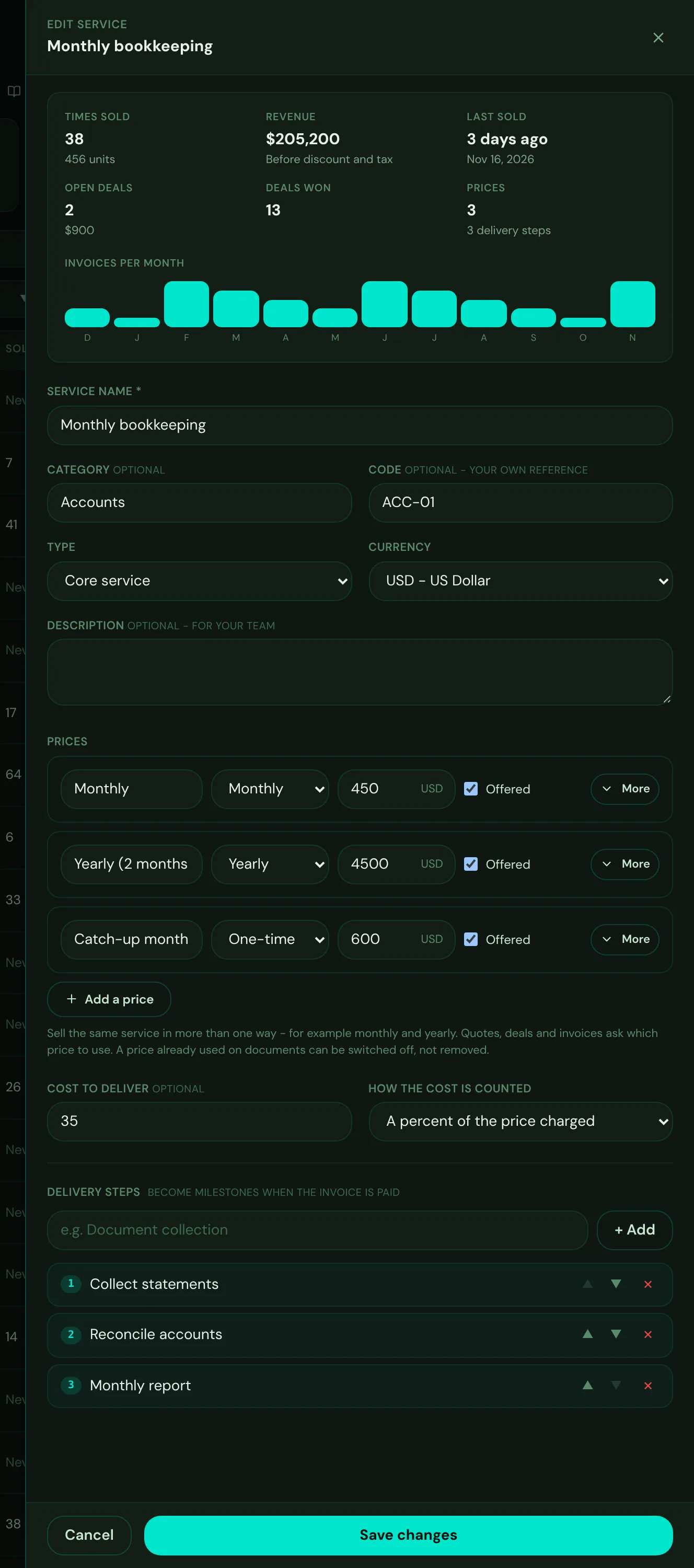
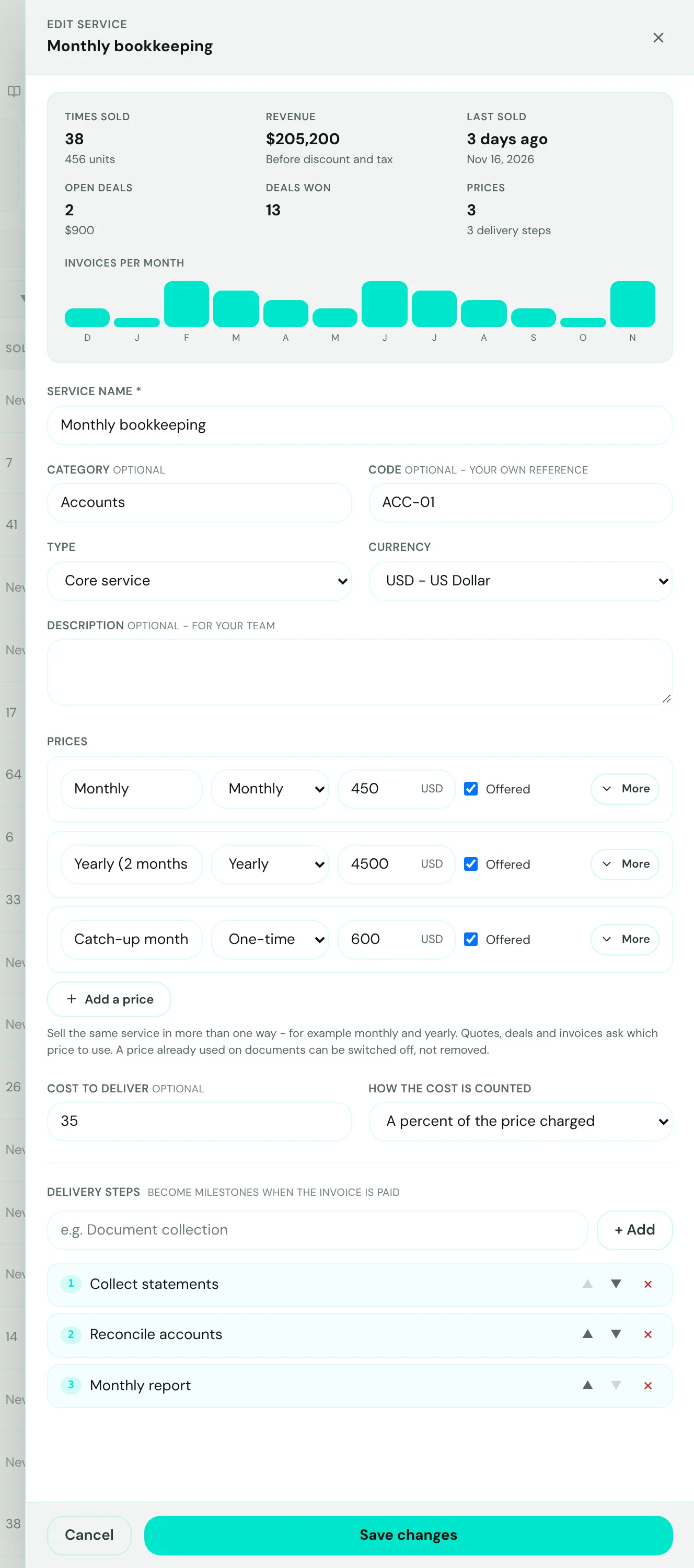
- Mark 1: How the service is selling: times sold, revenue, the last sale, open and won deals, and the last 12 months.
- Mark 2: A category groups your services for the filters, and a code is your own reference. Both are optional.
- Mark 3: The name your team and your clients see for each price. Leave it empty and it is named for you, for example Monthly.
- Mark 4: Add a price - up to ten per service, each billed one-time, monthly, quarterly or yearly.
- Mark 5: Save changes. Quotes, deals and invoices made from now on offer the new prices.
- Choose Add service. Give it a name, a category if you like, and choose Core service or Add-on. The currency starts as your workspace currency. To start from a similar service, choose Duplicate on it instead.
- Add its prices. For each way you sell it, choose how it is billed and enter the amount. A yearly price with two months free is simply a yearly price at ten times the monthly amount.
- Open More for the details. Charged per unit (per user, per hour) multiplies by the quantity on each line. A recurring price can also carry a setup fee, free trial days and a minimum term.
- Add the cost to deliver and the delivery steps. The cost - a fixed amount per unit or a percent of the price - feeds the margin on every quote and invoice. The steps become milestones when the invoice is paid.
- Choose Save. The prices are checked before anything is saved: each needs an amount of 0 or more, recurring prices need how often they are billed, and two prices cannot share a name.
Tip
To stop selling a price, untick Offered. It disappears from new quotes, deals and invoices, and documents that already use it are unchanged.
Choose a price on a quote, deal or invoice
Search for the service where you add services to a quote, deal or invoice. A service with several prices shows one row per price, for example Monthly bookkeeping - Monthly and Monthly bookkeeping - Yearly. Choose the one you are offering.
- The line keeps the list price from your services, locked, next to the price you agree with the client - any discount shows as a percentage.
- The line shows the price's name, so everyone can see which price was sold.
- When a quote becomes a deal, and a deal becomes an invoice, the line keeps its price.
- Changing a price later never changes documents already made.