

At a glance
- An admin connects the website in Admin, then Website capture, and adds one line of code to the site - with steps for WordPress, Shopify, Webflow, Wix, Squarespace, Google Tag Manager and hand-coded sites.
- Forms you already have keep working as they do today - the CRM listens alongside them. Check my website and test mode show what it hears.
- Each inquiry becomes a contact linked to a company: the website or company name they typed, or their work email's domain.
- Each contact keeps the channel that first brought them and the latest one; the Inquiries page shows which channels bring the most.
- A doubtful inquiry is held for a person to review - it is never lost.
Before you start
- Who does it
- A workspace admin connects the website. Anyone who can see every contact can open Inquiries; a salesperson sees Source and journey on their own contacts.
- Where it is
- Admin, then Website capture (under Communications). Inquiries is in the Main menu.
- Good to know
- Included in every plan. You need access to your website's footer code, a plugin that adds code to it, or Google Tag Manager. Form emails need a mailbox the CRM reads (My Email, or the workspace's reply mailbox).
Connect your website
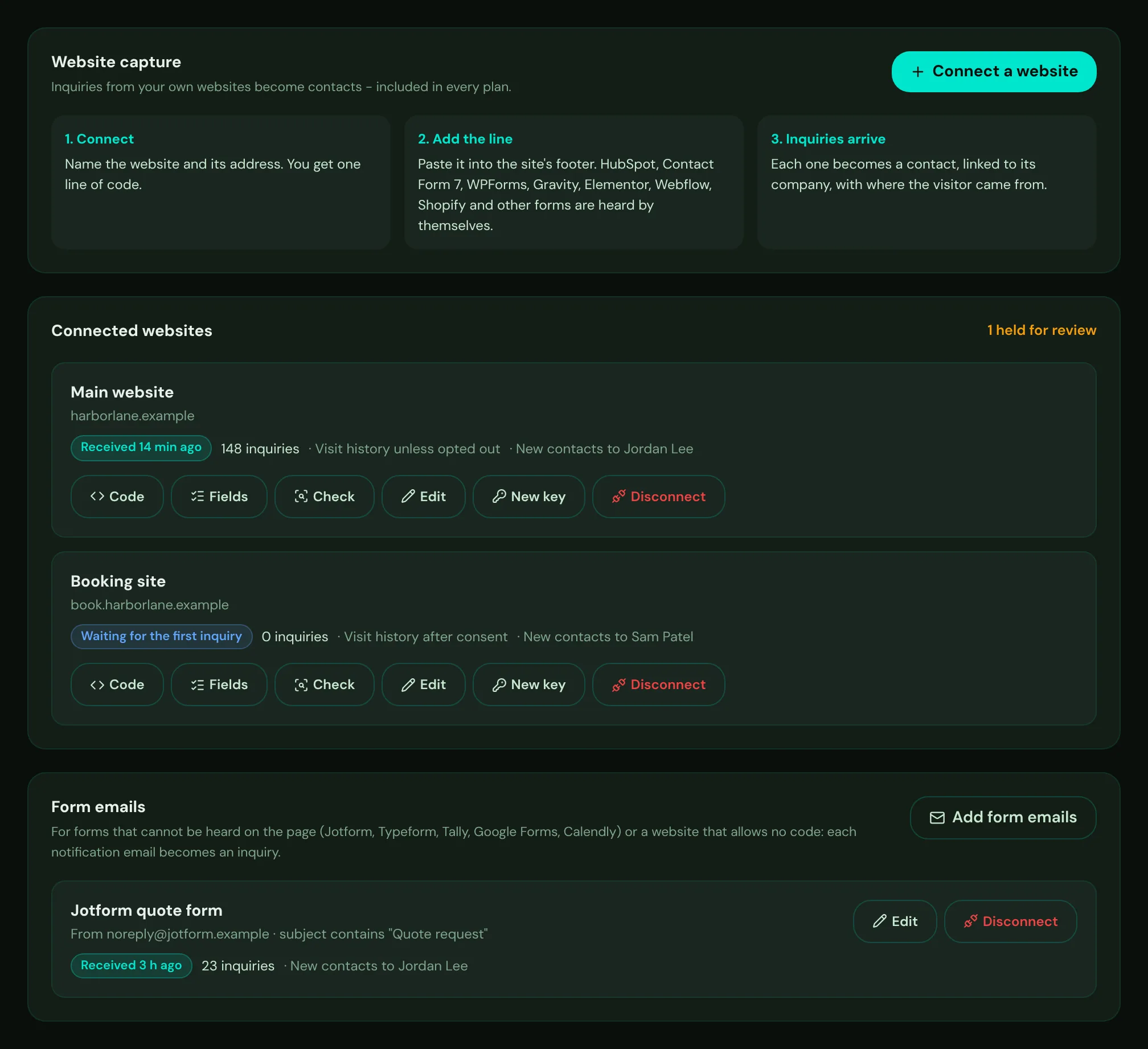
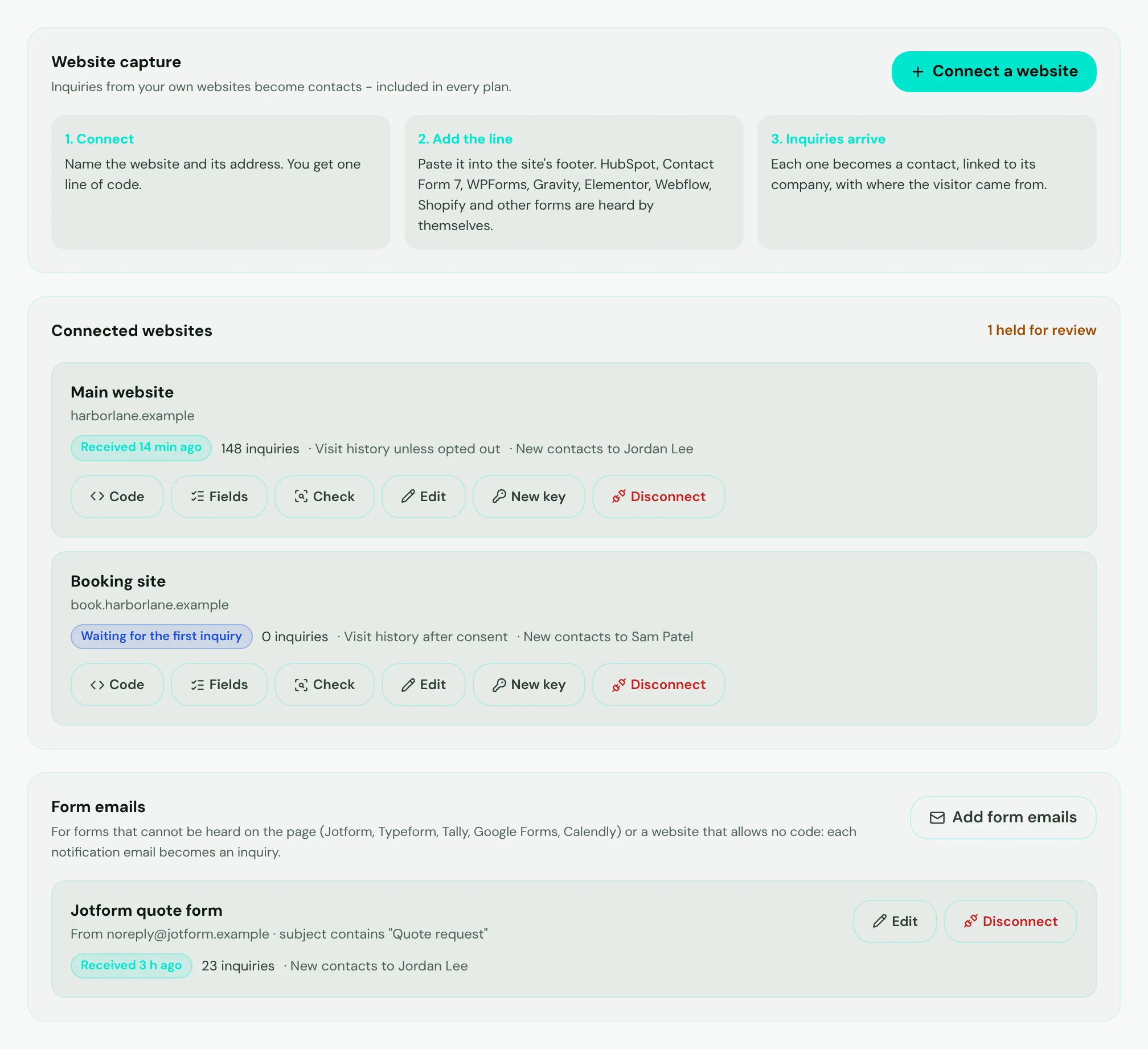
- Mark 1: Connect a website - name it, type its address and choose who owns the new contacts.
- Mark 2: How the connection is doing: when the last inquiry arrived, or that it is still waiting for the first one.
- Mark 3: Code - the line to add to your website, with the steps for your kind of site, and the code for a form your own developer built.
- Mark 4: Fields - what each field your forms sent becomes in the CRM.
- Mark 5: Check - reads your website and tells you whether the line is there and which forms it will hear.
- Mark 6: Add form emails - for form tools that only send a notification email.
- Mark 7: A form emails connection: the address its emails come from and how many inquiries it brought.
- Choose Connect a website. Give it a name, such as Main website.
- Type the website's address. For example example.com. It also covers www.example.com and your other subdomains. A page on any other website cannot send inquiries with this connection.
- Choose who owns new contacts. New contacts from this website are assigned to that person. Leave it empty and an admin assigns them.
- Choose how visit history is kept. Keep it unless the visitor opts out (the usual choice for US websites), or only after the visitor agrees - use this one when your visitors are in the EU, the UK or another place where consent comes first.
- Keep "Catch every form with an email field" on. The line then hears every form on the site that asks for an email or a phone number, whichever tool made it. Switch it off only if you want to choose forms one by one with the data-nx-capture mark.
Add the line of code to your website
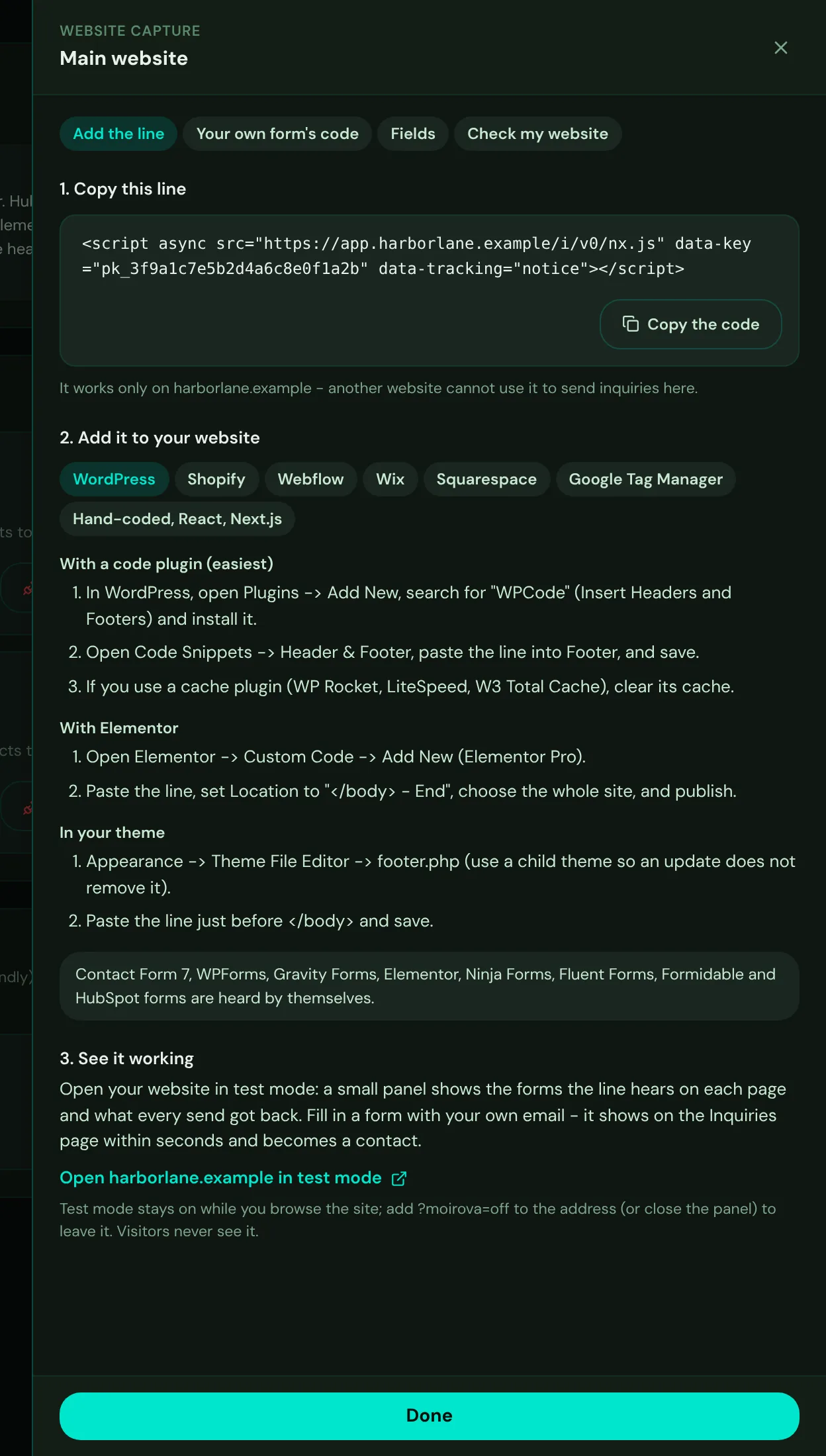
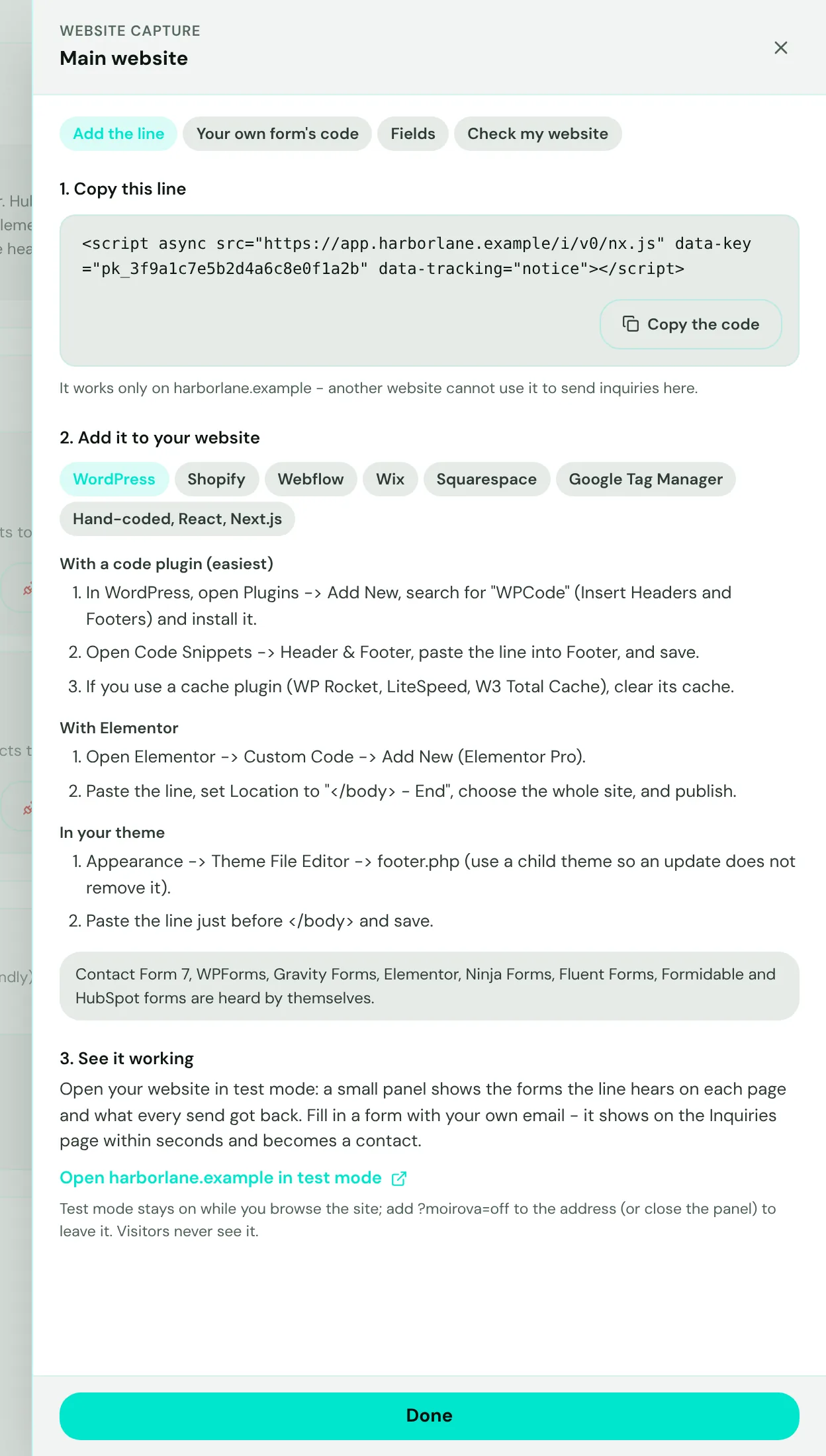
- Mark 1: The four things you can do with a connection: add the line, write the code for your own form, choose what fields become, and check the website.
- Mark 2: The one line your website adds. It carries the connection's key - it is not a secret, but it only works on your website's addresses.
- Mark 3: Choose what your website is built with.
- Mark 4: Where the line goes on that kind of website, step by step, and which of its forms are heard by themselves.
- Mark 5: Open your website in test mode to see it working.
On WordPress, a plugin that adds code to the footer (such as WPCode) is the easiest place; Elementor Pro and your theme's footer work too. On Shopify, Webflow, Wix and Squarespace, use the site's custom code setting and choose the end of the page. With Google Tag Manager, add it as a Custom HTML tag on all pages. On a site of your own, paste it before the closing body tag.
- Heard by themselves: HubSpot forms and the HubSpot Meetings booking widget, Contact Form 7, WPForms, Gravity Forms, Elementor forms, Ninja Forms, Fluent Forms, Formidable Forms, Webflow forms and Shopify contact and newsletter forms.
- Any other form that asks for an email or a phone number is heard too - whether it opens a new page or shows a thank-you message.
- Squarespace and Wix forms: check them once in test mode.
- Jotform, Typeform, Tally, Google Forms and Calendly show their form inside their own frame, which a website cannot read - connect their notification emails instead (see Forms that only send an email, below).
- The CRM gets a form when the visitor's browser sends it - not while the form shows an error on the page.
Tip
The line never reads password fields, file fields, payment card numbers or security codes, and never reads search, comment or checkout forms. To keep any other form out, add the attribute data-nx-ignore to it.
See it working: test mode and Check my website
Test mode is your website with a small panel in the corner that only you see. Open it from the link under Add the line (it adds ?moirova=test to your website's address). The panel lists the forms the line hears on each page, and when you send one, what the CRM did with it. A test inquiry is marked Test on the Inquiries page. Test mode stays on while you browse the site; close the panel or add ?moirova=off to the address to leave it. Visitors never see it.
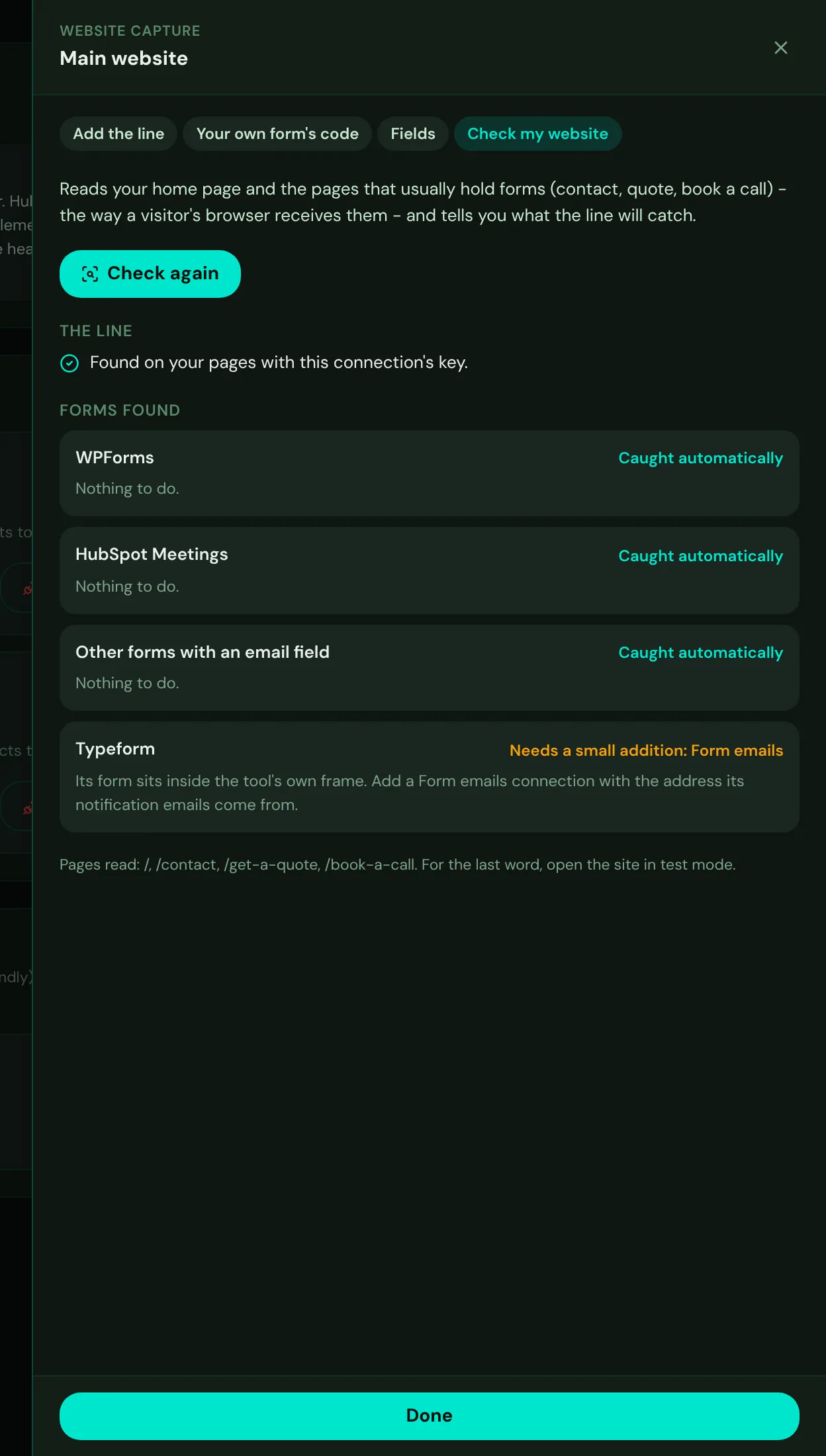
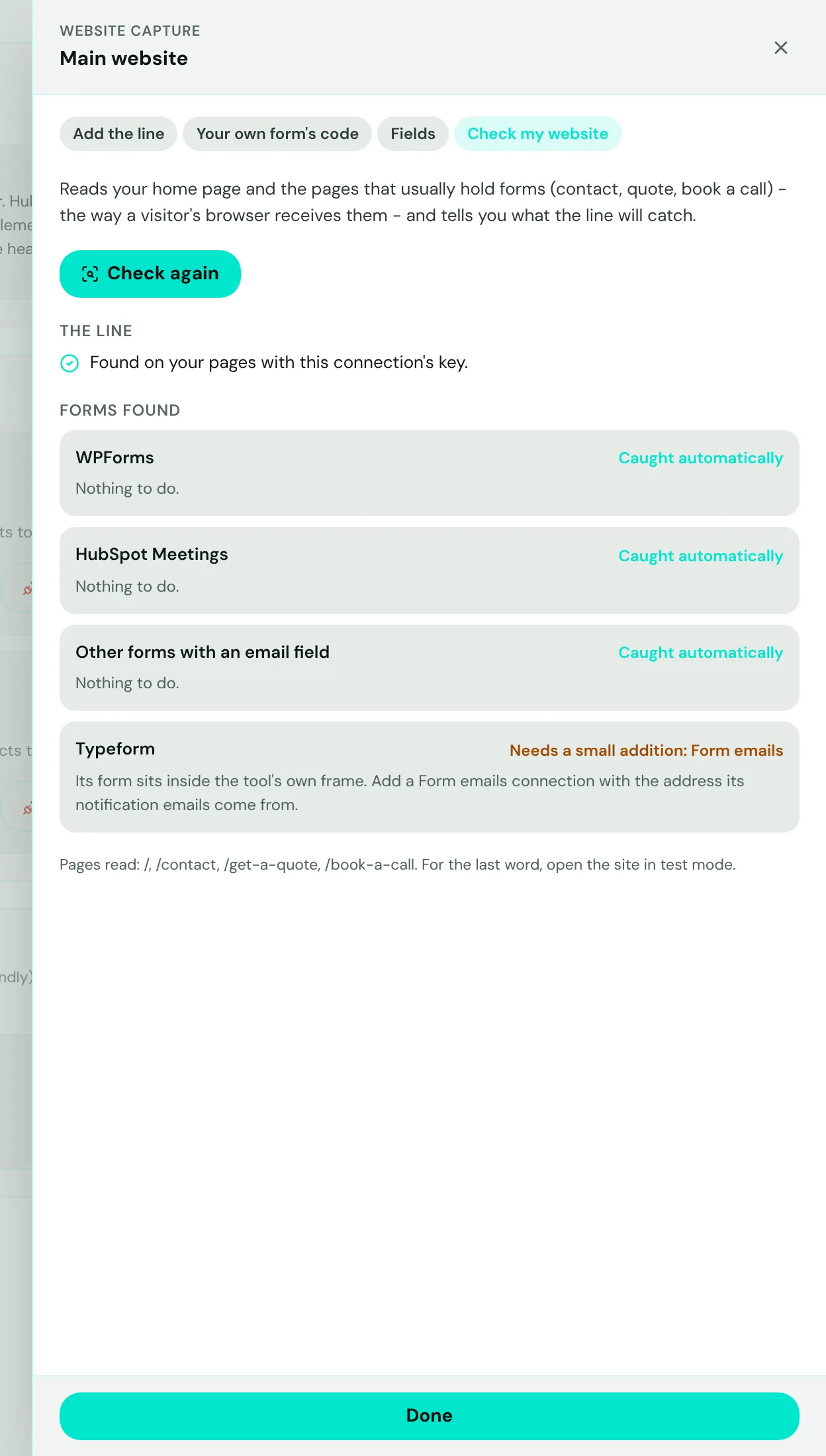
- Mark 1: Check my website reads your home page and the pages that usually hold forms (contact, quote, book a call), as a visitor's browser receives them.
- Mark 2: Whether the line is on those pages, and with this connection's key.
- Mark 3: Each kind of form found, and whether it is caught automatically.
- Mark 4: A form that needs something from you - here a form emails connection, with what to do.
Nothing of your pages is kept, and a workspace can run 10 checks an hour. A form that your website draws later with its own code may not show in the check - test mode shows it.
A form your website's own code sends
Quote calculators, estimators and booking apps written by your developer are not ordinary forms, so the line cannot read them by itself. Under Code, Your own form's code writes the few lines your developer adds after the form was sent.
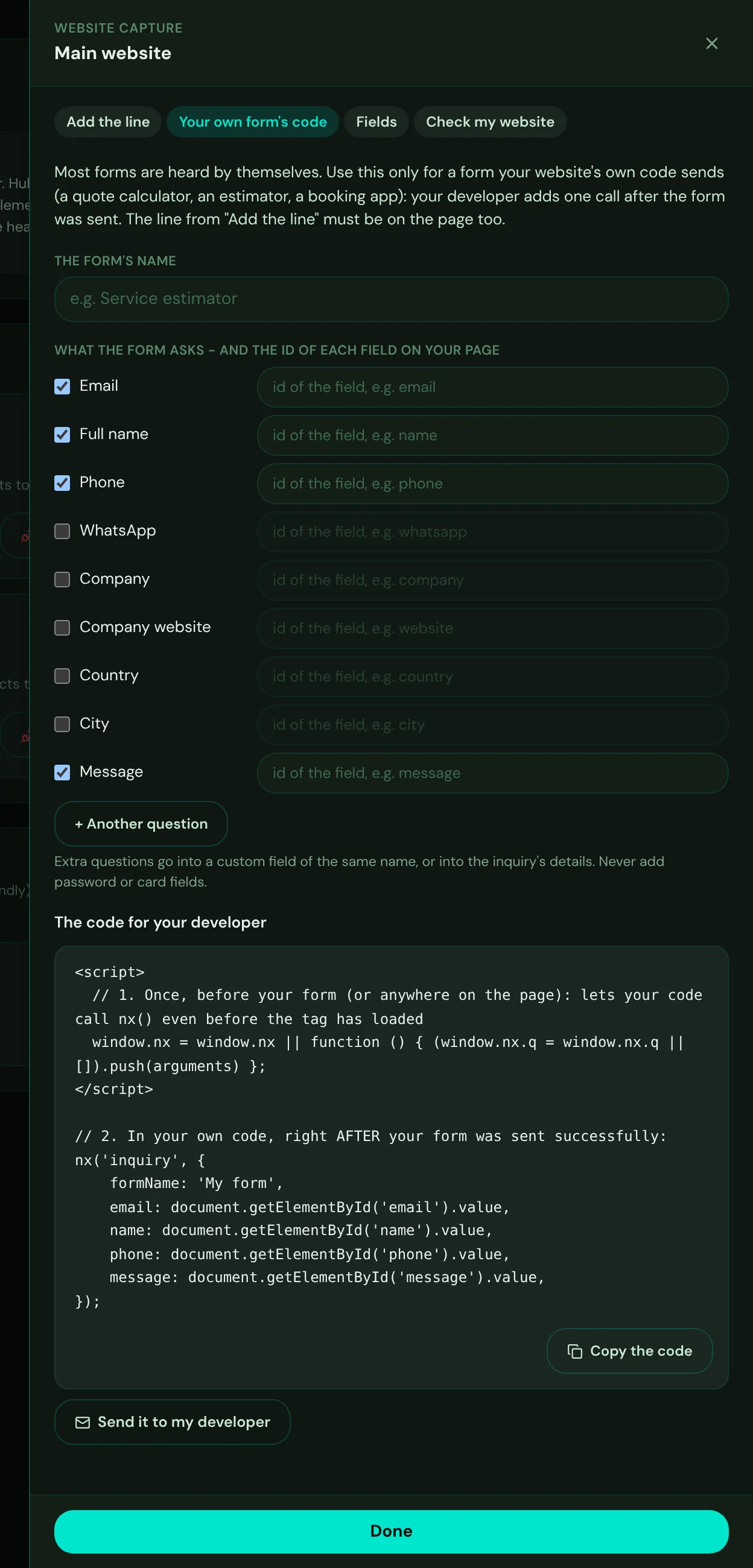
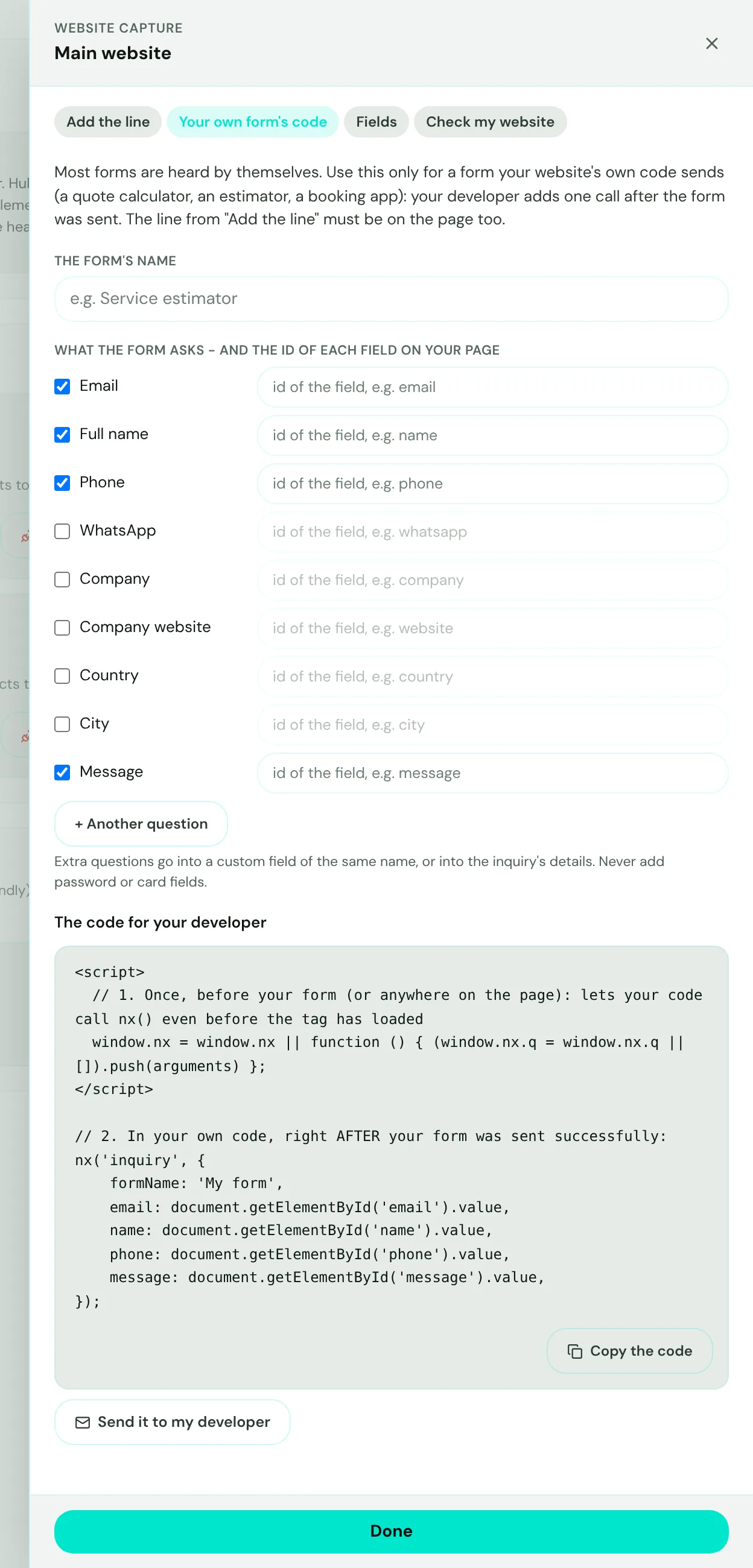
- Mark 1: The form's name, as it shows on each inquiry.
- Mark 2: Tick what the form asks and type the id of each field on your page. Add your form's own questions with Another question.
- Mark 3: The code, written for you.
- Mark 4: Send it to my developer - opens an email with the code and where it goes.
- Open Code, then Your own form's code. On the website's connection in Admin, then Website capture.
- Tick what the form asks. And type the id each field has on your page - your developer knows them.
- Send it to your developer. They add it after the form was sent successfully. The line from Add the line must be on the same page.
- Try it in test mode. Send the form once in test mode; the panel shows that the CRM received it.
Forms that only send an email
Form tools that live on their own pages or in a frame - Jotform, Typeform, Tally, Google Forms, Calendly - and websites that allow no code at all can still send inquiries: each notification email the tool sends you becomes an inquiry. The CRM reads the mailbox every few minutes.
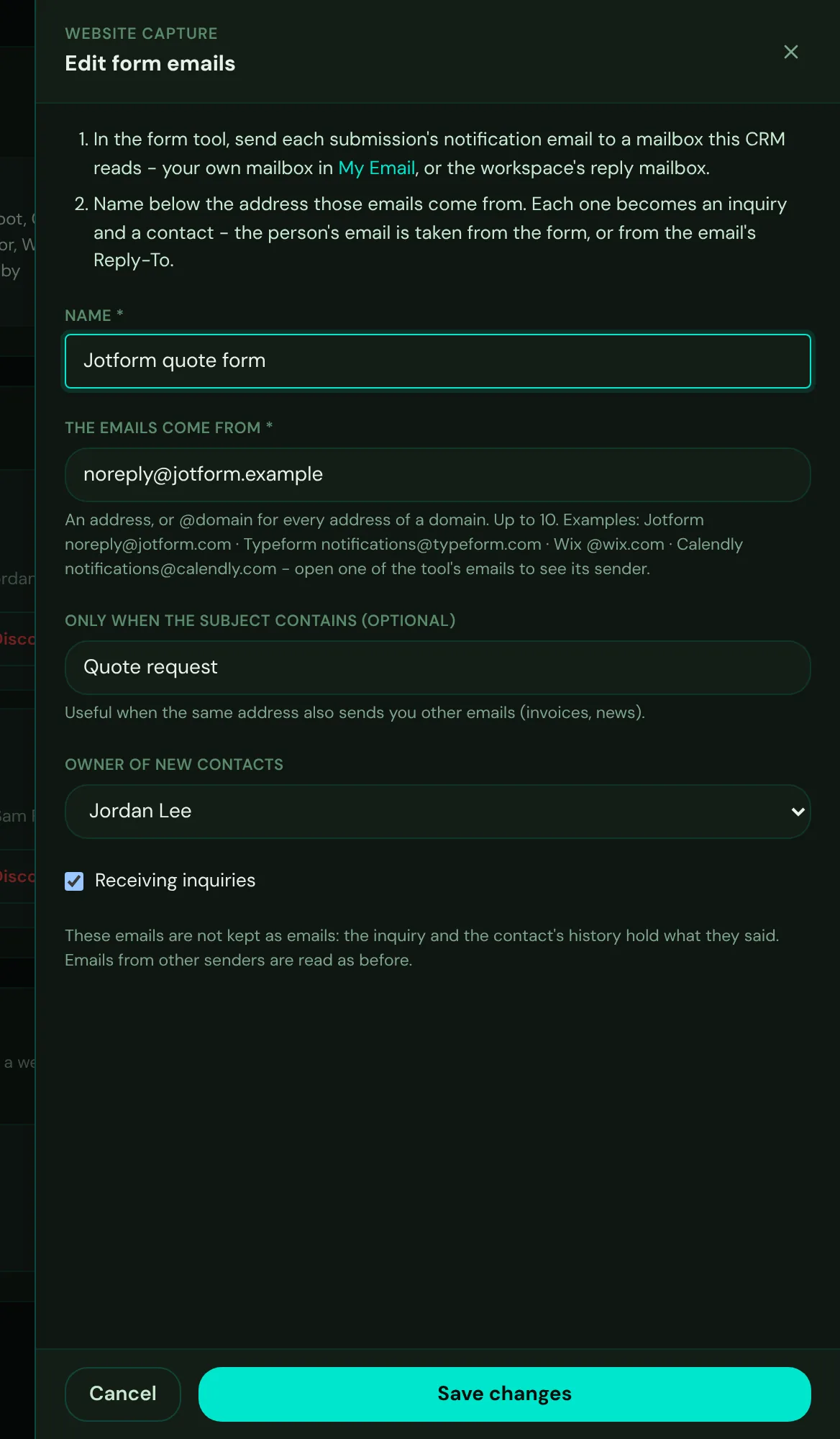
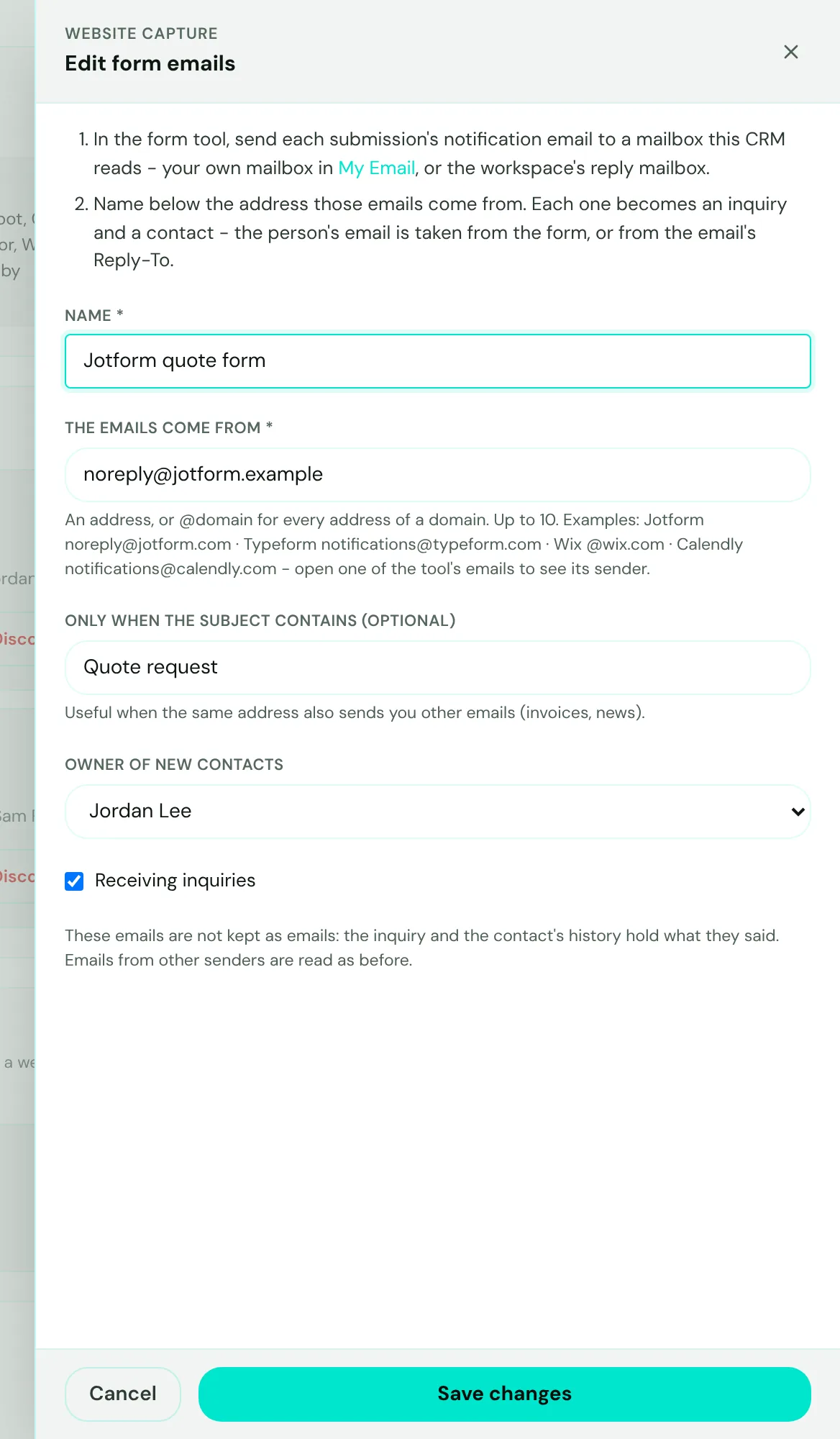
- Mark 1: A name for the form, as it shows on each inquiry.
- Mark 2: The address the tool's emails come from - or @domain for every address of a domain. Open one of its emails to see the sender.
- Mark 3: Only when the subject contains - useful when the same address also sends you invoices or news.
- Mark 4: Save. From then on each new email from that address becomes an inquiry.
- Send the form's emails to a mailbox the CRM reads. In the form tool, set its notification email to your own mailbox in My Email, or to the workspace's reply mailbox.
- Choose Add form emails. In Admin, then Website capture, under Form emails.
- Type the address the emails come from. For example noreply@jotform.com. Add a subject filter if the same address sends you other emails.
- Send yourself a test. Fill in the form once. Within a few minutes the inquiry is on the Inquiries page.
The person's email is taken from the form's fields in the email, or from its Reply-To. These emails are not kept as emails: the inquiry and the contact's history hold what they said. Emails from other senders are read as before.
Choose what each field becomes
Fields are recognized by their name, their label and the kind of field, even when a form builder adds its own prefix - your-email, contact_email or form_fields[email] all read as Email. A field that is not a contact detail goes into one of your custom fields with the same name, or else into the inquiry's details, written into a new contact's notes.
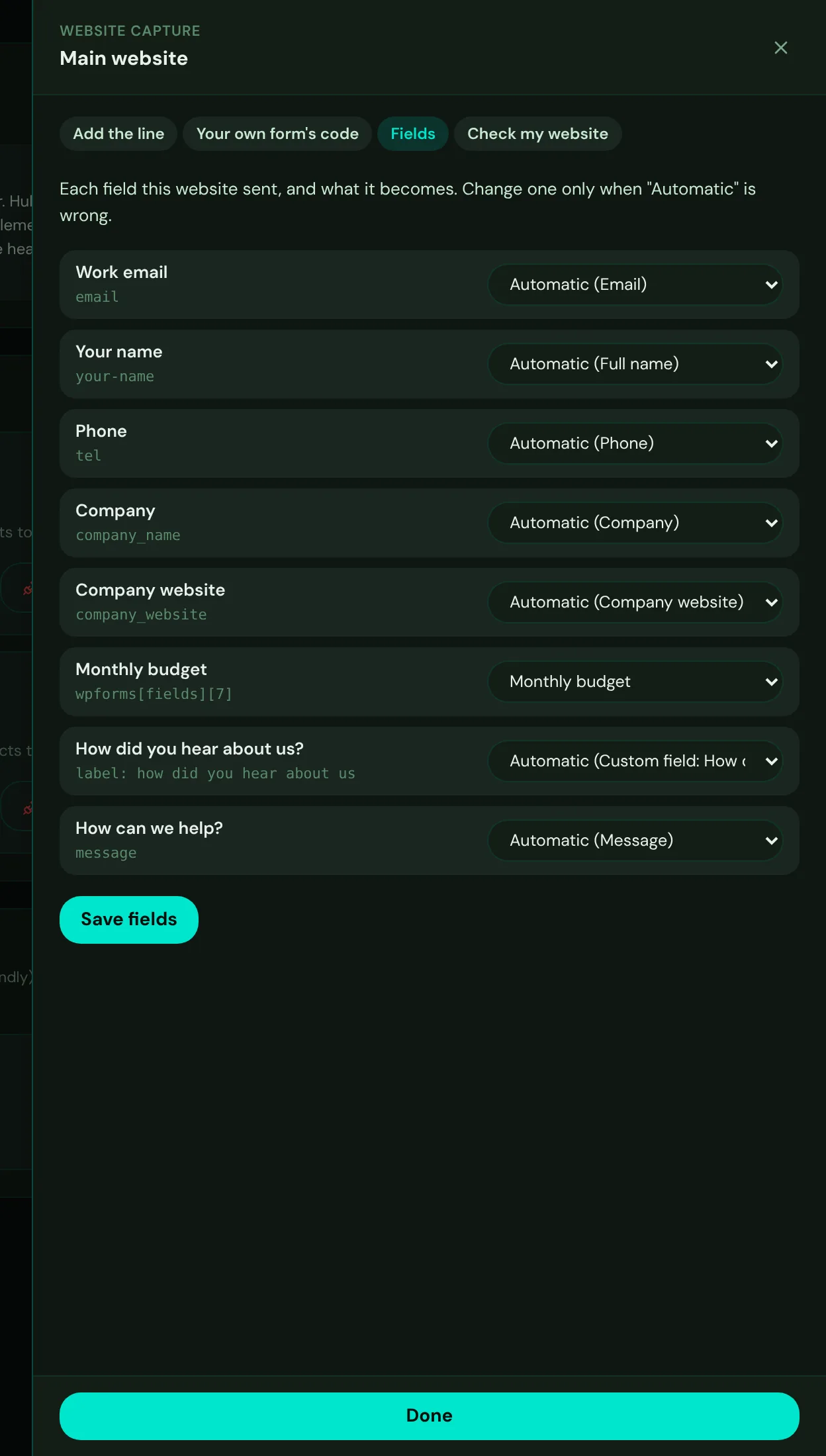
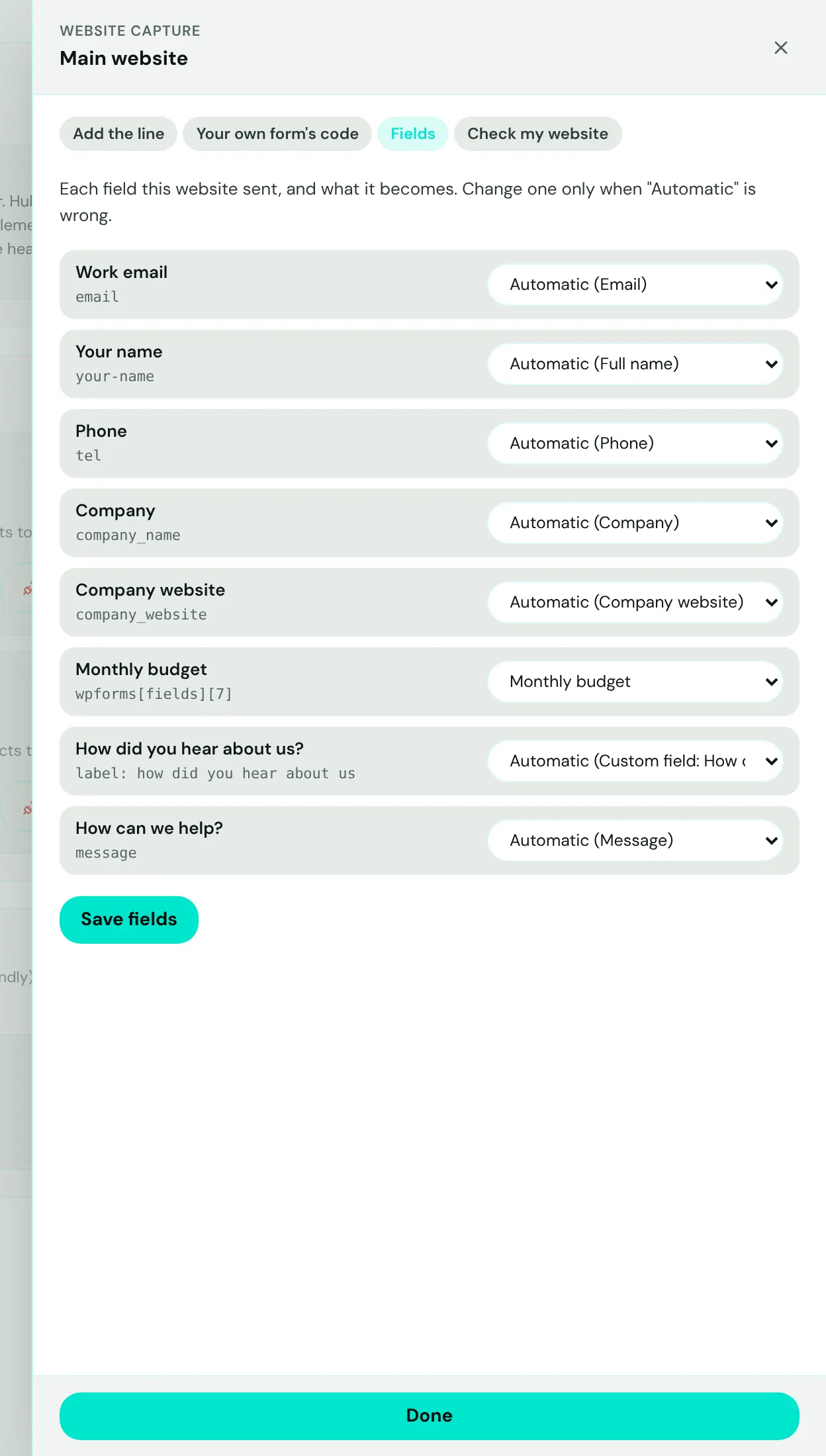
- Mark 1: Each field this website sent: its label, and the name it has in the form.
- Mark 2: What it becomes. Automatic is right for most fields; choose a contact field, one of your custom fields, the notes, or Do not keep.
- Mark 3: Save fields. The change applies to the next inquiries.
The list fills in as inquiries arrive. A number or date custom field only takes a value that reads as a number or a date, and a list field only one of its own choices; anything else stays in the inquiry's details.
See your inquiries
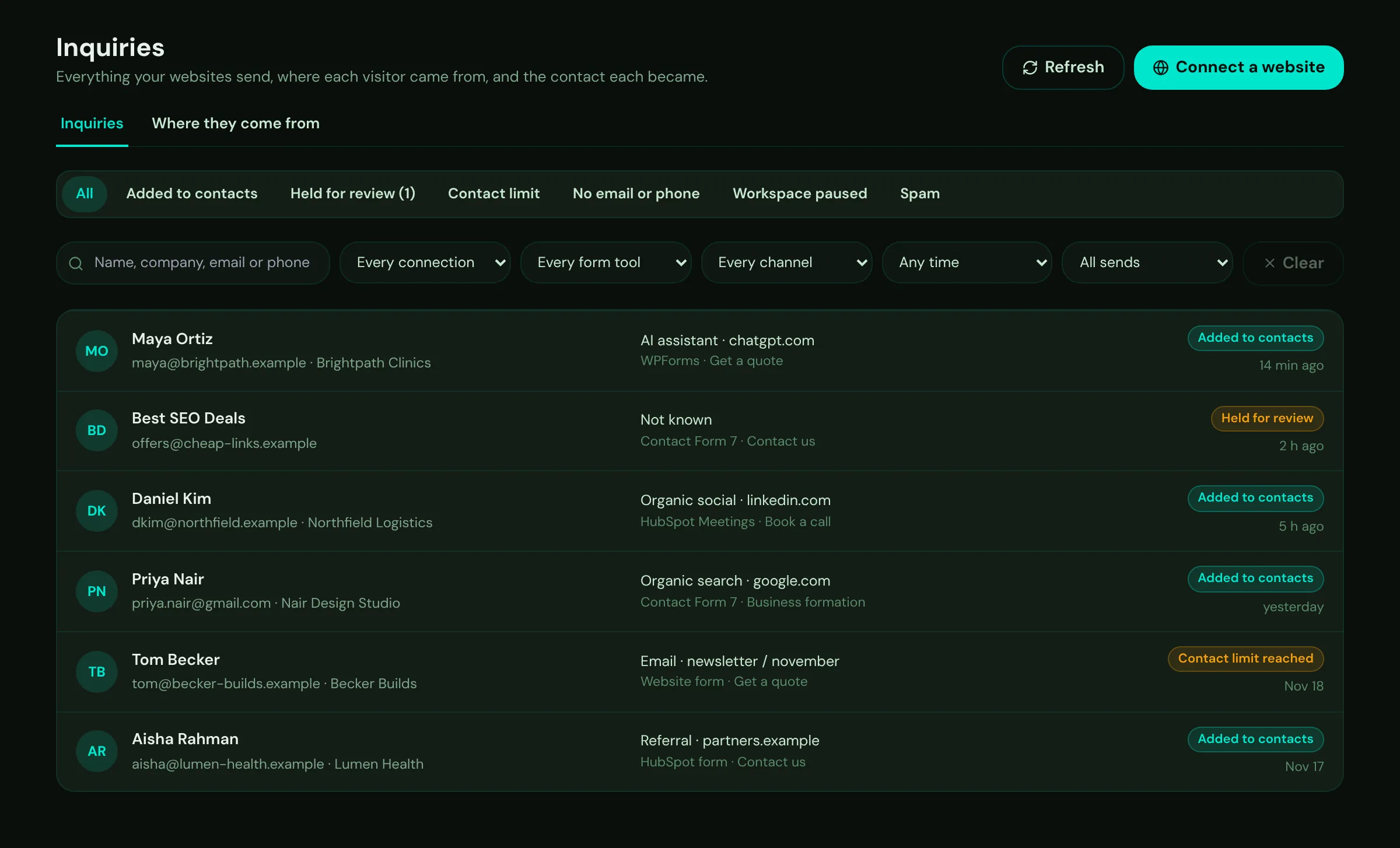
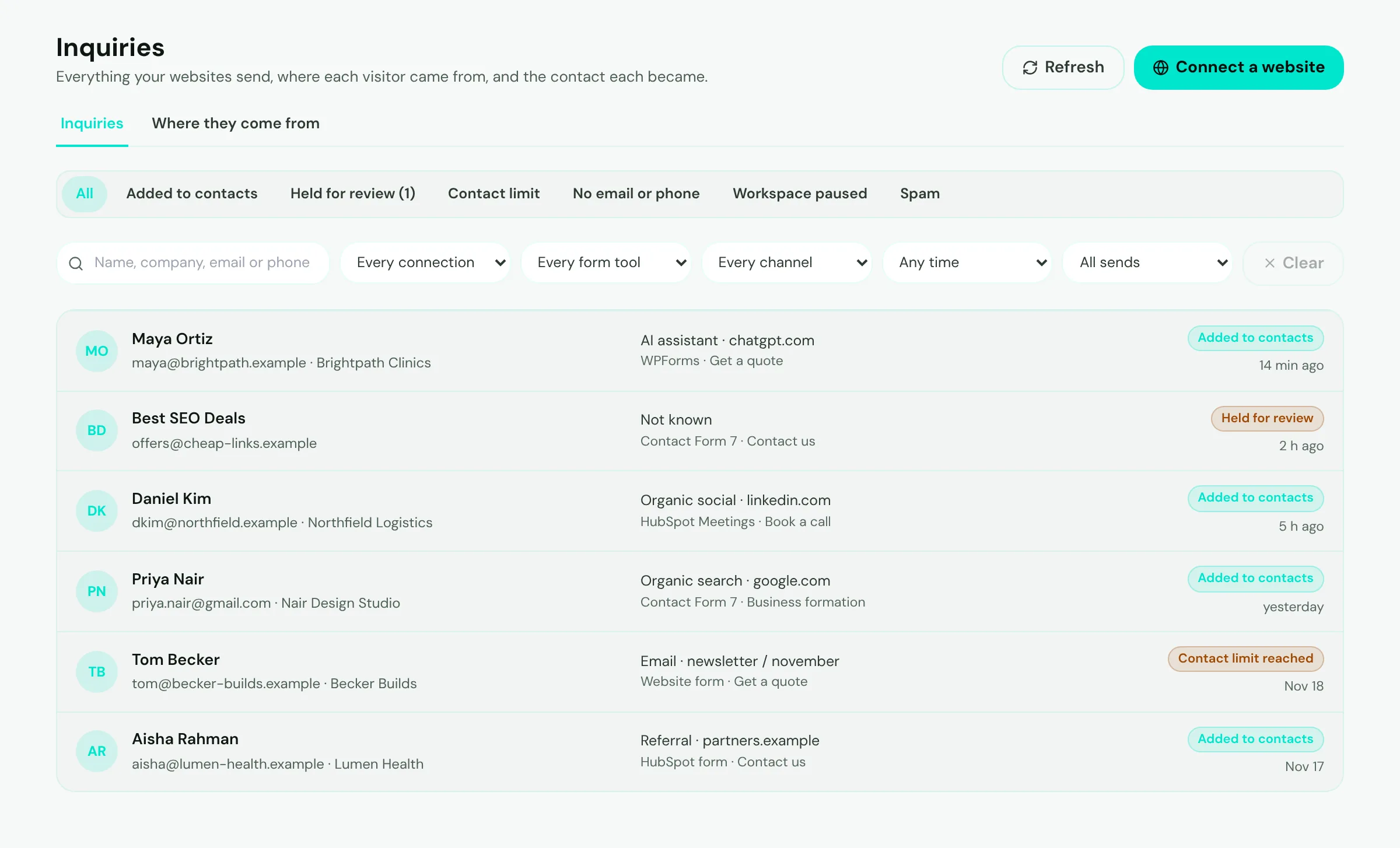
- Mark 1: Connect another website (admins).
- Mark 2: Where they come from - the channels that bring your inquiries (see below).
- Mark 3: Held for review - inquiries that look like spam wait here for a person.
- Mark 4: Search by name, company, email or phone - two letters are enough to start.
- Mark 5: Filters: one connection, one form tool, one channel, a time span, or only real or only test sends. Clear puts them all back.
- Mark 6: Where the visit before the inquiry came from, and the form and page it was sent from.
- Mark 7: What happened to it: added to contacts, held, over your contact limit, or missing an email and a phone.
The search and the filters stay in the page address, so you can bookmark a filtered list, and they are still there when you close an inquiry. A phone number is found however it is typed - 0300 1234567 finds +92 300 1234567. The page shows the last list at once when you come back, and refreshes it quietly in the background.
A new person becomes a contact in the first stage of your pipeline, and three things are made at once: the inquiry, the contact and their company.
- The company is found by the website they typed, then by their work email's domain (an address at a free service such as Gmail is never used), then by the company name they typed.
- When none is found, a new company is made from what they typed - its name, website and industry - or from their work email's domain, and the contact is linked to it.
- When the name they typed matches several of your companies, nothing is guessed: the inquiry shows it as a suggestion for you to link.
- A company you already have only gets an empty industry or website filled in.
Someone who is already a contact - the same email, or the same phone number - is not added twice. The form never changes what the contact has: it only fills what is empty (name, phone, WhatsApp, job title, company, country and city, custom fields), and the inquiry is added to their history.
Where inquiries come from
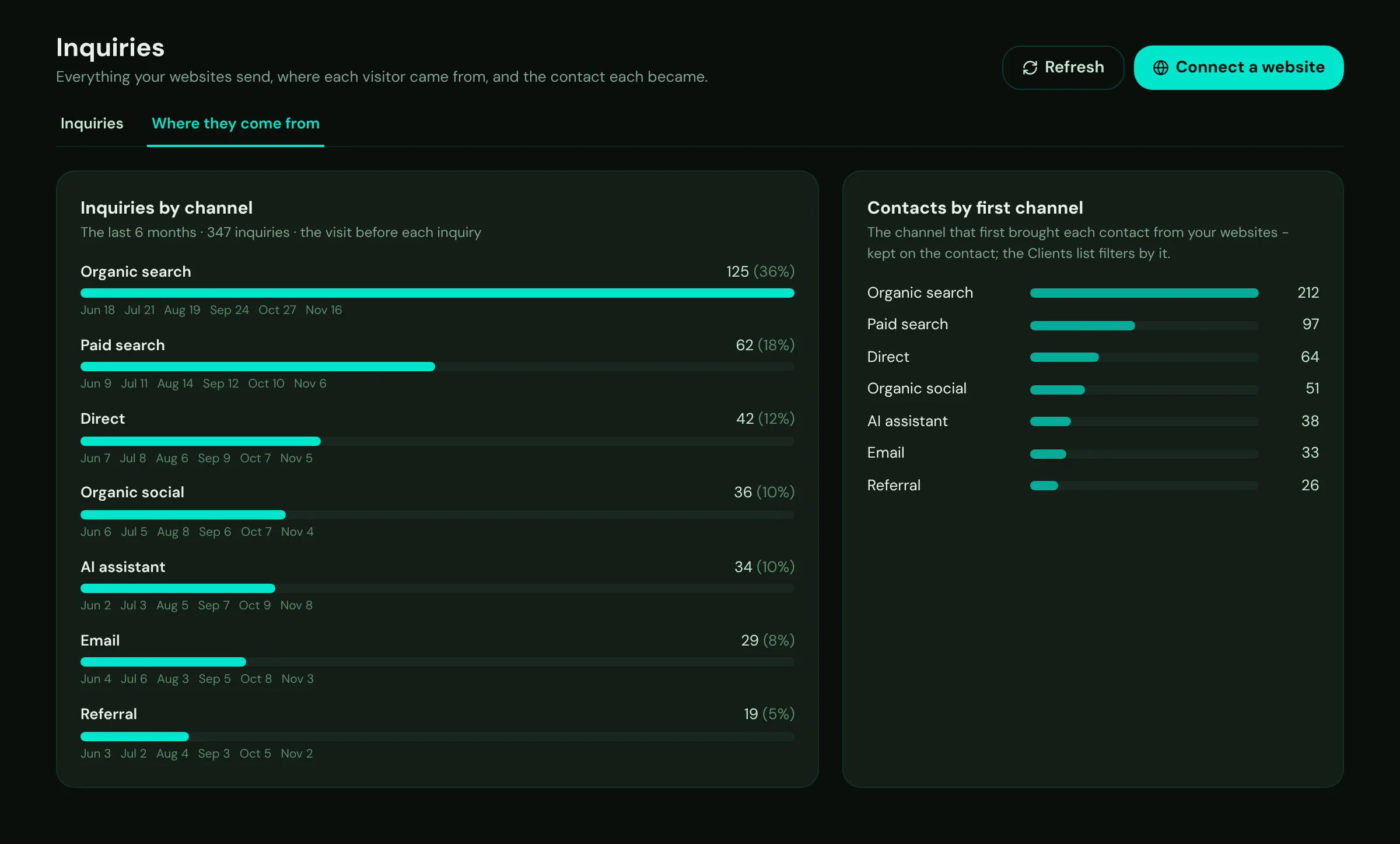
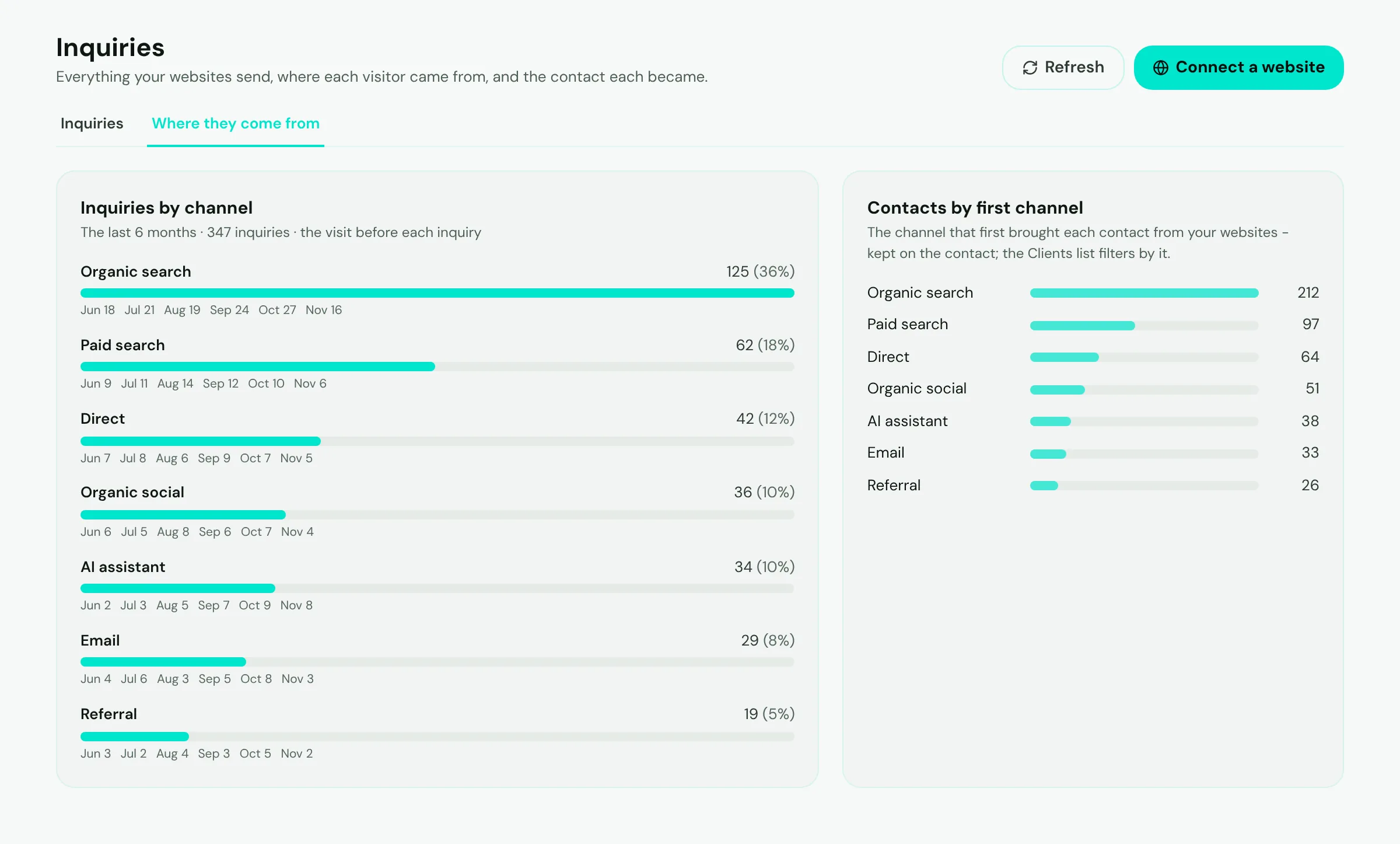
- Mark 1: Open Where they come from on the Inquiries page.
- Mark 2: Inquiries by channel for the last six months - the visit before each inquiry - with each month's count.
- Mark 3: Your contacts by the channel that first brought them.
On the Clients page, the Channel column shows each contact's first channel, and the First channel filter lists only the contacts that one channel brought - for example everyone who first came from paid search, or from an AI assistant.
Open one inquiry
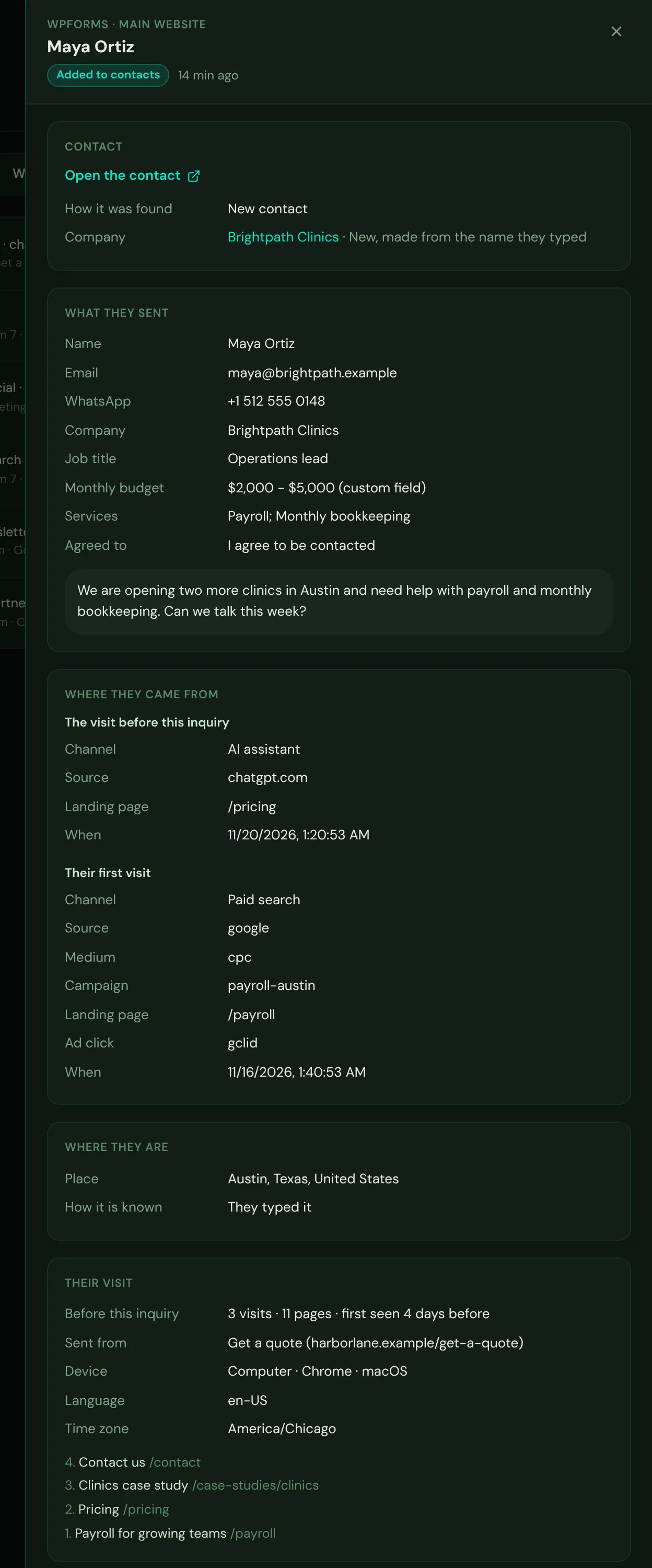
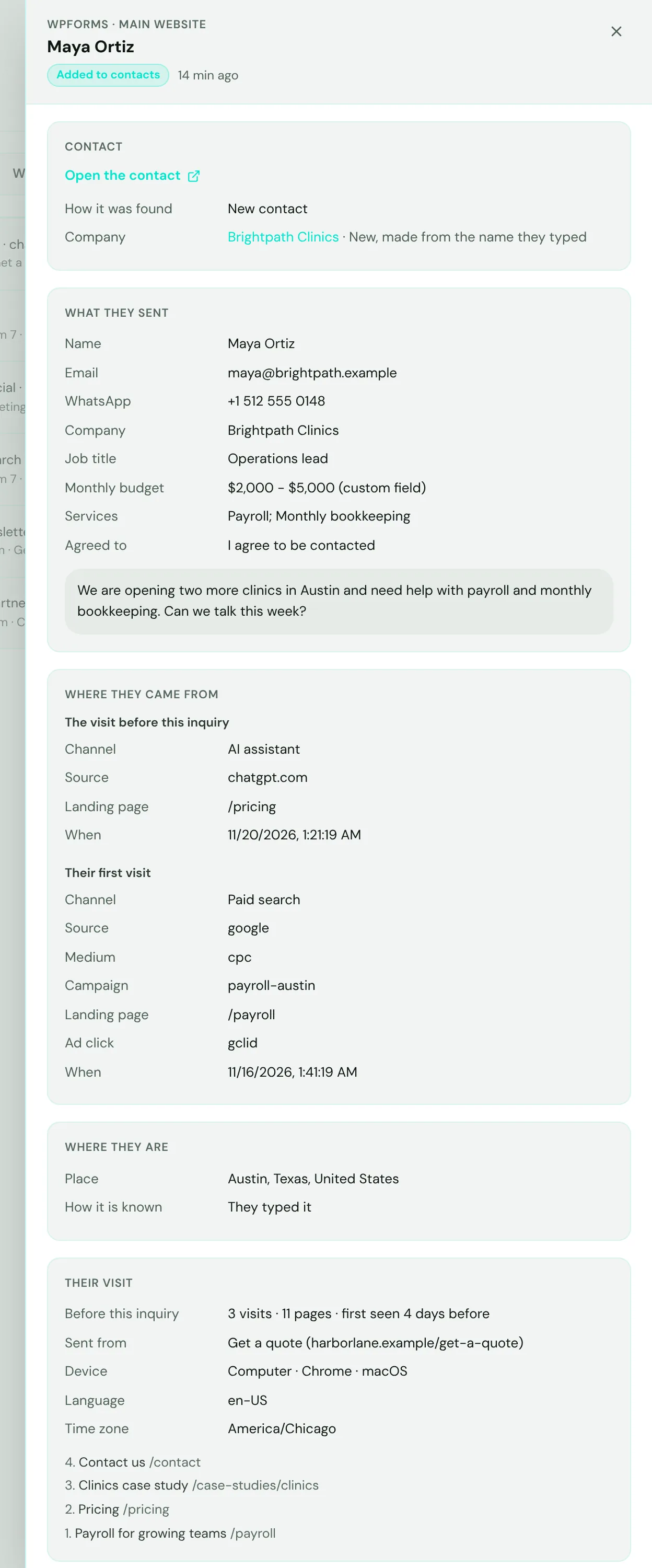
- Mark 1: Open the contact the inquiry became (or the one it was added to), and their company, with how it was found or made.
- Mark 2: Everything they sent, including your form's own questions, the custom fields they filled and what they agreed to.
- Mark 3: Where they came from: the visit before the inquiry and their very first visit - the channel, source, campaign and landing page.
- Mark 4: Where they are, and how it is known.
- Mark 5: Their visit: how many visits and pages before they asked, the pages they saw, their device, language and time zone.
A held inquiry has two buttons: Add to contacts, and Mark as spam. Spam inquiries are deleted after 90 days by your retention rules (Admin, then Privacy, then Retention - you can choose 30 days to a year).
Where they are
The CRM fills in a contact's country and city from the best source there is, and says which one it used:
- What they typed in the form - a country or city field.
- The country code of a phone or WhatsApp number written with + or 00 (country only, approximate).
- Their internet connection - the city and country their network is registered in (approximate). The network address is used for this one lookup and never kept.
- Their browser's time zone (country only, approximate).
An existing contact's country and city are never changed - they are only filled when empty.
Source and journey on each contact
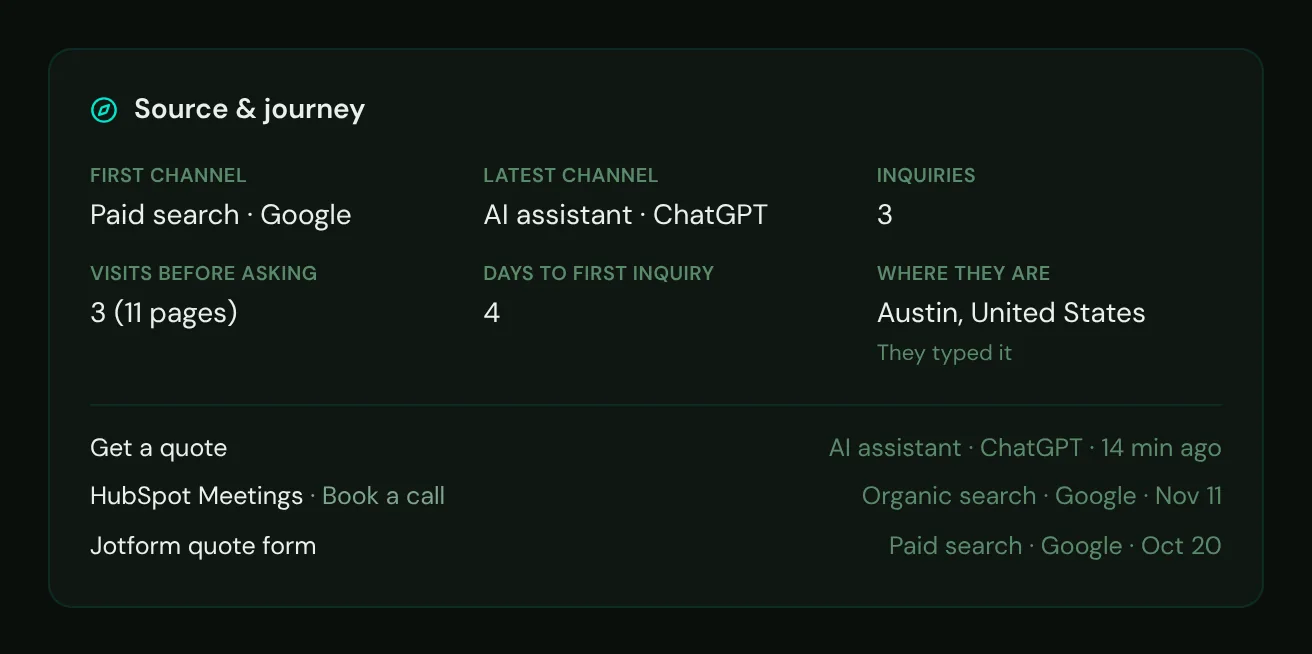
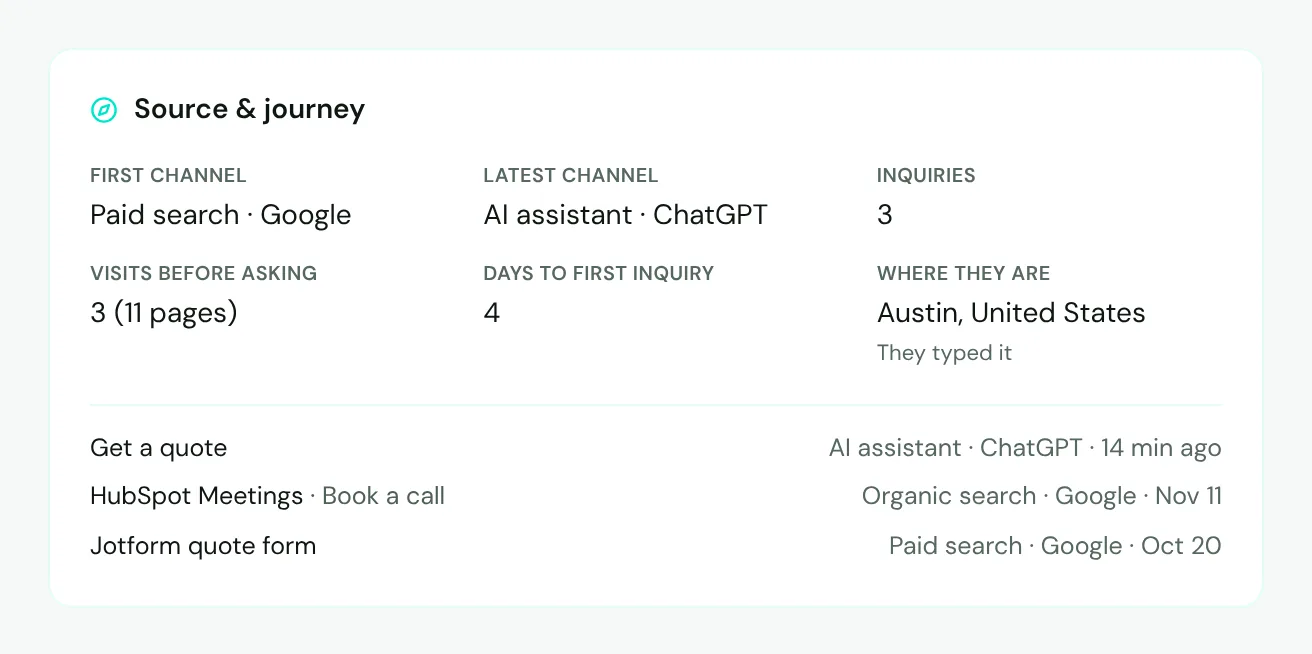
- Mark 1: The channel that first brought them, and the latest one.
- Mark 2: Where they are, and how it is known.
- Mark 3: Their last inquiries: the form, the page, the channel and when.
The card shows on the page of every contact that came through your websites or form emails, for everybody who may see that contact. The first channel never changes once set; the latest channel follows each new inquiry.
Privacy
The inquiry itself - what the visitor typed, and the page it was sent from - always arrives. Visit history (how many visits, the first source) is kept in the visitor's own browser and sent only with an inquiry; with "only after the visitor agrees" nothing is kept until your cookie banner says yes, and a browser that sends Global Privacy Control is never tracked. Nothing is sent when a visitor only reads your pages.
The visitor's network address is used once to look up their approximate place and is never stored. The lookup uses IP Geolocation by DB-IP (db-ip.com), kept on our own servers - the address is not sent to anyone. The visitor's Google Analytics id is kept only when they allowed analytics.
Important
Say on your website's privacy page that your forms send what visitors type, with how they found your site and their approximate location, to your CRM.