

At a glance
- Add a marketing domain set to send through outreach mailboxes, then add its mailboxes once the records are in place.
- Each mailbox is checked with a test email before it is saved, and its password is kept in Google Secret Manager.
- Each one warms up from 5 emails a day to its own limit, 40 by default.
- Replies to Google and Zoho mailboxes come back into the CRM.
Before you start
- Who does it
- A workspace admin, with the Marketing domains add-on.
- Where it is
- Admin, then Email settings, Marketing domains: open the domain.
- What you need
- Mailboxes made on the domain at Google Workspace, Zoho Mail or your email host, with their passwords. For Google, an app password for each.
Add a mailbox
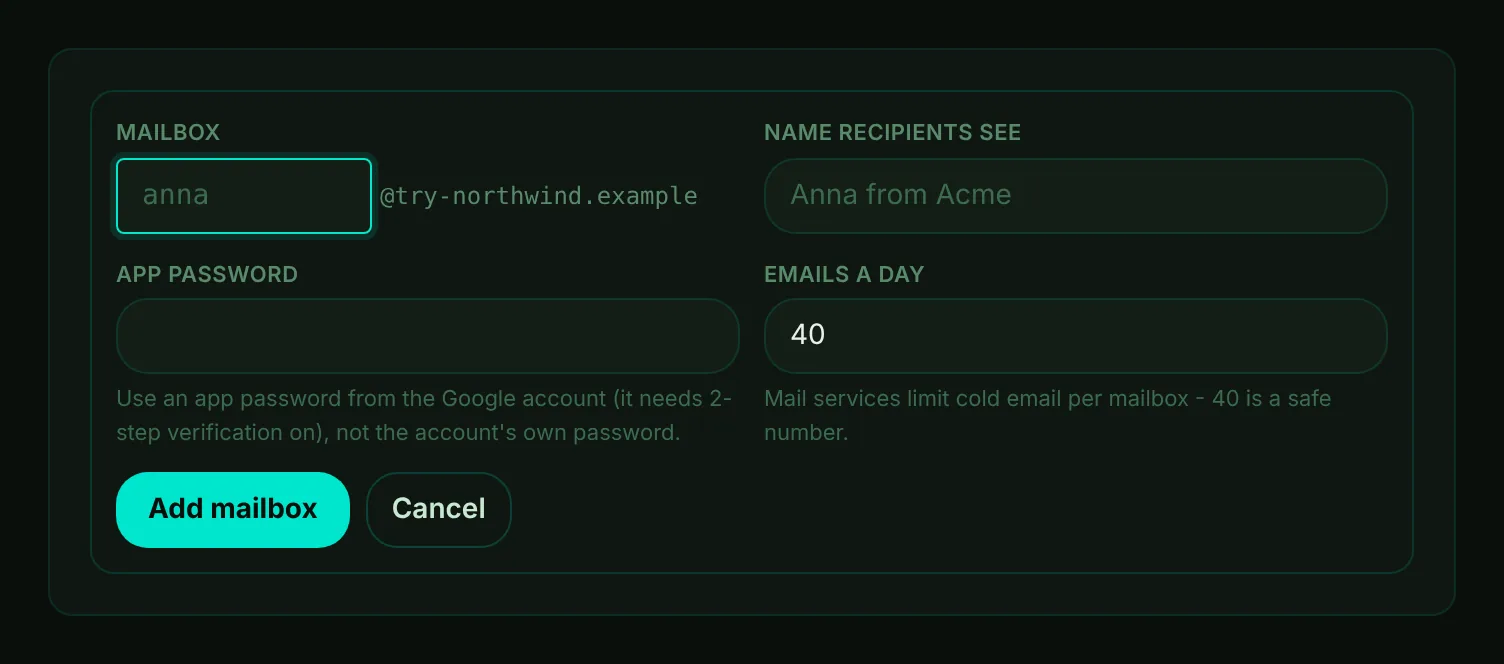
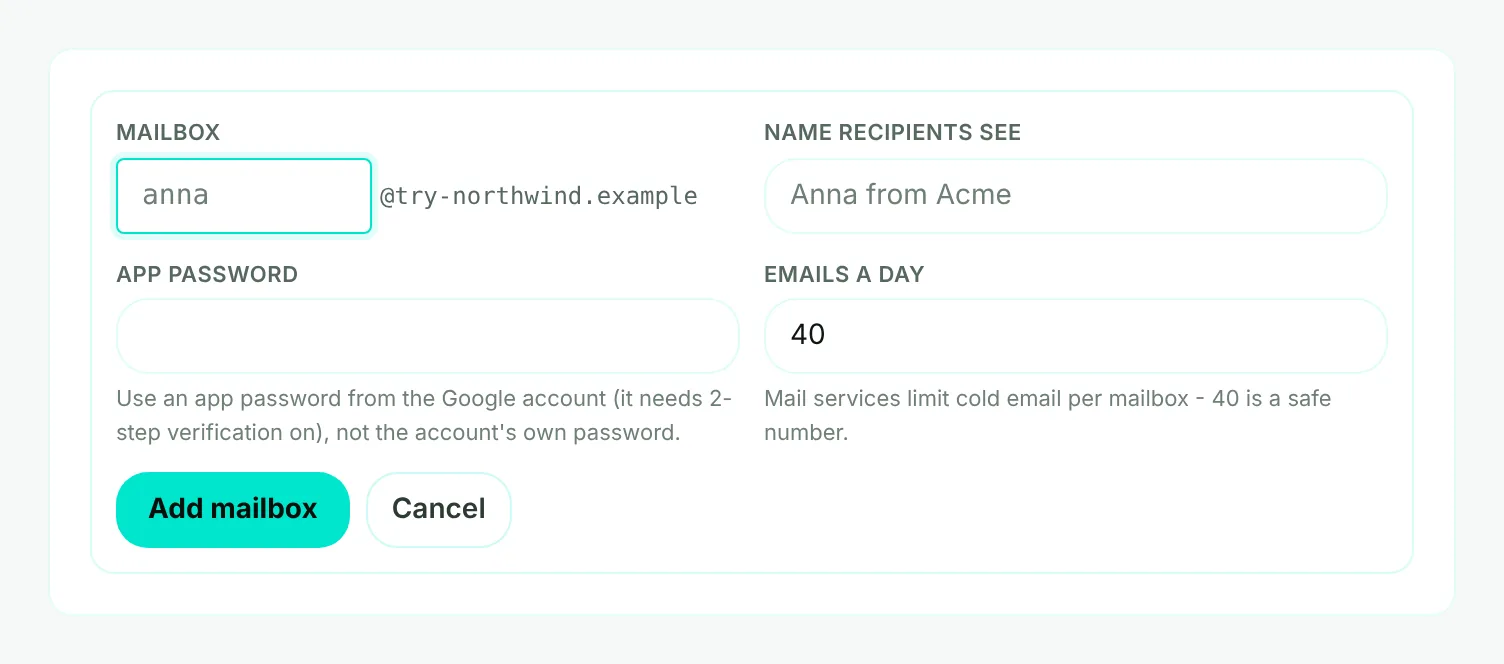
- Mark 1: The mailbox name. The domain is added for you.
- Mark 2: The name recipients see, such as Sam from Northwind.
- Mark 3: Its password. Google asks for an app password, made in the Google account with 2-step verification on.
- Mark 4: Emails a day once warmed up - 40 is a safe number, and 100 is the most Moirova allows.
- Mark 5: Add mailbox - Moirova signs in and sends a test email to you before saving.
- Make the mailboxes. At Google Workspace, Zoho Mail or your email host, make a few mailboxes on the marketing domain, each for a real person on your team. Moirova connects to a mailbox; it does not create one.
- Open the domain. In Marketing domains, open the domain and choose Add a mailbox. The button is ready once the domain's records are in place.
- Enter the mailbox. Its name, the name recipients see, its password and how many emails a day.
- Choose Add mailbox. Moirova signs in, sends one test email to you, and keeps the password in Google Secret Manager.
See your mailboxes
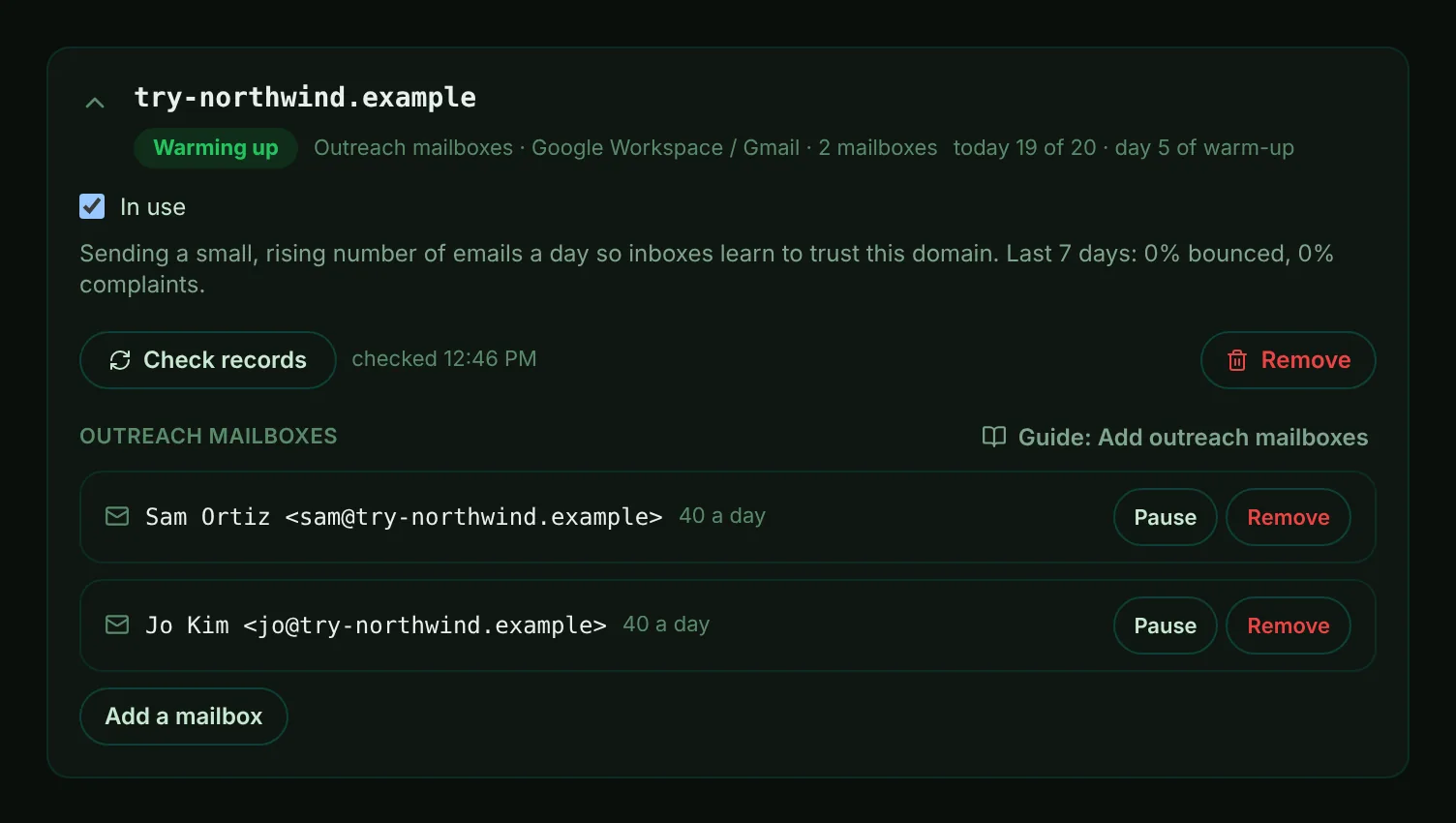
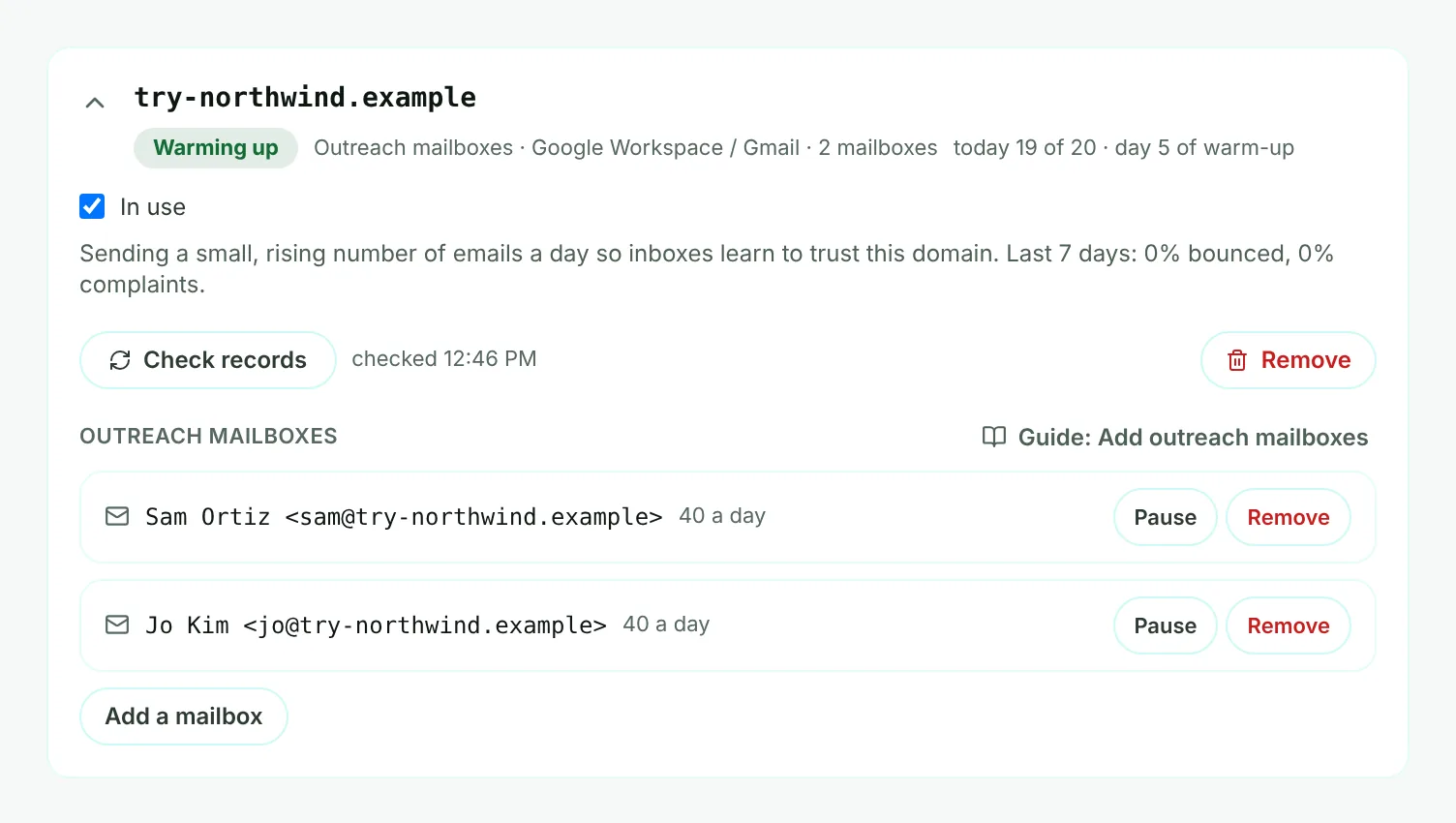
- Mark 1: The domain's state - here it is warming up.
- Mark 2: Today's sending against today's limit, across all its mailboxes, and the day of warm-up.
- Mark 3: Pause or Resume one mailbox, or remove it with its password.
- Mark 4: Add a mailbox - up to 50 on one domain.
Campaigns that send from this domain go out from its active mailboxes in turn, each within its own limit for the day. A mailbox whose password stops working is marked, and the others carry on.
Use them the way mail services expect
- Keep the daily numbers low. Mail services limit how much one mailbox may send, and cold email is judged more strictly than mail people expect.
- Write to people with a real reason to hear from you, and keep every message personal.
- Use your sending service, not outreach mailboxes, for newsletters and larger lists.
Important
Google and Zoho do not allow bulk email from a mailbox. Keep outreach mailboxes within your mail service's terms.